Add and remove players
Add a player or guest to an event, and remove or promote from the waitlist.
Add a player
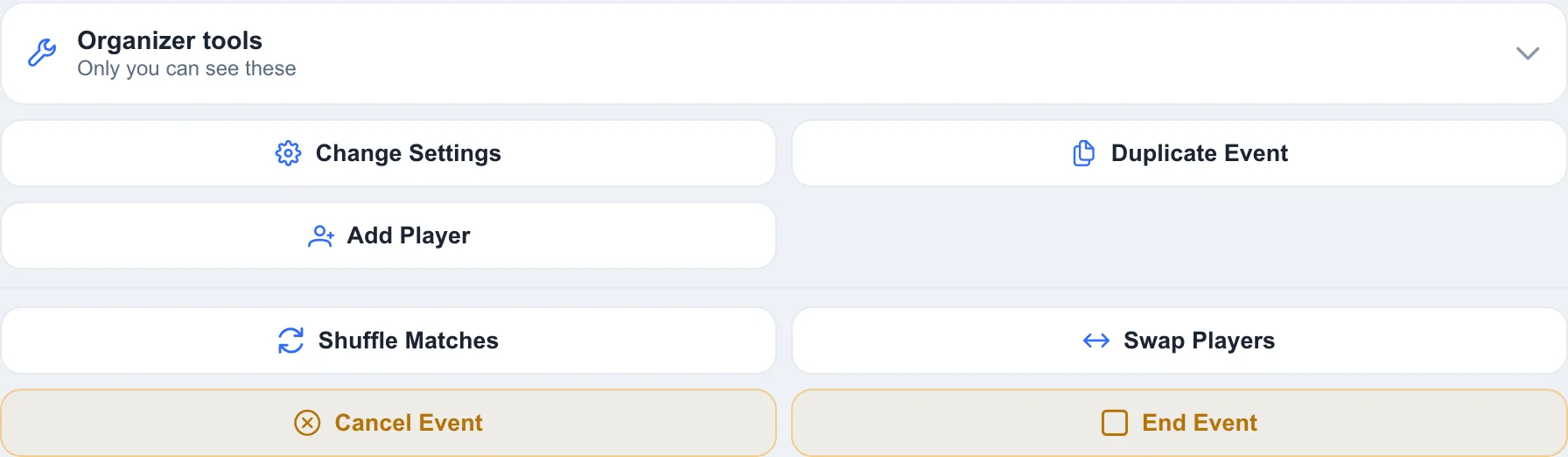
Section titled “Add a player”- Open Game Functions and tap Add Player to open the Add Player to Game dialog.
- The list shows group members who aren’t in the event yet. Tap Add (the + button on a phone) to add a player. They go straight to Going, even if the event is full, so you can add a sub before removing someone. In events that balance genders, they go to the waitlist once the event is full. Type a name to filter the list. Players who are already in still turn up when you search, greyed out with their status (Going or Waitlist). On a private event, you can tap Invite instead. The player gets a notification and decides whether to join.
- Adding someone who isn’t in the group? Tap Add Guest Player at the bottom of the dialog (anything you typed in the search fills in their name), then enter their first name (last name optional), gender, and skill level — a guest exists for that game only.
Remove a player
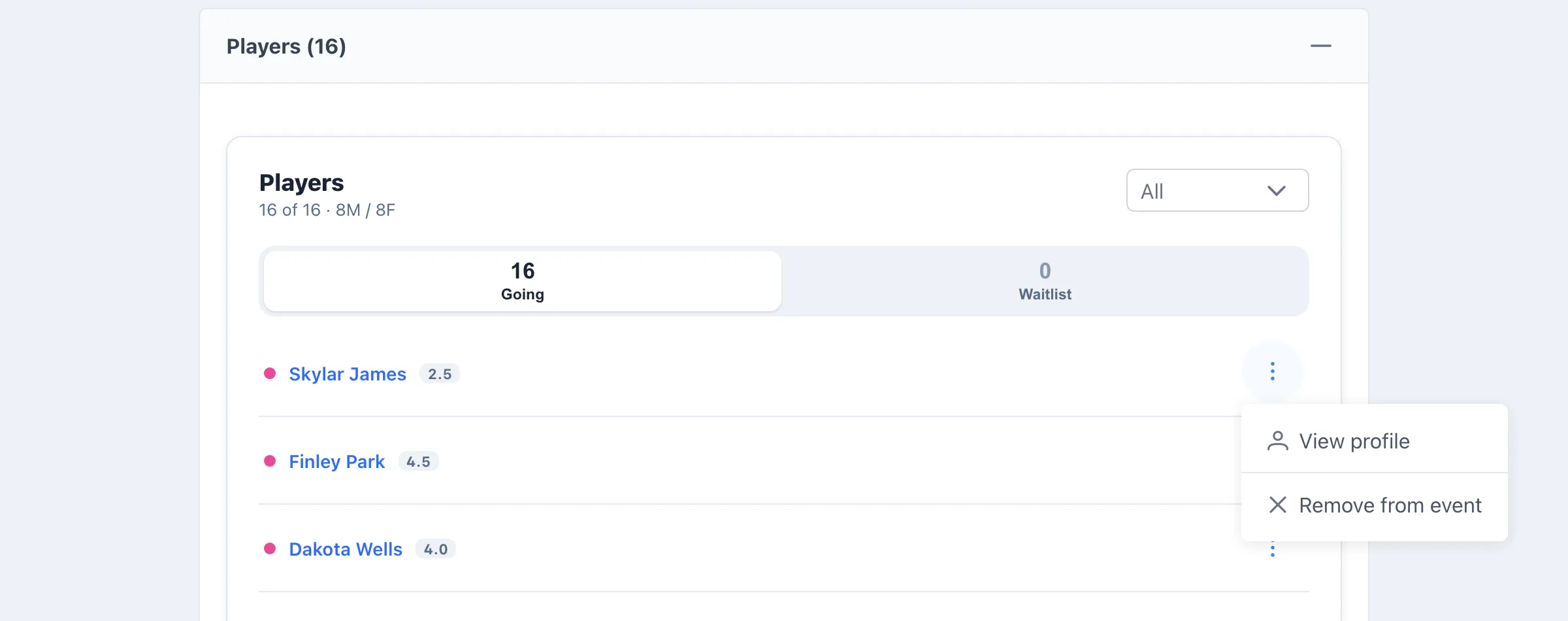
Section titled “Remove a player”- On the participant’s row, open the menu and choose Remove from event (or Remove from waitlist for a waitlisted player).
- If Automatically promote from waitlist when slots become available is on, the next person up is pulled into the open slot automatically.
- Waitlisted rows also have a Promote to Going option if you want to move someone up by hand.