
Let players enter their own scores
Share one link or QR code; players sign in, claim their name, and enter scores from their phones while you watch every result come in.
Instead of collecting scores yourself, give players a link. They pick their name on the roster and follow their games, and in Club Match and any event with Track Scores on they enter their own scores as each game ends. The link works for every Play Now format.
Share the player link
Section titled “Share the player link”-
Open Game Functions and select Player link.
-
Select Copy link and send it to your players, or show the QR code for them to scan.
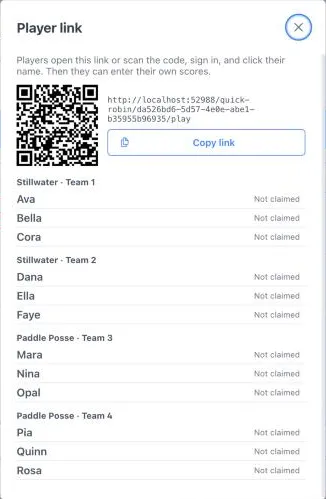
Players can claim their name at any time, even before you start the event. They can enter scores (and, in Club Match, tosses and lineups) once you start it.
Link a player’s account yourself
Section titled “Link a player’s account yourself”You can link a name to a player’s Dink+ account so they don’t have to claim it. They get a notification that you added them, the event shows up on their Home and Events tabs, and they can do everything a player who claimed their name can.
While you set up the event, start typing the player’s name in a name field. Dink+ suggests matching accounts as you type. Select the right person, and the name is filled in and linked in one step; a link icon appears in the field. Clearing a linked name removes the link. If you don’t select anyone, the name you typed stays a guest, and that person can still claim it later with the player link (for example, after creating an account on the day).
After you start, open Game Functions, select Player link, then select Link account next to the name and search by name or their full email address.
To undo a link, open Player link (before the start, Player link & accounts under the player list) and select Unlink next to the name.
What players see
Section titled “What players see”Players need a Dink+ account. They open the link, sign in with Google or Apple (or create an account), and select their name.
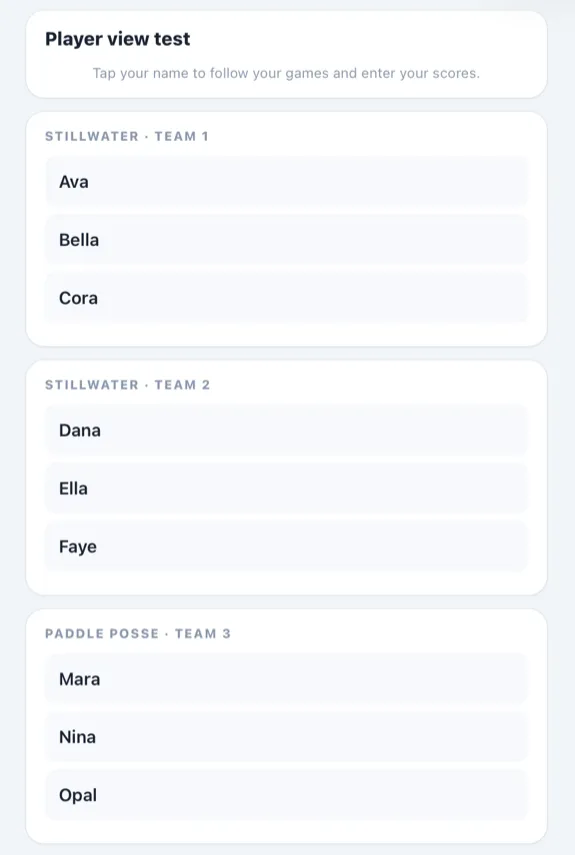
After that, the Now tab shows what they need to do next, and Matches and Standings follow the event.
- Club Match: the player’s team walks through the coin toss, its lineup, and each game’s score, plus the DreamBreaker if the team match ends 2–2.
- 3v3 Team Event: their team’s games and, with Track Scores on, the scores.
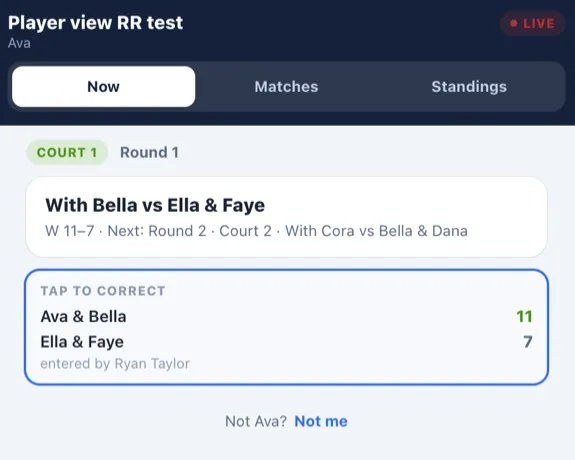
- Round Robin, Mixed Doubles, and Fixed Team: their game this round with a score card (when Track Scores is on), “You’re sitting out” on a bye, and then their next game.
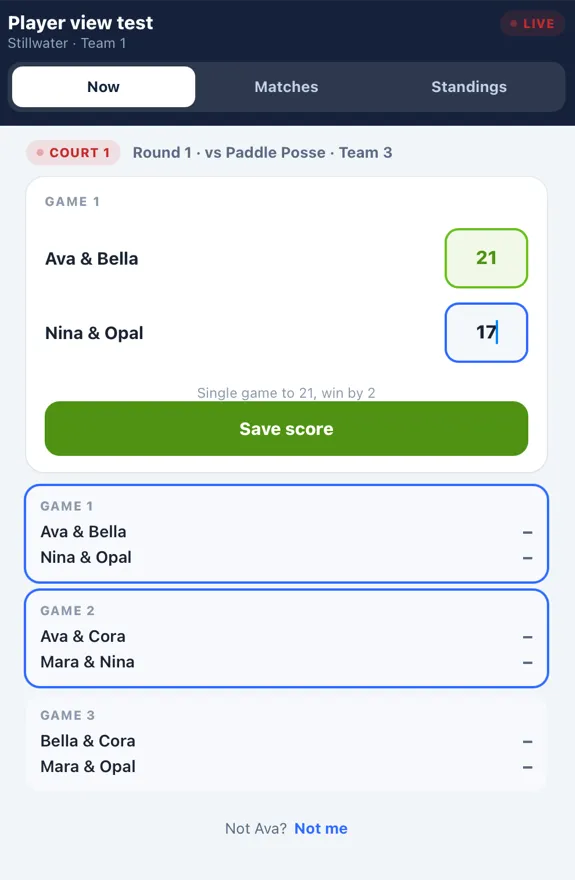
Scores count right away
Section titled “Scores count right away”A saved score shows up at once on your event page, in the standings, and on the TV Display. Each game a player saved shows entered by and their name. You can correct any score, and so can any player in that game.
Fix a wrong claim
Section titled “Fix a wrong claim”- A player who picked the wrong name selects Not me at the bottom of their screen.
- You can also open Player link and click Unlink next to the name. It asks you to confirm, and the player has to claim a name again.
When a player claims a name, or you link one, the name changes to the name on their account, so “Ryan” becomes “Ryan McDonald”. Each account can claim one name per event, and a name can be claimed by one account.
Who can do what
Section titled “Who can do what”Players act only on their own team’s matches or their own games. Only you and any Co-Scorer can change settings, players, or lineups after they’re posted, or end the event.