Run a club match
Set up a club-vs-club Play Now event, record each coin toss, have captains declare lineups, and score every game.
A club match pits two clubs against each other. Each club brings several teams, every team plays teams from the other club, and each team match is a set of doubles games. This page walks through a typical night: 4 teams of 3 per club, 4 courts, games to 21.
For the rules of the format itself, see Club Match.
Set up the match
Section titled “Set up the match”-
Open Play Now and tap New event.
-
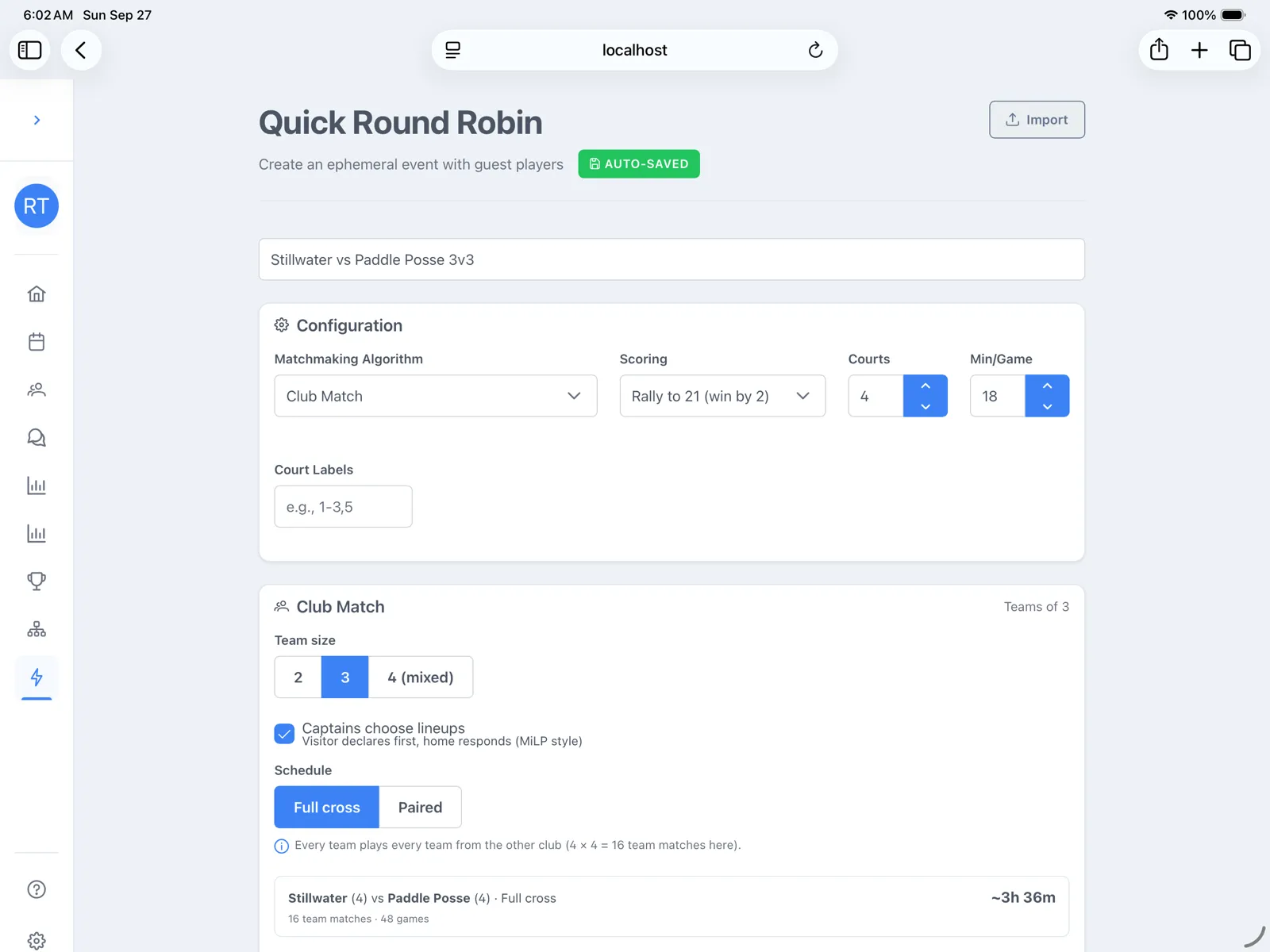
Under Pick a format, tap Club Match. On the setup screen, choose Scoring, Courts, and Min/Game.
-
In the Club Match card, pick a Team size:
2,3, or4 (mixed). -
Leave Captains choose lineups on. This is what lets each captain decide who plays which game.
-
Pick a Schedule. Full cross means every team plays every team from the other club. Paired means each club’s first team plays the other club’s first team, the second plays the second, and so on.
-
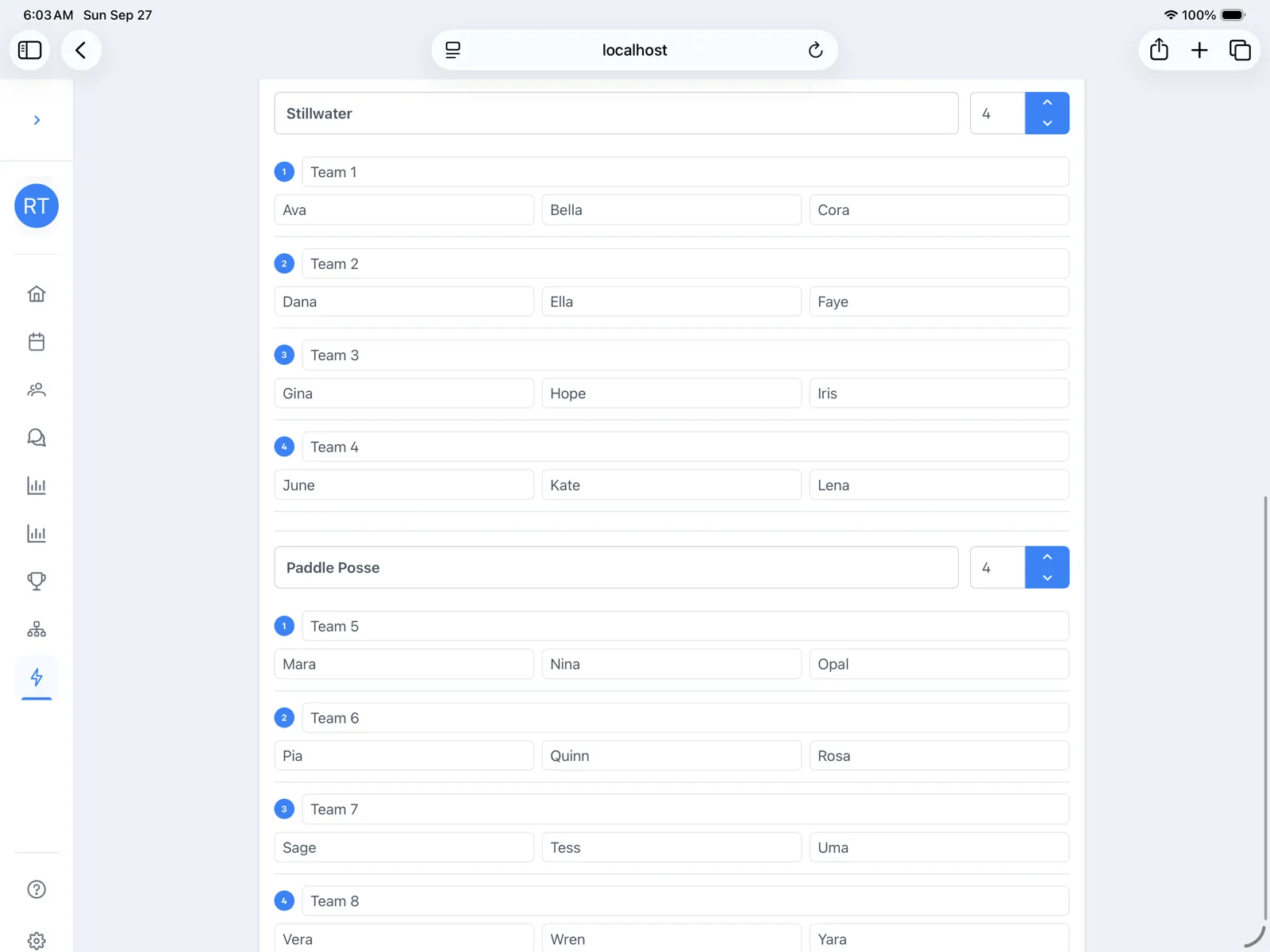
Name both clubs, set how many teams each club has, and type every player’s name. You can rename teams too.
-
Tap Start Event. If it’s greyed out, the list under Fix before starting: says what’s missing, such as a blank name or a name used twice.
Check the rosters first: once a club match starts, you can’t move players between teams or change settings. You can still fix names and court numbers.
How the event page is laid out
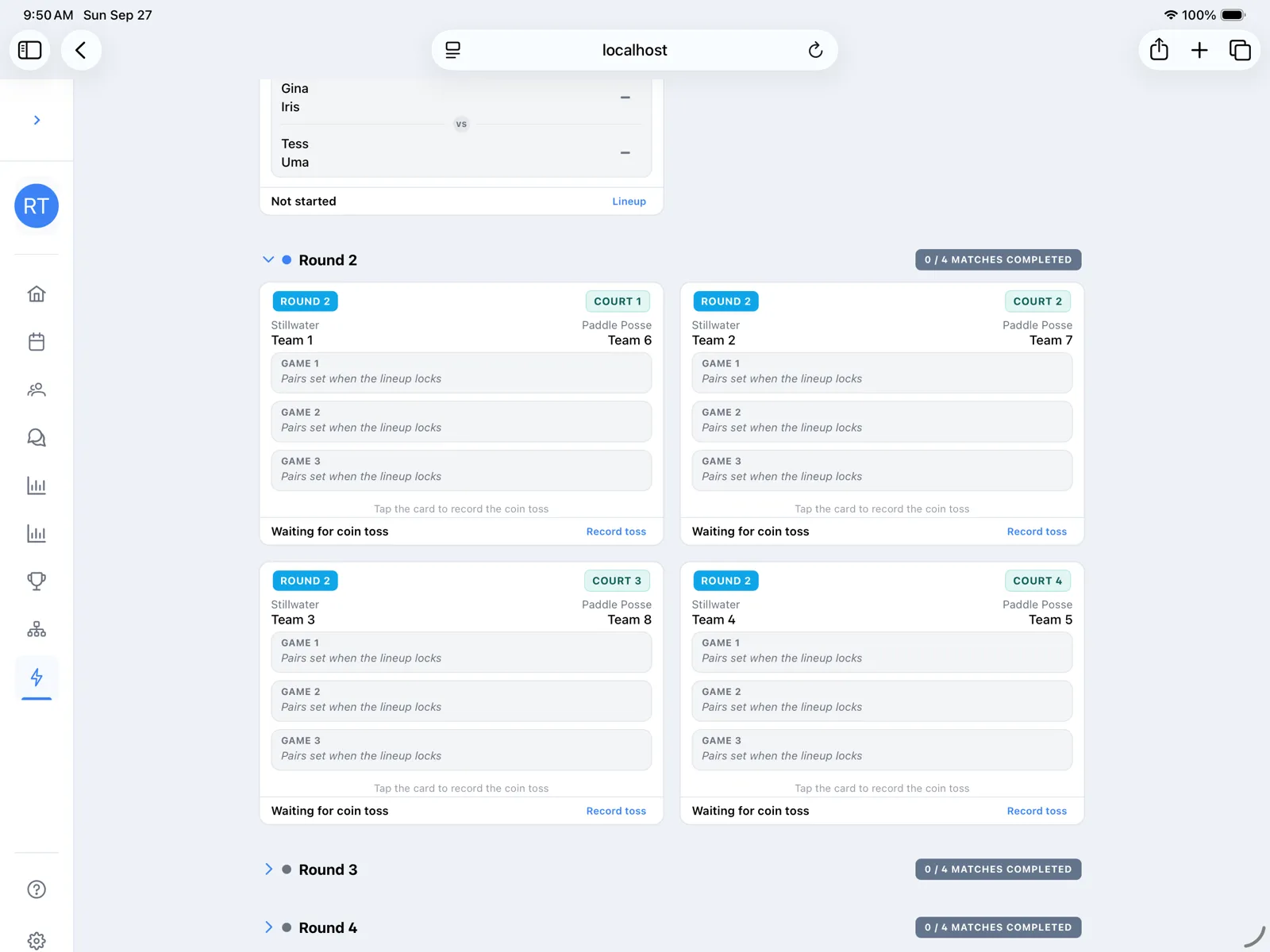
Section titled “How the event page is laid out”Each round is one team match on each court. Each card shows every game in that team match, so a 3-player match has 3 games on one card. The club scoreboard above the rounds keeps the club score.
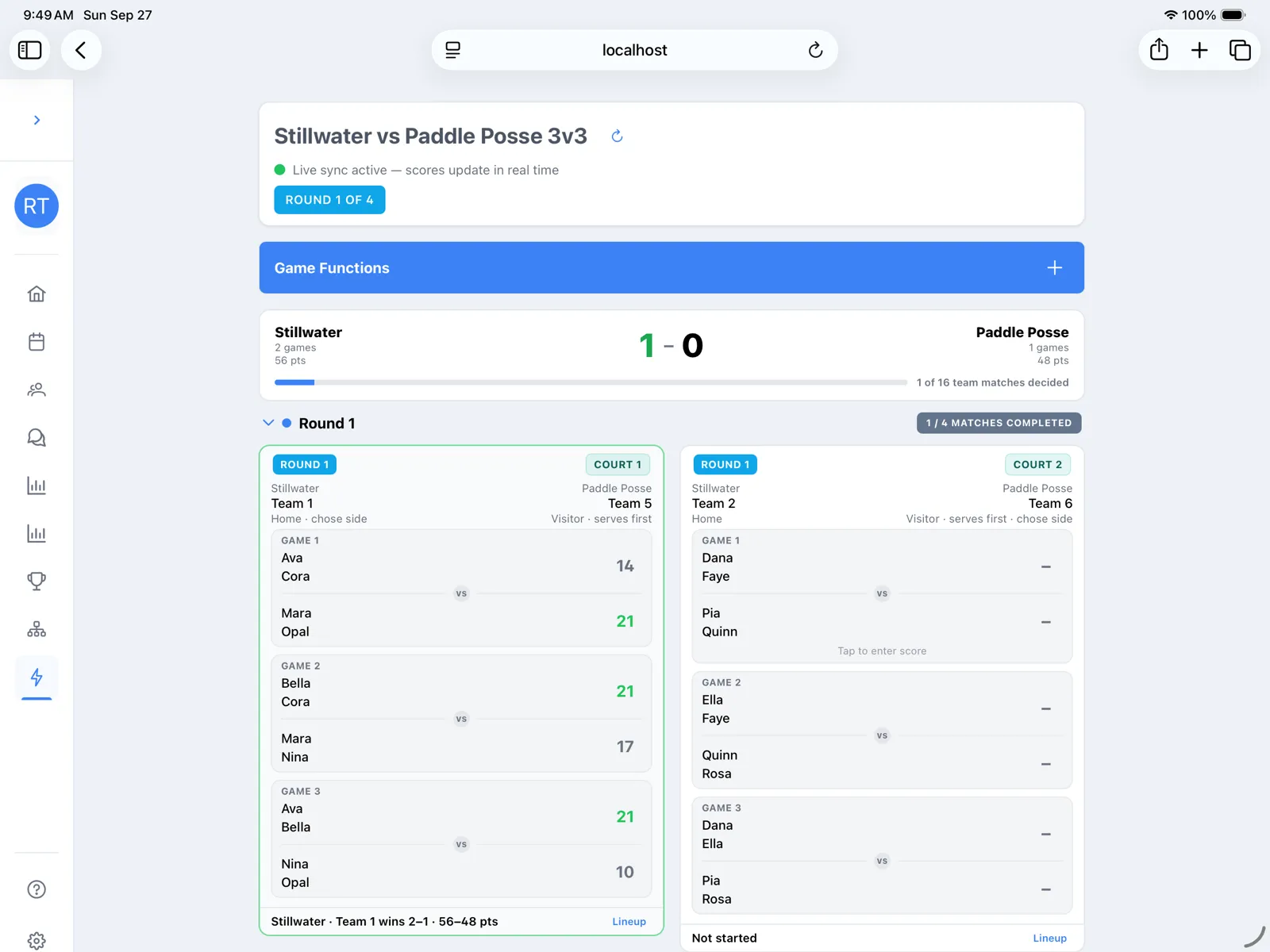
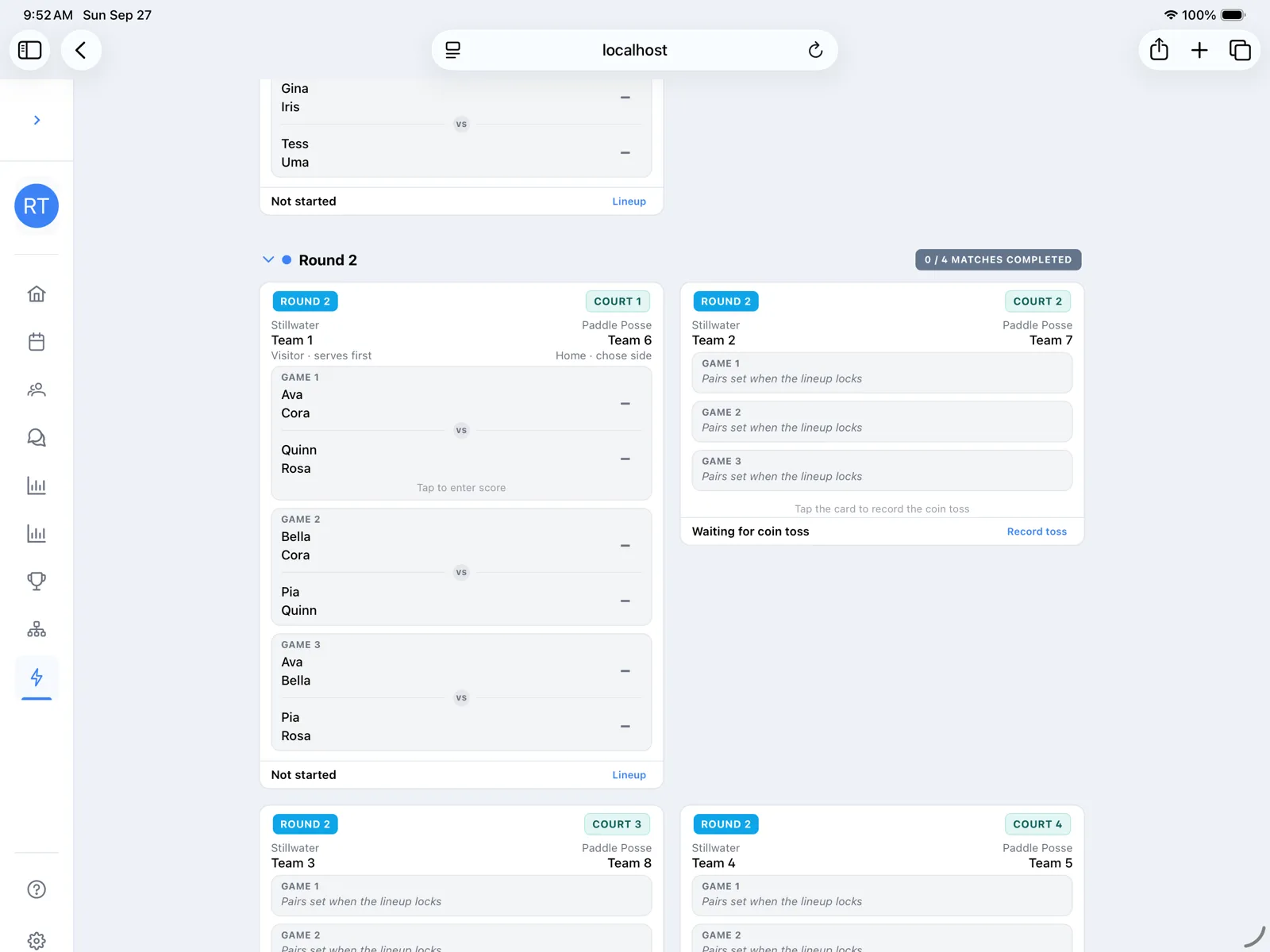
Until a team match has its lineup, the card says what’s needed next: Waiting for coin toss, Waiting for visitor lineup, or Waiting for home lineup. Tap the card to do that step.
Record the coin toss
Section titled “Record the coin toss”The clubs decide the toss themselves, with a coin or a dice roll. Dink+ only records the result.
- Tap a card that says Waiting for coin toss, or tap Record toss.
- Choose who is the Home team, who Serves first, and who Chose side.
- Tap Save toss.
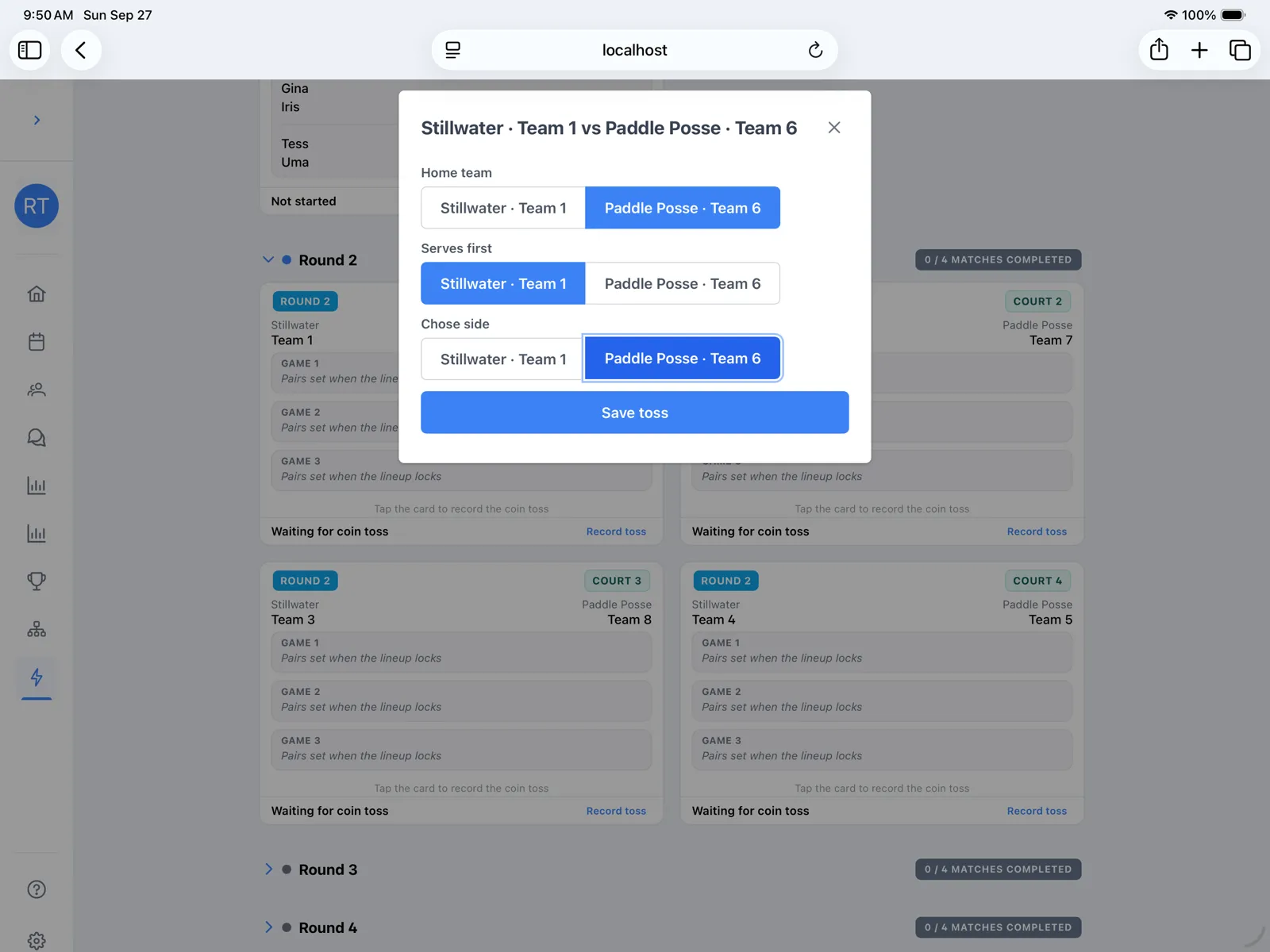
Made a mistake? Edit toss is available until the visitor’s lineup is posted.
Post the visitor’s lineup
Section titled “Post the visitor’s lineup”The visiting team always goes first.
- For each game, tap the pair who will play it.
- Once the earlier games are picked, the last game fills itself in (“filled in for you”), because only one legal pair is left.
- Tap Post visitor lineup.
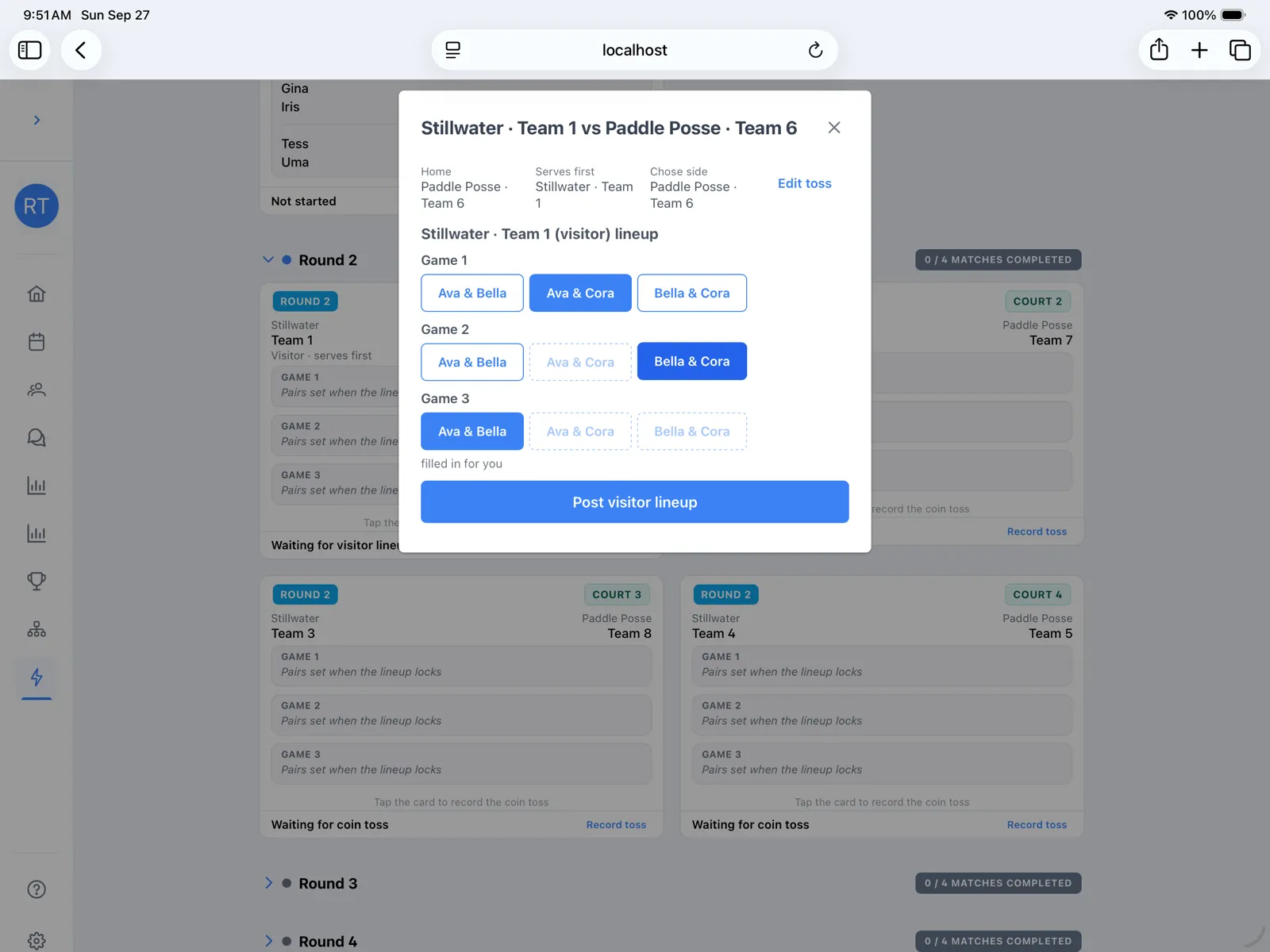
Pairs that would break the rules are greyed out. With 3 players, everyone plays exactly 2 games and no pair plays together twice, so you can’t post an illegal lineup by accident.
Lock the home lineup
Section titled “Lock the home lineup”The home captain now sees the visitor’s pair for each game and picks who plays against them.
- For each game, look at the Visitor pair, then tap your pair.
- Tap Lock lineup.
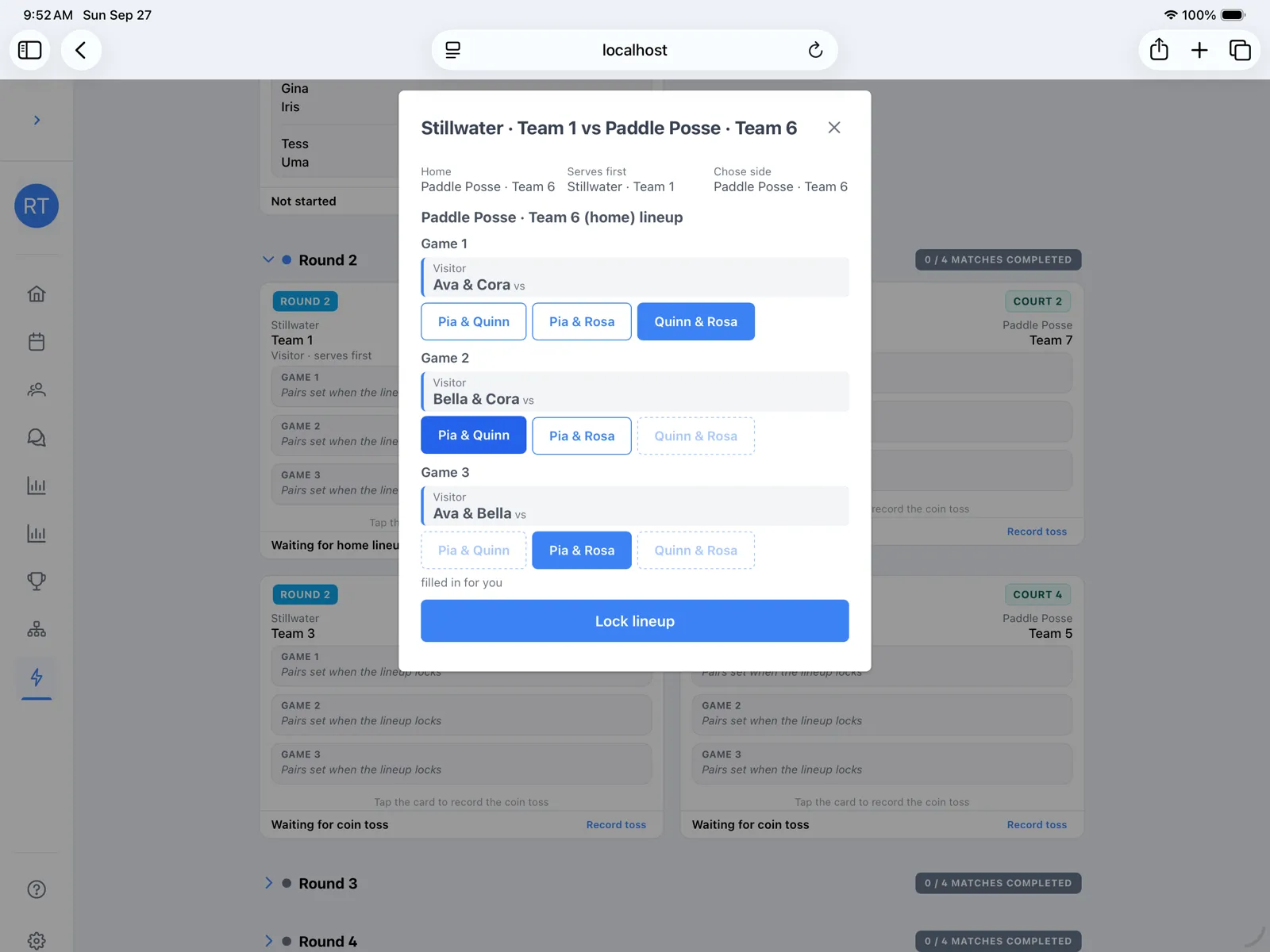
After the toss, the card shows who is home, who serves first, and who chose side. Once locked, it also shows every game’s pairs.
Enter scores
Section titled “Enter scores”- Tap a game on the card.
- Type both scores and tap Save.
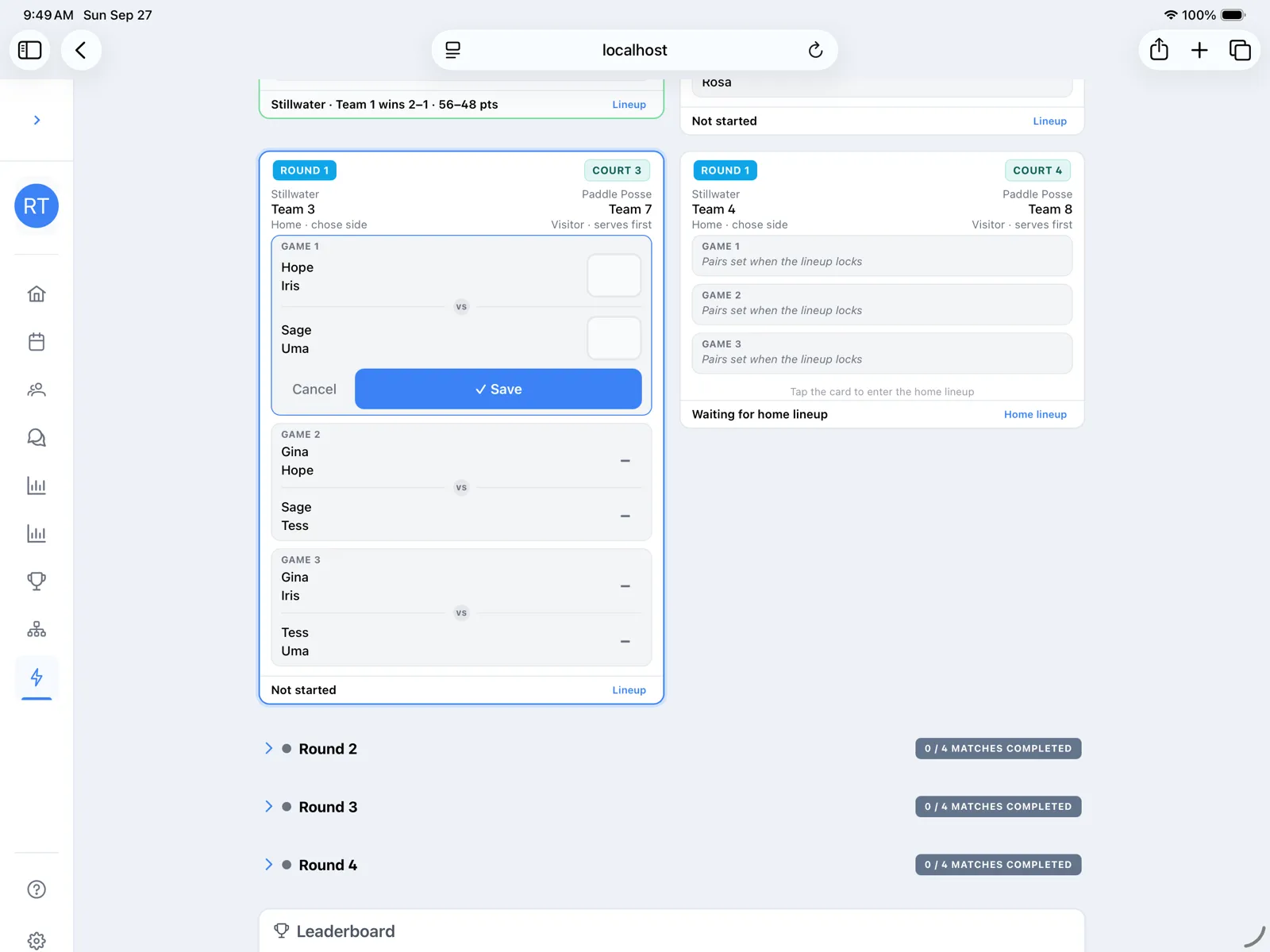
Each game saves on its own, so you can enter scores after each game or all at the end. Play every game, even when a team is already up 2–0.
Players can enter their own scores from their phones; see Let players enter their own scores.
The line at the bottom of the card keeps the team match summary, such as Stillwater · Team 1 leads 1–0, and then Stillwater · Team 1 wins 2–1 · 56–48 pts once every game is in.
Fix a lineup
Section titled “Fix a lineup”Open the card’s Lineup link and tap Reset lineup, then confirm. This clears the toss and both lineups so that team match starts over.
- Reset lineup is also on the home step, so a wrong visitor lineup can be cleared before home locks.
- You can reset only until a game in that team match has a score.
Fix a name or court number
Section titled “Fix a name or court number”- Open Game Functions and tap Edit Event.
- Change the Event name, Court labels, a Club name, a team name, or a player’s name.
- Tap Save.
Court labels sets which courts the cards and TV show, in order. For example, 5-8 turns courts 1–4 into 5, 6, 7, and 8.
Renaming doesn’t change any matchups, lineups, or scores, so it’s safe in the middle of the night.
Standings
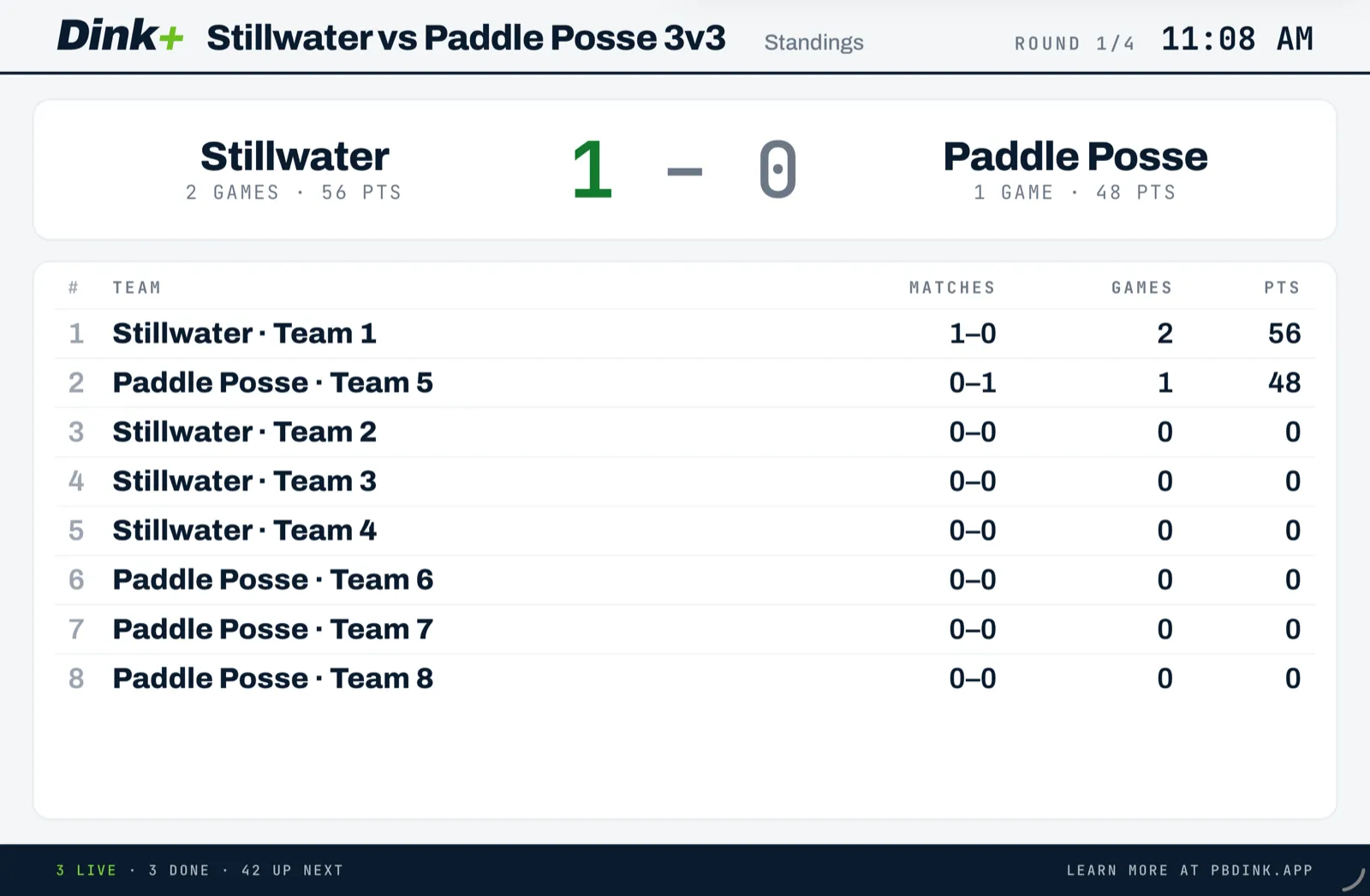
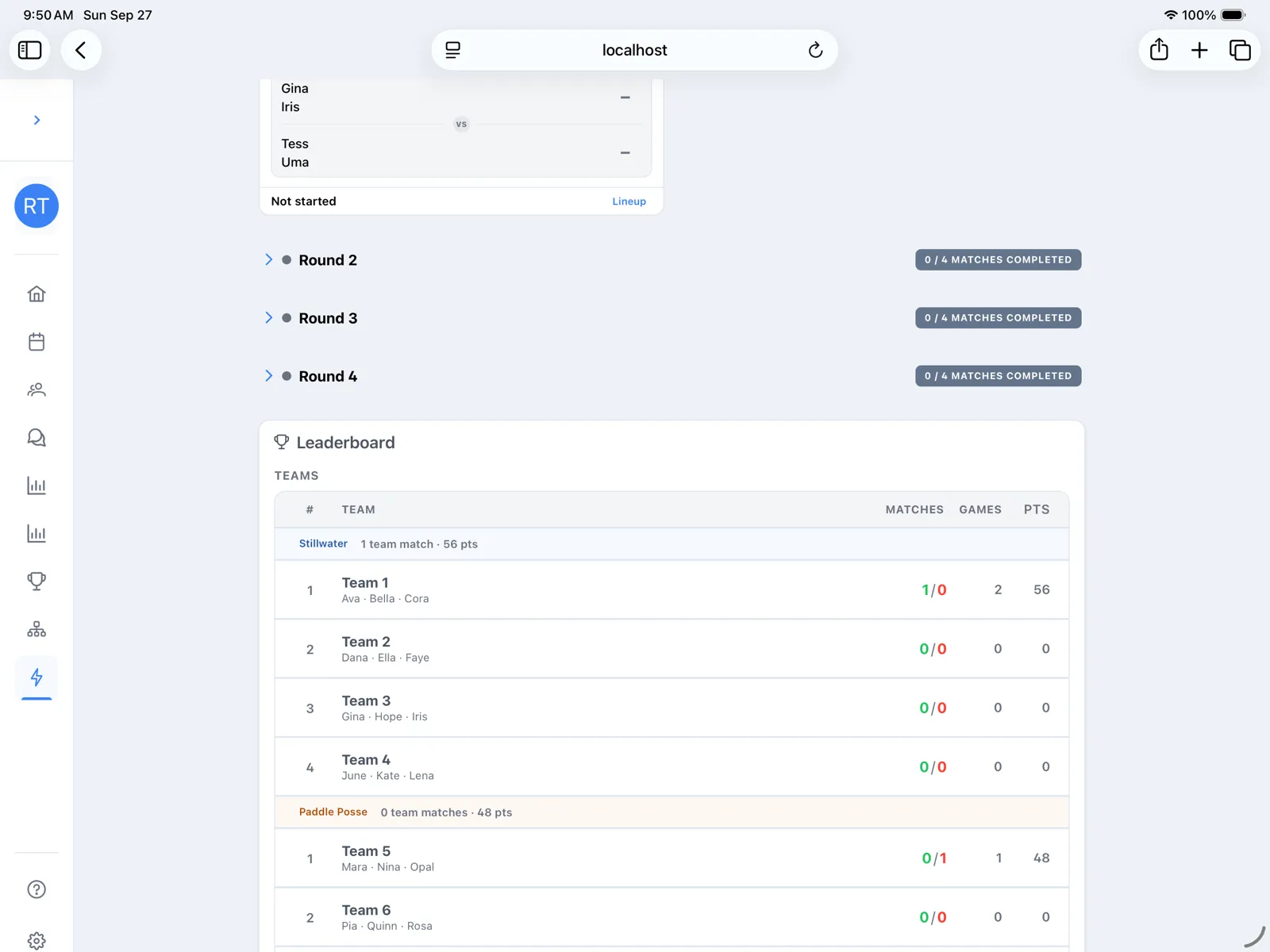
Section titled “Standings”The Leaderboard groups teams by club. Teams rank by team matches won, then games won, then points. The club scoreboard adds up each club’s teams: team matches first, with games and then points breaking a tie.
Who can do what
Section titled “Who can do what”You and any Co-Scorer (added under Game Functions › Co-Scorers) can record tosses, post lineups, reset a lineup, and enter scores. Captains don’t need their own device: one scorer can enter both lineups in turn.
Players who have claimed their name through the player link can also record their team’s toss, post or lock their team’s lineup, and enter their own team’s scores. They can’t reset a lineup or change settings. See Let players enter their own scores.
Show it on a TV
Section titled “Show it on a TV”Open the event’s TV Display link on a screen at the venue. It needs no sign-in. Each court shows both teams, the game being played, and the team match score so far, such as CLUB MATCH · GAME 2/3 · 1–0. A court whose lineup isn’t locked yet shows Lineup pending, and a finished team match shows its final score until the round ends.
On their phones, spectators use the Spectator link from Game Functions instead. See Share a spectator link.
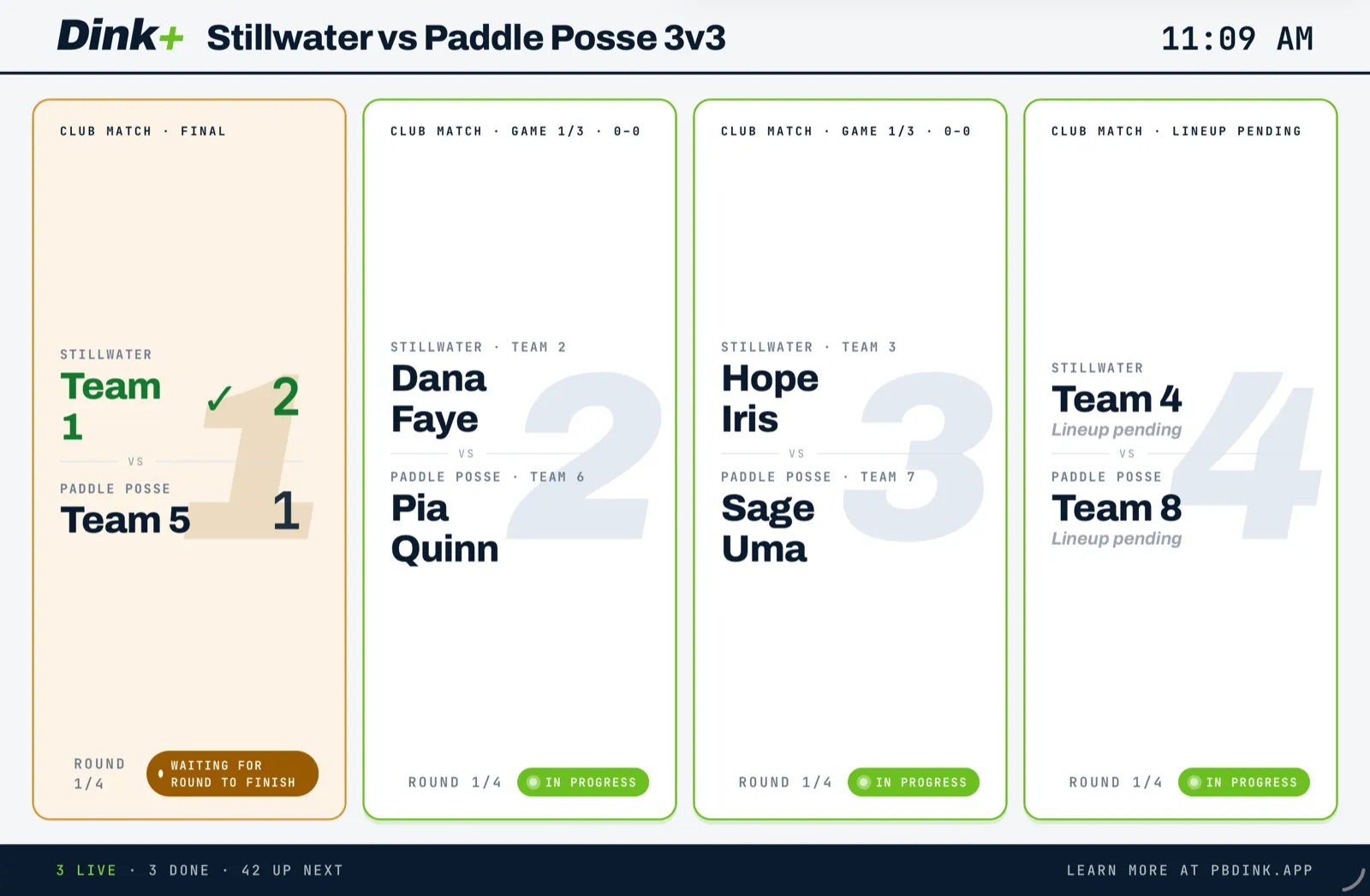
Every 20 seconds the screen switches to the standings for 10 seconds: the club score, then every team ranked by matches, games, and points. When the last game is in, the standings stay up as the final result.