
Set up and run a Play Now event
Run drop-in open play with an on-the-spot round robin and a court-side TV display.
Play Now is built for drop-in open play at a facility: no group or reservation needed, just add whoever’s on the court and start.
-
Tap New event. No group is needed — this creates a one-off session.
-
Optionally type a name, such as “Tuesday Night Mixer”. If you leave it blank, Dink+ names the session after the format and the time you pick it, for example “The Cleland · Sun 9:30 AM”. You can rename it any time.
-
Under Pick a format, tap the card for the format you want: Round Robin, Mixed Doubles Round Robin, Fixed Team Round Robin, 3v3 Team Event, Club Match, The Cleland, or Up and Down the River. Each card says what the format is, who it’s best for, and how many players it needs. See Choose a format for a side-by-side comparison.
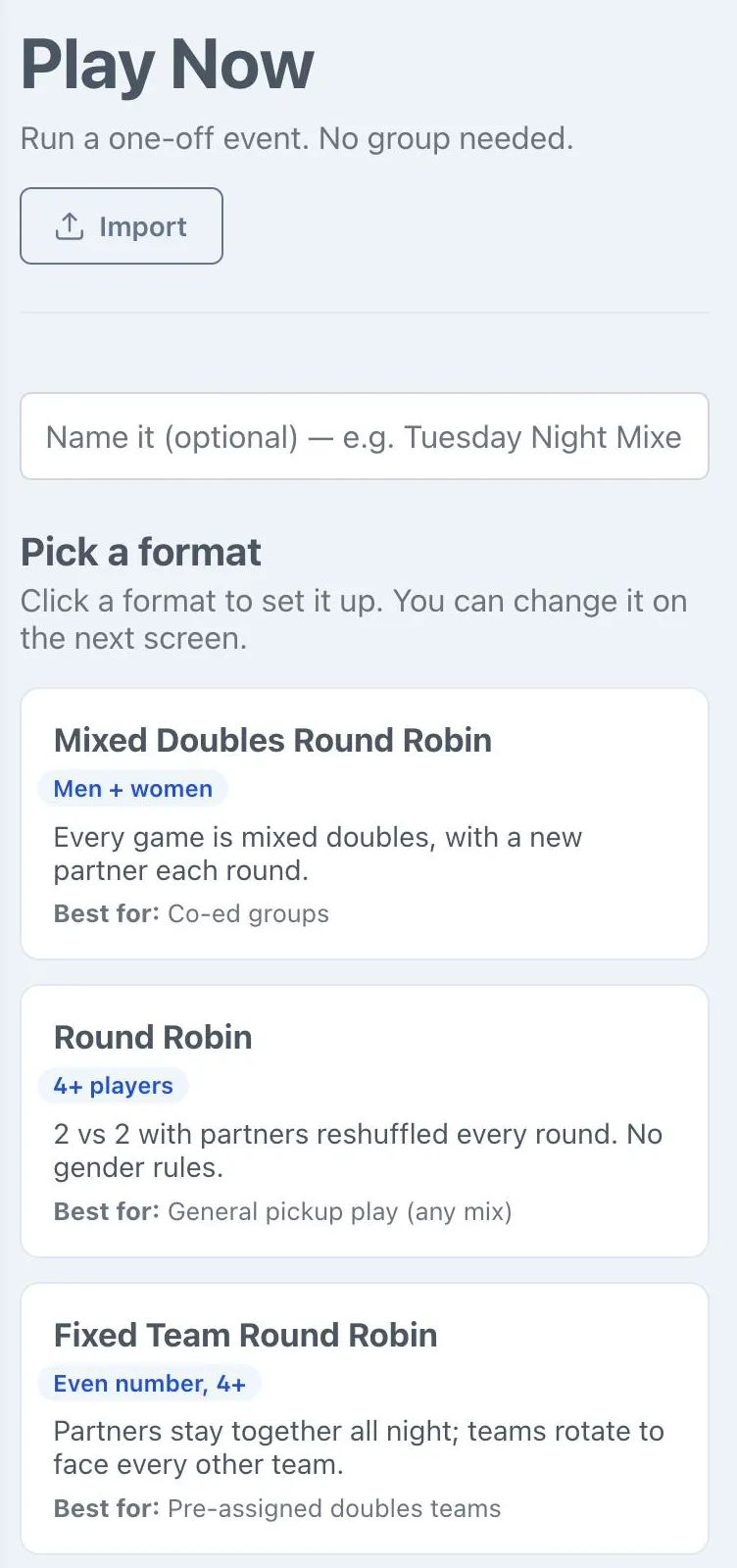
Nothing is saved until you pick a format. If you leave this screen first, no draft is left behind. The setup screen opens with that format selected. To switch, tap Change format to go back to the cards, or pick another one from the Matchmaking Algorithm list. Your name and players stay.
-
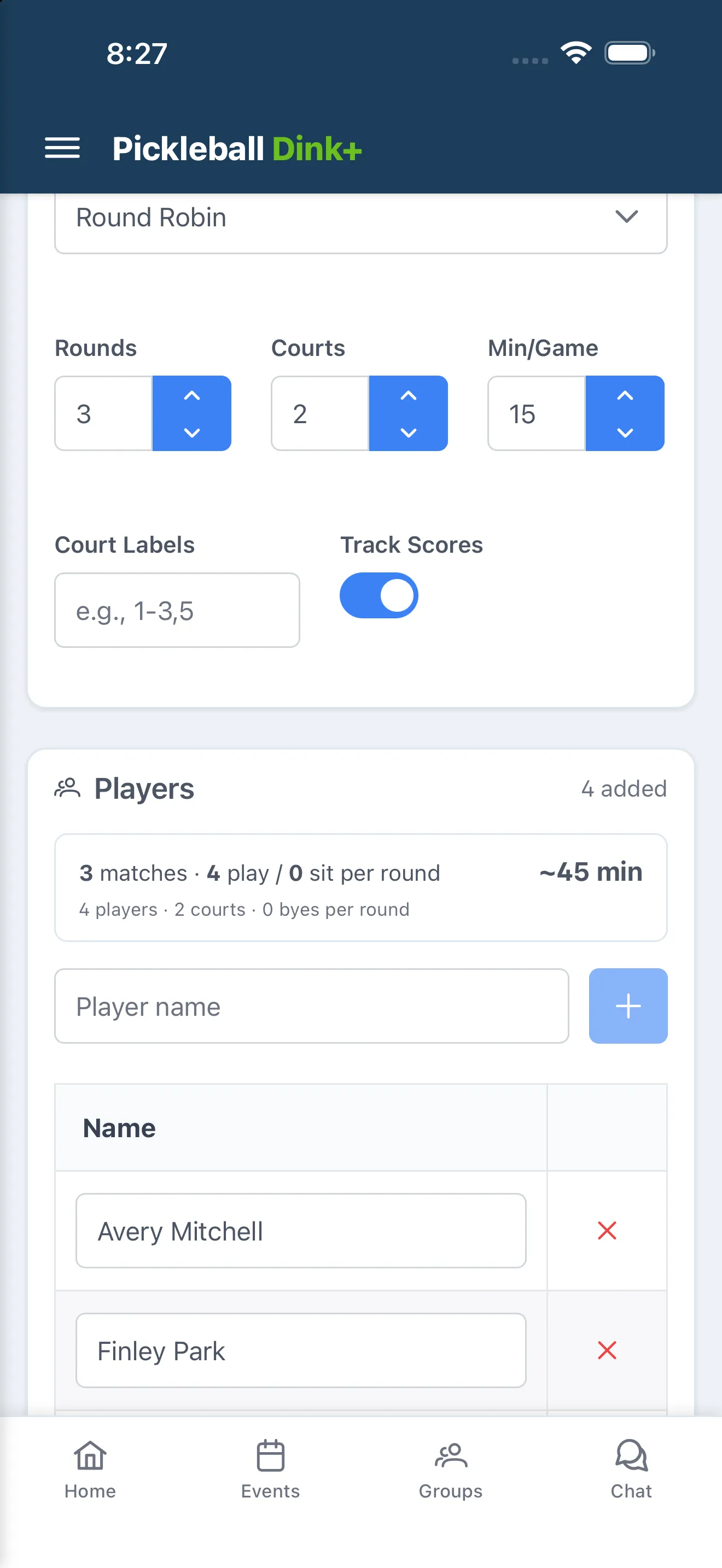
Set Scoring (3v3 Team Event, Club Match and Up and Down the River only), Rounds (hidden for 3v3 Team Event and Club Match, which run until every team has played, and for Up and Down the River, which runs until you end it), Courts, Min/Game, Court Labels, and Track Scores (hidden for Club Match, which always scores) to match how you’re playing. For The Cleland, instead of Scoring, pick a preset for Round robin, Semifinals, and Final; it always plays 8 rounds, and Rounds and Track Scores don’t appear.
-
Add players (or, for Fixed Team Round Robin, 3v3 Team Event, and Club Match, set up Teams/Teams of 3/club rosters instead).
-
Tap Start Event.
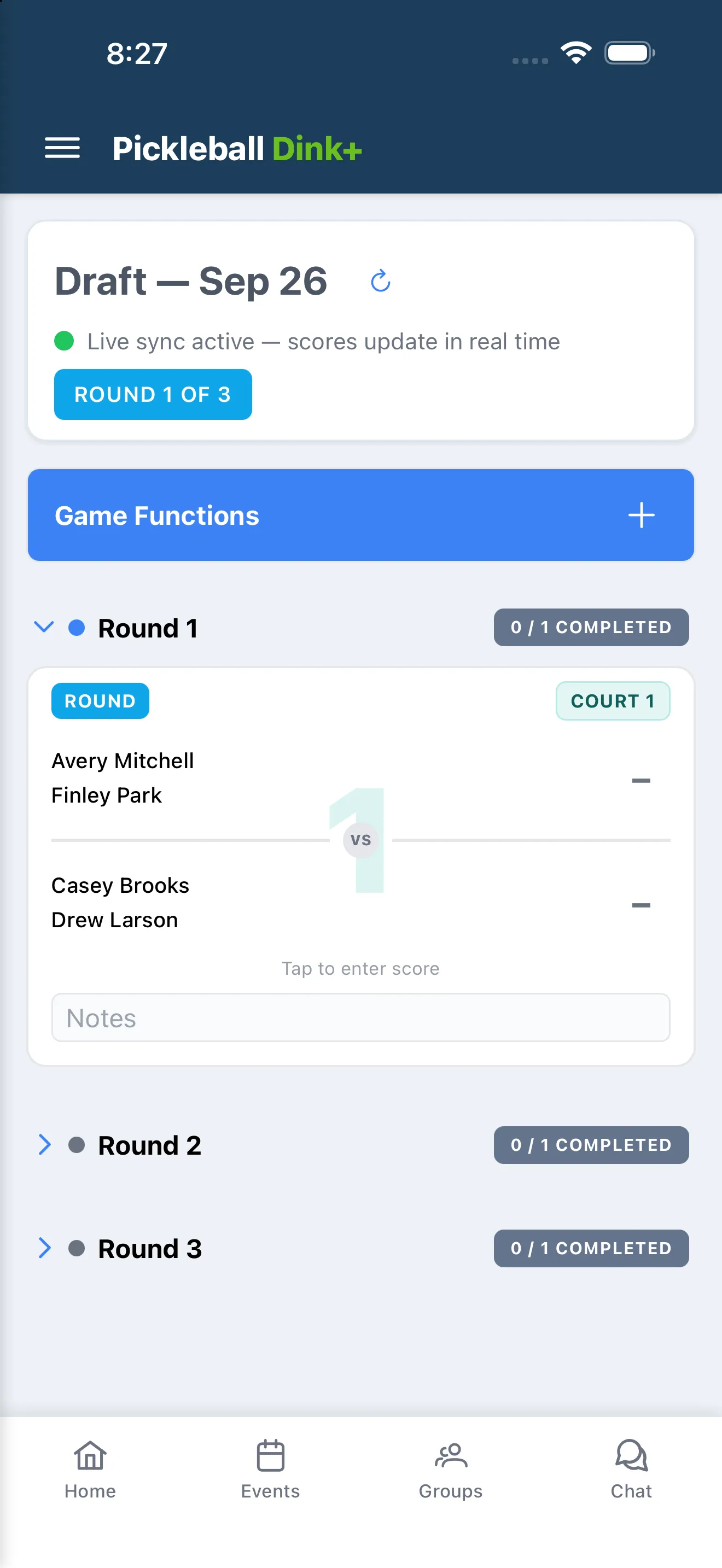
During play, tap a match card to enter that game’s score, then Save. You and anyone added as a Co-Scorer can enter or edit any score — open Game Functions › Co-Scorers and search for their name to add them (they need their own Dink+ account). Players can enter their own games’ scores through the Player link (see below). Anyone else can follow along on the TV Display link, which needs no sign-in.
For The Cleland, when the eight rounds are scored the Confirm seeds card appears on its own (tap Finish round robin to stop early), then tap Start bracket. See The Cleland.
For Up and Down the River, a Set up round card appears before every round: order the ladder, add walk-ons, mark anyone sitting out, then tap Start round. See Up and Down the River.
When every round is done, tap End Event to see final standings, or Abandon Event to discard the session. Start New Event from the results screen begins another Play Now event from scratch.
Share a spectator link
Section titled “Share a spectator link”Anyone can follow the event live on their phone: what’s on each court, the scores, and the standings. They don’t sign in and can’t change anything.
- Open Game Functions and tap Spectator link.
- Let people scan the QR code, or tap Copy link and send it. Open shows the page on your own device.
Spectators see a Courts tab and a Standings tab. Once a match has finished, a Results tab lists earlier matches, newest round first, with each game’s score. The page refreshes itself every few seconds.