
Courts and the match queue
Add courts, let Dink+ send matches to them automatically, or assign matches by hand from the queue.
Once a division starts, its matches wait in a queue until a court is free. Dink+ can send them to courts for you, or you can pick the court for each one. This page covers the Queue and Courts tabs.
Add the courts
Section titled “Add the courts”Add courts in Settings → Tournament, or when you create the tournament. Whatever label you type, such as 1 or A, is the label players see, as in “Court A”. See Add or remove a court.
To give a division its own courts, use Courts under Match formats per division. A division with no courts selected can use all of them. Divisions with separate courts can run side by side.
Let Dink+ assign courts
Section titled “Let Dink+ assign courts”Keep Auto-assign courts on. It keeps courts busy without you watching them, and it’s the way most organizers run a day.
With it on:
- When a division starts, its first matches go straight to empty courts.
- When a match is finalized, Dink+ fills every empty court from the queue, not just the one that freed up.
- If you switch it on while play is under way, empty courts fill at once.
- The players on a match get a text with their court, if Text players (court & score updates) is on.
Dink+ picks matches in this order:
- Matches you sent back with Clear & Requeue go first.
- Pool matches go before bracket matches.
- Matches whose teams have rested longest go first. A match goes ahead of the others when neither team has played yet. Otherwise, the more recently active of its two teams sets its place.
- Matches that joined the queue earlier go before later ones.
A match sent back with Clear & Requeue shows at the top of the Queue tab, and auto-assign puts it on the next free court ahead of everything else. If several have been requeued, the one requeued first goes first. See Scores, confirmation and disputes.
A match is skipped, not held up, if one of its teams is still on a court. It waits until that team is free. A match also goes only to a court its division is allowed to use.
The switch is in Settings. It also sits at the top right of the Queue and Courts tabs, labelled Auto-assign courts. Changes apply at once.
Pause play (weather or delays)
Section titled “Pause play (weather or delays)”To hold a division while rain passes or a court is out, pause it. Open Settings → Match formats per division and tap Pause play on that division. The same button is on the Pools tab, in the division’s header. A division can be paused only while it’s IN PROGRESS.
While a division is paused:
- Auto-assign skips its queued matches, so Dink+ won’t put a match from that division on a court. Other divisions carry on. With Auto-assign courts off you can still place one by hand from the Queue tab, so leave a paused division’s rows alone.
- Matches already on a court stay there, and you can still score them. Players can still report scores for them too.
- The division shows a PAUSED tag in Settings and on the Queue tab. The TV display shows Play Suspended, and players see a “Play suspended” chip.
Tap Resume play on the same division to start again. If Auto-assign courts is on, free courts fill from the queue right away. The pause also clears by itself when the division completes.
Assign courts by hand
Section titled “Assign courts by hand”With Auto-assign courts off, finalized matches don’t pull in new ones. Matches stay in the queue until you place them.
- Open the Queue tab. The header reads “N court(s) available — tap a court chip on any match to assign” when courts are free, and “No courts available” when they aren’t.
- Find the match you want.
- Tap a court chip on its row, such as Court 3. Only free courts the match’s division may use appear.
The match moves onto the court and its clock starts. Players get a court text if texting is on.
A row shows No courts free when every court is busy, or No allowed courts free when courts are free but not ones this division may use.
Read the Queue tab
Section titled “Read the Queue tab”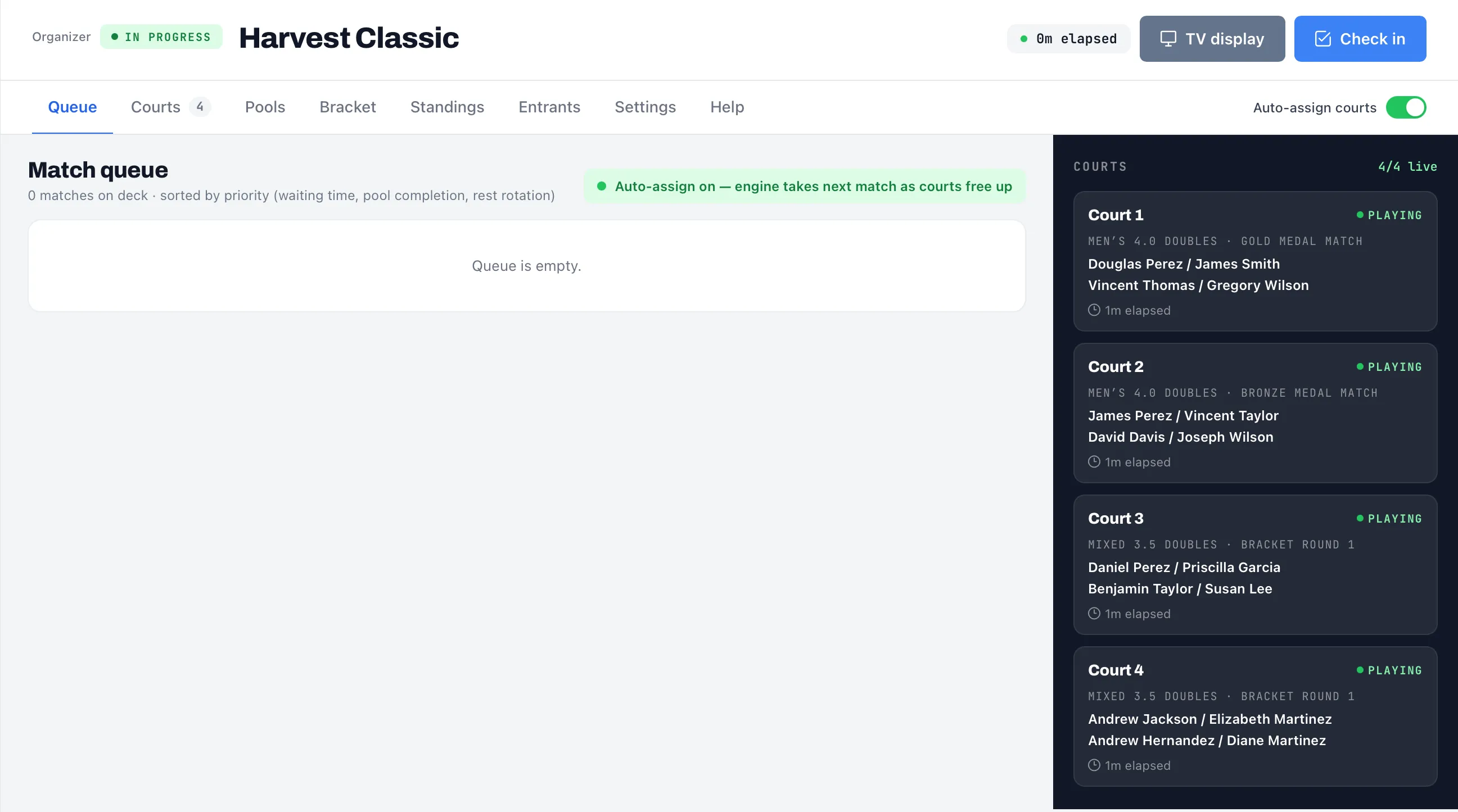
The left side lists waiting matches, grouped by division. The header reads “N matches on deck” and an Auto-assign on banner shows when the switch is on. Each row shows:
- A position such as #1, within its division.
- A tag, such as POOL R3 for round 3 of pool play or BRACKET.
- What the match is: Pool play, Bracket round 2, Gold medal match, Bronze medal match, or a place match such as 5/6 place.
- How long it has waited, such as “waiting 4m”.
- The two teams.
A row is dimmed, with a note such as “Smith / Jones still playing”, when one of its teams is on a court. It can’t be assigned until they finish. Dimmed rows sit at the bottom of their division’s group.
The queue shows only divisions that have started, and only matches where both teams are known. An empty queue reads “Queue is empty.” The number on the Queue tab counts waiting matches.
The dark panel on the right is a live view of every court. Each court shows FREE or PLAYING, the division, the match, the games scored so far and how long it has been on court. A free court reads “Next match will be announced”. The panel counts how many courts are live, such as “3/4 live”.
Read the Courts tab
Section titled “Read the Courts tab”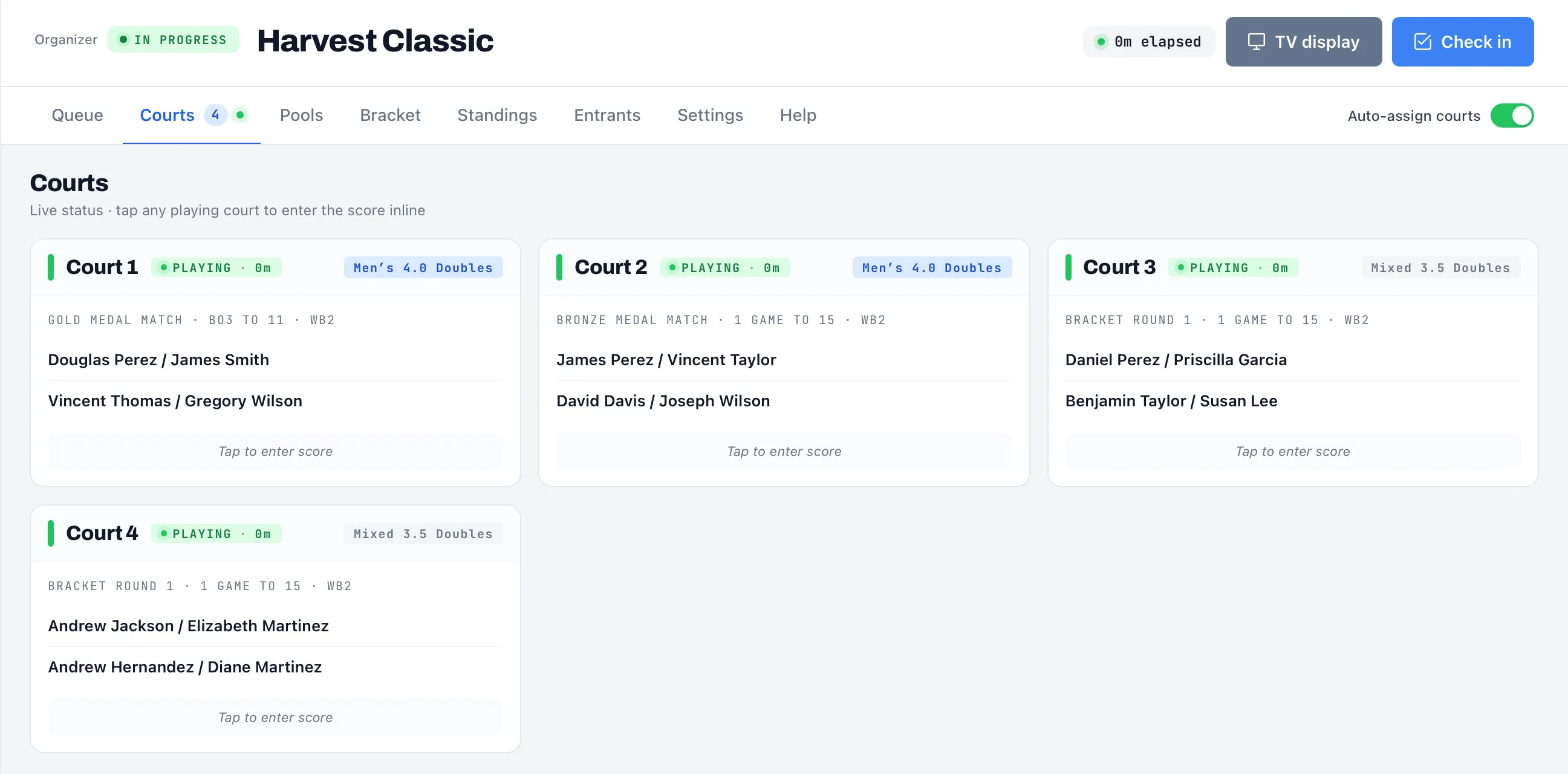
The Courts tab shows one card per court. A free court reads FREE. A court in use shows PLAYING with the time on court, the division, a line such as “Pool play · Bo3 to 11 · WB2” and both teams with their game scores. WB2 means win by 2. The badge on the Courts tab counts the courts in play. If you haven’t added any courts, the tab says “No courts configured yet. Add them in Settings.”
Tap a playing court, or its Tap to enter score button, to score it on the spot. Cancel closes the editor without saving. See Scores, confirmation and disputes. The tab updates live as other people score.
When the score dispute window is on, a reported score shows a countdown and Confirm and Dispute buttons under its court. Both tabs show them.
A court whose score is disputed shows a red Disputed banner with a Finalize button in place of PLAYING, and the Courts tab label carries a red badge such as “2 disputed”. The Queue tab’s court panel keeps PLAYING but adds a Disputed line with Finalize. See Settle a disputed score.
Things to know
Section titled “Things to know”- A team is never put on two courts at once, by auto-assign or by hand.
- Matches can sit in the queue for a while when many divisions share few courts. Give each division its own courts, and stagger start times, to spread the load. See Run divisions in parallel.
Next, see Scores, confirmation and disputes.