
Check in players
Check entrants in on tournament day from the Check in screen, or let players check themselves in.
A division can start only once every confirmed player in it is checked in. You can check players in at the front table, or they can check themselves in from their phones. Both write to the same list.
Check players in at the desk
Section titled “Check players in at the desk”The list leaves out teams that have withdrawn or been rejected. Back to tournament returns you to the organizer view, and a search with no match shows “No members match.” Only organizers can open the Check in screen. Anyone else sees “Check-in is restricted to tournament organizers.”
- Open the tournament and tap Check in in the header. The screen is at
pbdink.app/tournaments/<code>/check-in. - Find the player. The Search name… box matches a player’s name or their partner’s name.
- Tap the player’s row to tick the checkbox.
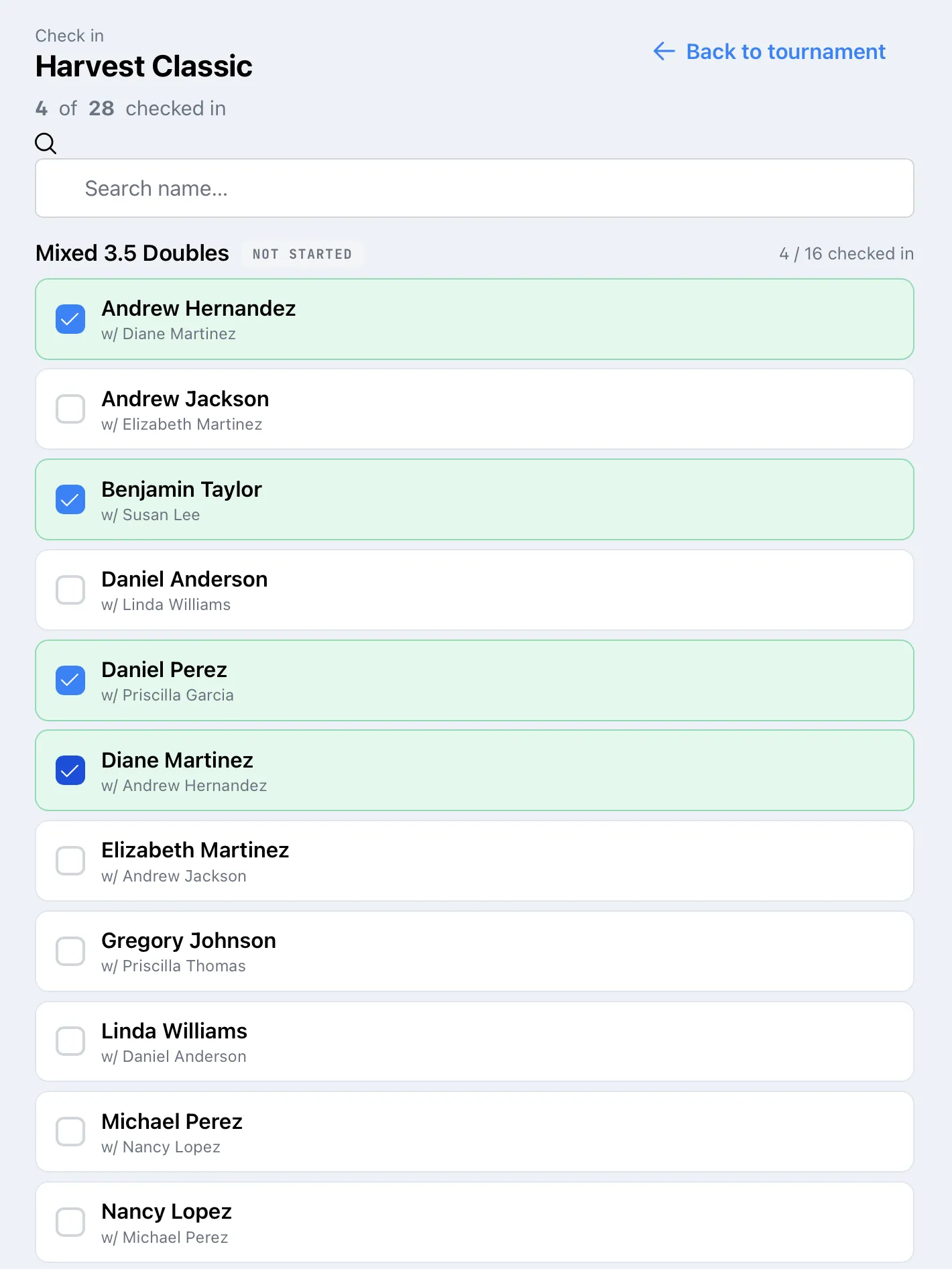
The screen shows:
| Item | What it shows |
|---|---|
| Summary line | “N of N checked in”, across every division. |
| Division heading | The division’s name, its status (NOT STARTED, IN PROGRESS or COMPLETED) and “N / N checked in”. |
| Player row | The player’s name, and “w/ Partner” for doubles. Players with a Dink+ account carry a Dink+ tag. Guests don’t. |
Tap a ticked row again to undo a check-in. Only organizers can do this. A player can’t un-check themselves.
Only confirmed entrants count toward the totals. Teams that are pending payment, or waiting on a guest partner, still appear in the list, but they don’t count and don’t block a division from starting. Players on a pending team don’t get the Check-in card until the team is confirmed, and they can’t check themselves in.
Let players check themselves in
Section titled “Let players check themselves in”Players check in from their own view of the tournament. On the Your matches tab, the Check-in card lists the team’s members. Each person taps Check in on their own row. For a teammate who hasn’t, there is a Nudge link. Tapping it sends the teammate a push notification, and a text if texting is on and they’ve agreed to texts. After a nudge, the link reads Nudged for 5 minutes. See Play in a tournament.
The card says “Check-in opens on tournament day” with the date until the tournament’s start date arrives. If you set a start time, it also shows “Check in by” with a time 15 minutes before the start. That time is a target for players. Dink+ doesn’t enforce it: check-in doesn’t lock, and you can still check anyone in at the desk.
Texts at check-in
Section titled “Texts at check-in”With Text players (court & score updates) on in Settings, checking a player in sends them a text. A first-time player gets an invitation to reply YES to receive court and score texts. A player who agreed at a past event gets a short welcome with a link to follow the tournament. Court and score texts only go to players who replied YES. Anyone who replied STOP gets nothing. See Tournament settings.
Keep two devices in step
Section titled “Keep two devices in step”The screen updates live. If you and a co-organizer both have it open, each check-in appears on the other’s screen within moments. A “live: connecting” tag means the connection hasn’t caught up yet. It reconnects by itself. If it shows “live: error” after several tries, reload the page.
Start each division when its players are checked in. See Run pool play.