
Run a tournament, start to finish
Follow a tournament from draft to completion, and see where each step happens in Dink+.
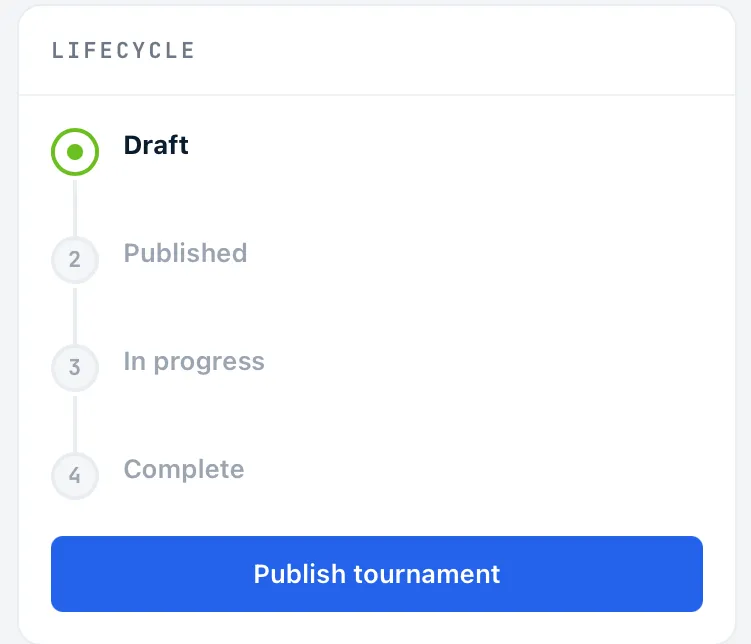
A tournament moves through four statuses: Draft, Published, In progress and Complete. You move it forward yourself, except where noted below. This page walks the whole path and tells you where each step happens.
The six steps
Section titled “The six steps”-
Draft. Add divisions, courts and entrants. The public link isn’t active yet, but entrants you add who have a Dink+ account already see the tournament in their list.
A new tournament starts as a draft. You can create it as a draft, or publish it straight away from the last step of the create flow.
-
Publish. In Settings, tap Publish tournament. This turns on the public link, which needs no login.
Entrants with Dink+ accounts see the tournament on Home under Your Tournaments. Guests see it only through the link. Dink+ doesn’t notify your facility or group members when you publish, so share the link yourself. Switch on Signup → Public signup in Settings to let players register themselves. Keep adding entrants until you lock the roster. See Tournament settings and Registration and entry fees.
-
Check players in. Use the Check in screen, which groups players by division. A division can start only once its confirmed entrants are checked in. See Check in players.
-
Start each division. Set up its pools and formats first. See Set up divisions and Run pool play. Then tap Start division in Settings or on the Pools tab. This generates that division’s pool matches and locks its roster. The first division to start moves the tournament to In progress.
-
Run the matches. Use Queue and Courts to send matches to courts and score them. When pool play ends, generate the bracket from the Bracket tab. See Courts and the match queue, Scores, confirmation and disputes and Brackets and playoffs.
-
Complete. When the last division’s final match is finalized, the tournament completes by itself and final results show to players. If every division is complete but the tournament still shows In progress, tap Complete tournament in Settings and confirm. Reopen on a division can undo completion.
Where each step happens
Section titled “Where each step happens”| Step | Where | Button or control |
|---|---|---|
| Add divisions and courts | Settings → Tournament card | Add |
| Add entrants yourself | Entrants tab | Add team or Add player |
| Publish | Settings → Lifecycle card | Publish tournament |
| Open registration | Settings → Signup card | Public signup |
| Check in | Check in button in the header | Checkbox per player |
| Start a division | Settings → Match formats per division | Start division |
| Run matches | Queue and Courts tabs | |
| Pause or resume a division | Settings → Match formats per division, or the Pools tab | Pause play / Resume play. See Pause play. |
| Generate the bracket | Bracket tab | |
| Complete | Settings → Lifecycle card | Complete tournament |
| Cancel | Settings → Danger zone card | Cancel tournament |
Run divisions in parallel
Section titled “Run divisions in parallel”Divisions are independent. Each one has its own pools, bracket and roster lock, so you start each when its players are ready. Most organizers stagger the divisions through the day: the first starts in the morning, and the others follow as courts free up.
Use the How long will this take? card in Settings to plan the day. Give each division a wave number. Divisions with the same number run together on their own courts. Waves run one after another. Enter the time you plan to start and the card shows when you should finish. You can use that finish time to tell players when to expect the event to end.
Know what changes when the first division starts
Section titled “Know what changes when the first division starts”Starting the first division moves the whole tournament to In progress. That has three effects on the divisions that haven’t started yet:
- Registration stays open for divisions that haven’t started. Self-registration closes for each division when that division starts, not when the first one does. Players can still register for or change a late division while the public signup switch is on and the Closes at time hasn’t passed, and can withdraw until that division starts.
- Unpaid teams are dropped division by division. When a division starts, teams in it that haven’t fully paid are removed at once. When signup closes, Dink+ removes them within about 30 minutes.
- You can still add teams yourself. On the Entrants tab, tap Add team (or Add player for singles) for any division whose roster isn’t locked.
Finish the tournament
Section titled “Finish the tournament”When the last match of the last division is finalized, the division completes, and then the tournament completes with it. Complete tournament is a fallback for the rare case where every division is complete but the tournament still shows In progress. It stays greyed out until every division is complete. Dink+ asks you to confirm first: final results show to players, and a division can be reopened to correct a score.
If a score needs fixing after a division completes, tap Reopen next to that division in Settings. The division goes back to in progress, and a completed tournament goes back to in progress with it.
To cancel a tournament, use Cancel tournament in the Danger zone. Dink+ asks you to confirm, and a cancelled tournament can’t be brought back. See Tournament settings.