
Tournament settings
Every card, toggle and field on a tournament's Settings tab, with its default and when to change it.
The Settings tab holds everything about how a tournament is set up and run. Open a tournament, then tap Settings. Only organizers see this tab. See Staff and co-organizers for who counts as an organizer.
Changes apply as soon as you make them. Text fields save by themselves a moment after you stop typing, and you see Saving…, then Saved, or Save failed if something went wrong. Toggles and dropdowns save the moment you change them.
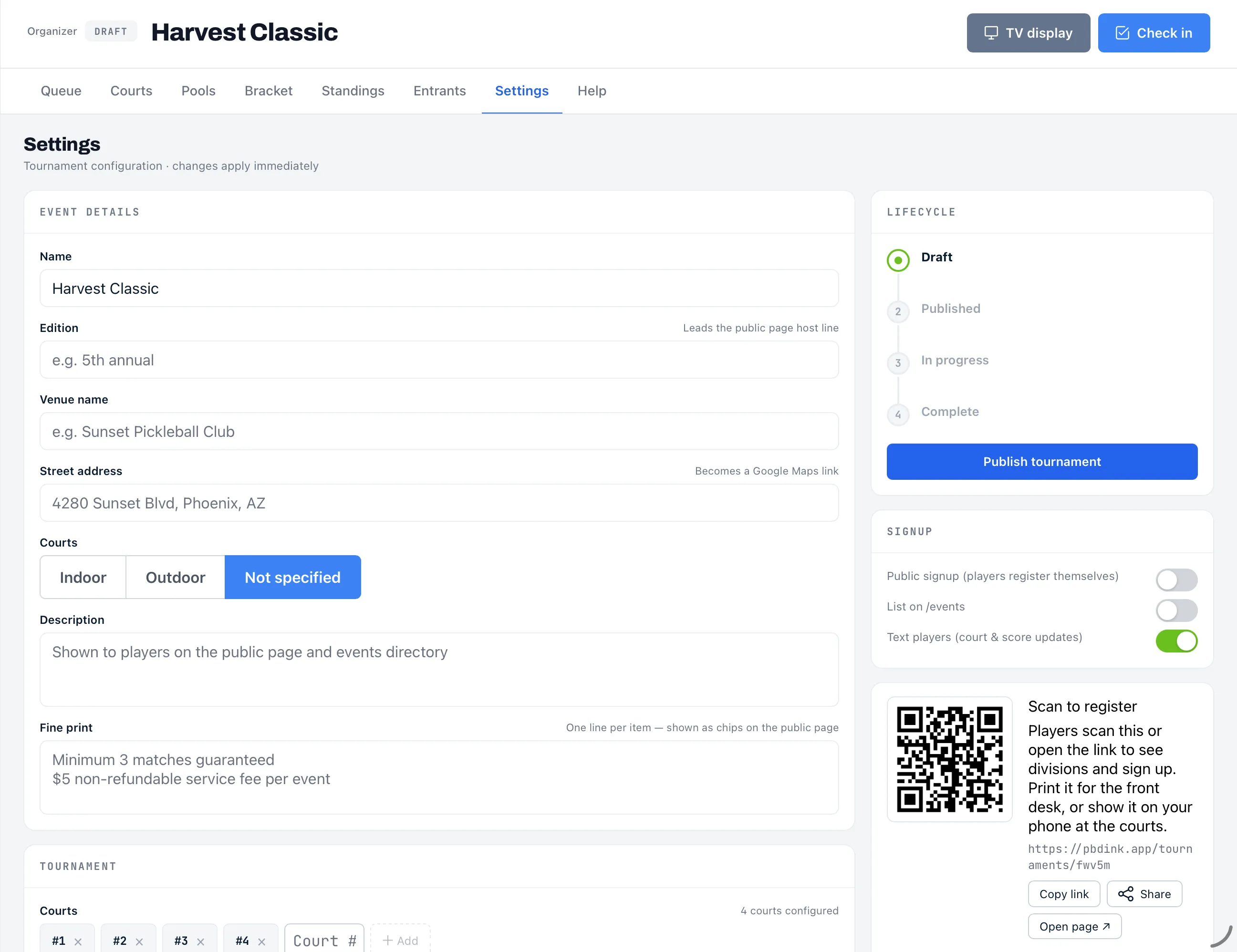
The tab has two columns. The left column holds the tournament’s content: Event details, Tournament, Auto-assign courts, Score dispute window, DUPR event, Match formats per division and How long will this take?. The right column holds the controls for running it: Lifecycle, Signup, Scan to register, Co-organizers and Danger zone.
Event details
Section titled “Event details”This card sets what players see on the tournament’s public page.
| Setting | What it does | Default | When to change |
|---|---|---|---|
| Name | The tournament’s title everywhere it appears. | What you entered at creation | To fix a typo or rebrand. |
| Edition | Leads the host line on the public page. A placeholder suggests “5th annual”. | Empty | If the event repeats yearly. |
| Venue name | The location shown on the public page, such as your club’s name. | Empty | Always. Players look for it. |
| Street address | Becomes a Google Maps link on the public page. | Empty | Always, so players can navigate. |
| Courts | Whether play is Indoor, Outdoor or Not specified. Shown as “Indoor · 6 courts” on the public page. | Not specified | If weather or surface matters to players. |
| Description | Free text shown on the public page and in the events directory. | Empty | To describe prizes, skill levels or the schedule. |
| Fine print | One item per line. Each line appears as a chip on the public page. | Empty | For rules players should see before they register. |
Tournament
Section titled “Tournament”This card holds your courts and divisions.
| Setting | What it does | Default | When to change |
|---|---|---|---|
| Courts | The courts available for the event. Each shows as a pill such as #1. | The courts you listed at creation | When courts open up or close. |
| Divisions | Your divisions, shown as pills. | The divisions you added at creation | To add, rename or delete a division. |
Add or remove a court
Section titled “Add or remove a court”Type a court label in the Court # box and tap Add or press Enter. Whatever you type becomes the label, and a label you’ve already added is ignored. Tap the × on a pill to remove that court. A line above the pills says how many courts are configured.
Removing a court also removes it from any division you’d restricted to specific courts. A division left with no courts goes back to using all of them. Courts are used on the day through the Queue and Courts tabs. See Courts and the match queue.
Add, rename or delete a division
Section titled “Add, rename or delete a division”- Add: type a name in the Division name box, choose Doubles or Singles, and tap Add or press Enter. The division starts with the default settings. Use the Pools tab to change its pools and formats. Doubles or Singles can’t be changed once the division exists. To switch, delete the empty division and add it again.
- Rename: tap the division’s pill, type the new name, and press Enter. Press Esc to cancel.
- Delete: tap the × next to the division and confirm. You can delete a division only before its roster locks, and only if it has no entrants still in the draw and no paid entries. Withdraw or move its entrants first. If someone has paid, refund or resolve the payment first, then delete it.
Auto-assign courts
Section titled “Auto-assign courts”| Setting | What it does | Default | When to change |
|---|---|---|---|
| Auto-assign courts | When on, finalizing a match instantly pulls the next match from the queue onto that court. In practice it fills every empty court. See Courts and the match queue. | On | Turn it off only if you want to send specific matches to specific courts yourself. |
We recommend leaving this on. It keeps courts busy without you watching them. If you switch it on during play, empty courts fill from the queue straight away. The same switch appears at the top right of the Queue and Courts tabs.
Score dispute window
Section titled “Score dispute window”| Setting | What it does | Default | When to change |
|---|---|---|---|
| Score dispute window | When on, a reported score waits for the other team to confirm or dispute it. It finalizes by itself when the window ends. | Off | Turn it on if players report their own scores. Leave it off if you or your staff enter scores. |
| Window duration | How long a reported score waits before it finalizes. Appears only when the window is on. | 180 seconds (3 min) | Shorten it for fast-moving days. Lengthen it if players need time to walk off court. |
Window duration accepts whole seconds from 30 to 600. The arrows move in steps of 30. A fractional value rounds to the nearest second, and a value outside the range snaps to the nearest limit. See Scores, confirmation and disputes.
DUPR event
Section titled “DUPR event”| Setting | What it does | Default | When to change |
|---|---|---|---|
| DUPR event | Reports match results to DUPR. Every player must have a linked DUPR account to register or be added, and guests are blocked. | Off | When you want results to count toward DUPR ratings. |
| DUPR+ (premium) event | Only DUPR+ members can register. Appears when DUPR event is on. | Off | For events limited to DUPR+ members. |
| Facility timezone | Used to stamp DUPR match dates. Appears when DUPR event is on. Options: America/Chicago, America/New_York, America/Denver, America/Phoenix, America/Los_Angeles, America/Anchorage and Pacific/Honolulu. | America/Chicago | Always check it the first time you use DUPR. A wrong zone can put matches on the wrong day. |
When you switch DUPR event on, a banner can warn you that some current entrants can’t play: they have no linked DUPR account, or the account lacks the required level. Their results can’t be reported. The banner closes when you tap its close button. While it’s on, the card shows “Requires a linked DUPR account”. Switching DUPR event off also switches off DUPR+ (premium) event. A DUPR help & disputes link sits at the bottom of the card. See Report results to DUPR.
Match formats per division
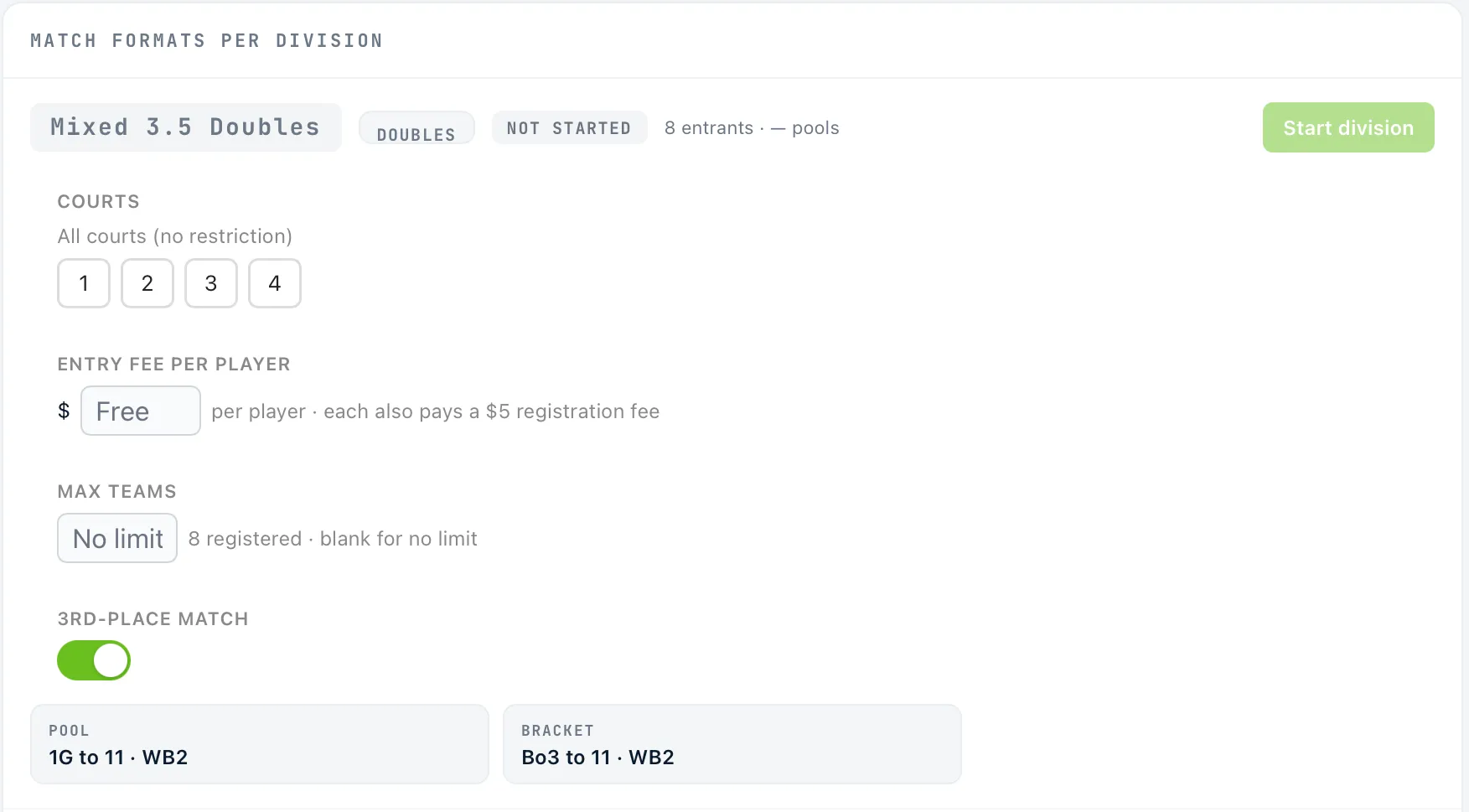
Section titled “Match formats per division”This card has one block per division. Each block shows the division’s name, its DOUBLES or SINGLES label, its status (NOT STARTED, IN PROGRESS or COMPLETED) and a count such as “12 entrants · 2 pools”.
| Setting | What it does | Default | When to change |
|---|---|---|---|
| Start division | Starts that division. See Start a division. | Appears while the division is NOT STARTED | When the division’s players are checked in and ready. |
| Pause play / Resume play | Holds a running division’s queued matches off the courts, then releases them. Appears while the division is IN PROGRESS; a paused division shows PAUSED. The same button is on the Pools tab. See Pause play. | For weather or delays. | |
| Reopen | Moves a completed division back to in progress. Appears when the division is COMPLETED. | To correct a score after the division finished. | |
| Courts | Appears once the tournament has courts. Restricts the division to the courts you select. A selected court shows highlighted. A line beside it reads “All courts (no restriction)” or “N courts assigned”. | No restriction | To give a division its own courts, so divisions can run side by side. |
| Entry fee per player | What each player pays, from $1 to $1,000. Leave it blank for Free. Each player also pays a $5 registration fee. | Free | When you charge to enter. See Registration and entry fees. |
| Max teams (Max players for singles) | The most teams the division accepts. Whole number from 2 to 256. A line shows how many are registered. Blank means no limit. | No limit | To cap a division at the number of courts or hours you have. |
| 3rd-place match | Plays a match for third place. Appears only for single-elimination playoffs. | On | Turn off if you want third place to be a tie. |
| Pool, Bracket or Medal, and Final | Read-only labels for the division’s scoring formats, for example “Bo3 to 11 · WB2”. | Set by the division’s setup | Change them from the Pools tab, not here. See Match and scoring formats. |
Entry fee and entry limits
Section titled “Entry fee and entry limits”Entry fee per player appears only on facility-hosted tournaments. Payments are a beta feature turned on per account. If you don’t see the field and haven’t set a fee, contact support.
A fee outside $1 to $1,000 is refused with the message “Entry fee must be between $1 and $1,000 (or blank for free)”.
You can’t set Max teams below the number of teams already registered. If you try, the field returns to its old value and a message shows the count.
Start a division
Section titled “Start a division”Start division is greyed out until:
- The tournament is Published or In progress. You can’t start a division in a draft.
- The division has at least one confirmed entrant.
- Every confirmed entrant is checked in. Hover the button to see “All confirmed entrants must be checked in before starting”.
For a division with pools, Dink+ also needs the division to be set up with pools, every confirmed entrant assigned to a pool, and no pool with only one entrant. If one of those isn’t true, a message tells you what to fix.
Starting a division:
- Generates its pool matches. A division with no pools skips this.
- Locks the roster. No one can be added or removed, and teams that are still pending or awaiting a partner are rejected.
- Moves the division to IN PROGRESS.
- Moves the tournament to In progress, if this is the first division to start.
- If Auto-assign courts is on, fills empty courts from the queue.
Setting up a division’s pools is covered in Set up divisions and Run pool play.
Reopen a division
Section titled “Reopen a division”A division completes automatically when its last match is finalized. If you need to fix a score afterwards, tap Reopen on that division. The division goes back to IN PROGRESS. If the whole tournament had completed, it goes back to In progress too.
How long will this take?
Section titled “How long will this take?”This card estimates how long the day will run, based on each division’s entrants, pools, formats and courts.
| Setting | What it does | Default | When to change |
|---|---|---|---|
| Wave (number beside each division) | Divisions with the same wave number run together on their own courts. Different numbers run one after another. Whole number from 1 to 20. | 1 | To plan staggered divisions. |
| If you start at | Your planned start time. The card shows a finish range after it. | 9:00 AM | To match your real start. |
| Minutes per game (to 11) | How long one game to 11 takes. Range 5 to 30. | 12 min | If your players play faster or slower than average. |
| Minutes per game (to 15) | How long one game to 15 takes. Range 5 to 40. | 16 min | Same. |
| Setup time per match | Walk-on, warm-up and score clearing between matches. Range 0 to 15. | 3 min | If changeovers are slow. |
The big number at the top is the total time across all waves. Tap a division to see the math behind its time. A warning appears when a wave needs more courts than you have. The last three fields sit under Fine-tune the estimate. If you start at and these three fields are for this visit only, and they reset when you reload the page. Wave numbers are saved and shared with your co-organizers.
You can use the finish time to tell players when to expect the event to end.
Lifecycle
Section titled “Lifecycle”The Lifecycle card shows where the tournament is: Draft, Published, In progress, then Complete. While it’s in progress, a line shows when it started and how long it has run.
| Button | Appears when | What it does |
|---|---|---|
| Publish tournament | The tournament is a draft | Turns on the public link. Entrants with accounts see it on their Home, and anyone with the link can view it. Dink+ doesn’t notify anyone, so share the link. |
| Complete tournament | The tournament is in progress | Marks the tournament complete, after you confirm. The prompt says final results show to players and that a division can be reopened to correct a score. It’s greyed out until every division is complete, and hovering shows “N division(s) not yet completed”. |
While the tournament is Published, the card shows no button. It reminds you to check players in and start each division from this tab.
A tournament completes by itself when its last division finishes, so you rarely need Complete tournament. If you cancel a tournament, the last step reads Cancelled instead of Complete.
You can publish only from a draft. There’s no way to unpublish.
Signup
Section titled “Signup”| Setting | What it does | Default | When to change |
|---|---|---|---|
| Public signup (players register themselves) | Lets signed-in players register from the tournament’s public page. | Off | Turn it on when you want sign-ups. Turn it off to stop them. |
| Closes at (optional) | A date and time when signup stops. Appears when signup is on. Clear it for no deadline. | None | To set a registration deadline. |
| List on /events | Shows the tournament in the public events directory while it’s published or in progress. | Off | When you want strangers to find it. |
| Text players (court & score updates) | Sends players texts for court calls, recorded scores and corrections. When it’s off, correction texts stop too. | On | Turn it off if you don’t want to text players. |
A tag with a padlock appears in the card’s header once a division has closed to sign-ups. It reads LOCKED when every division has closed, or a count such as 1 of 3 closed when only some have. It’s hidden while every division is open.
- Switching on Public signup also switches on List on /events if it was off. Switching signup off leaves the listing alone.
- Signup works while the tournament is Published or In progress, and a division takes sign-ups until that division starts. Starting one division doesn’t close the others. See Run a tournament, start to finish.
- When a division starts, teams in it that haven’t fully paid are removed at once. When signup closes, because you switched it off or the close time passed, teams in a paid division that haven’t fully paid are withdrawn automatically. Dink+ checks about every 30 minutes.
- Texts go only to players who have agreed to receive them. A player agrees during registration, or by replying YES to the text sent when they’re checked in.
Scan to register
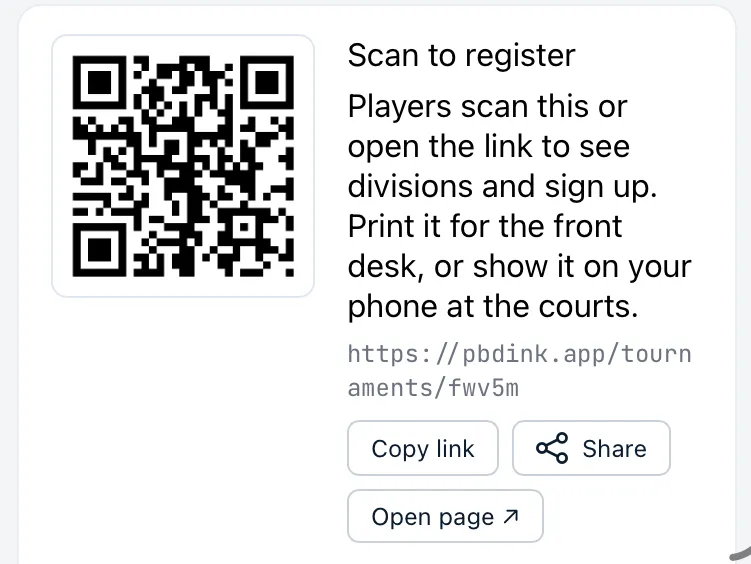
Section titled “Scan to register”This card gives you the link and QR code for the tournament’s public page: pbdink.app/tournaments/<code>, where <code> is a short five-character code. Players can scan the QR code or open the link to see divisions and sign up.
| Button | What it does |
|---|---|
| Copy link | Copies the link and shows “Link copied”. |
| Share | Opens your device’s share sheet, or copies the link if there isn’t one. |
| Open page ↗ | Opens the public page in a new tab. |
If the tournament is still a draft, the card warns: “This tournament isn’t published yet — the link won’t work for players until it is.” You can still print the QR code ahead of time.
Co-organizers
Section titled “Co-organizers”Add people who should help run the tournament. A co-organizer gets the same controls you have. See Staff and co-organizers.
- Under Add co-organizer, type a name in Search by name….
- Tap the person in the results.
- To remove someone, tap the × beside their name.
Until you add anyone, the card reads “No co-organizers yet. Add someone to share management access.” You can’t remove yourself. If you try to add someone who already manages the tournament as the facility owner or staff, you get “User already manages this tournament”.
Danger zone
Section titled “Danger zone”| Button | What it does |
|---|---|
| Cancel tournament | Cancels the tournament, after you confirm. Greyed out once it’s complete or cancelled. |
Delete a tournament
Section titled “Delete a tournament”You delete a tournament from the Tournaments list, not from Settings. Only completed and cancelled tournaments show a ⋮ menu on their row.
- Open Tournaments and expand Completed.
- Tap ⋮ on the tournament, then Delete.
- Confirm. Deleting permanently removes the tournament, its divisions, entrants, pools and matches.
If matches from the tournament are on DUPR, you must remove them from DUPR first. Dink+ blocks the delete until you do.