
Registration and entry fees
Open sign-ups, add entrants yourself, charge entry fees through Stripe, and know exactly what lands in your account.
There are two ways to fill a division. Players register themselves, or you add them. You can mix both in the same division. This page covers both, plus entry fees and refunds.
Let players register themselves
Section titled “Let players register themselves”- Publish the tournament. See Tournament settings.
- In Settings → Signup, switch on Public signup (players register themselves). This also turns on List on /events.
- Optionally set Closes at. Registration stops at that date and time. Leave it empty for no deadline.
- Optionally set Max teams (or Max players for singles) and Entry fee per player for each division, in Match formats per division.
- Share the link or QR code from the Scan to register card.
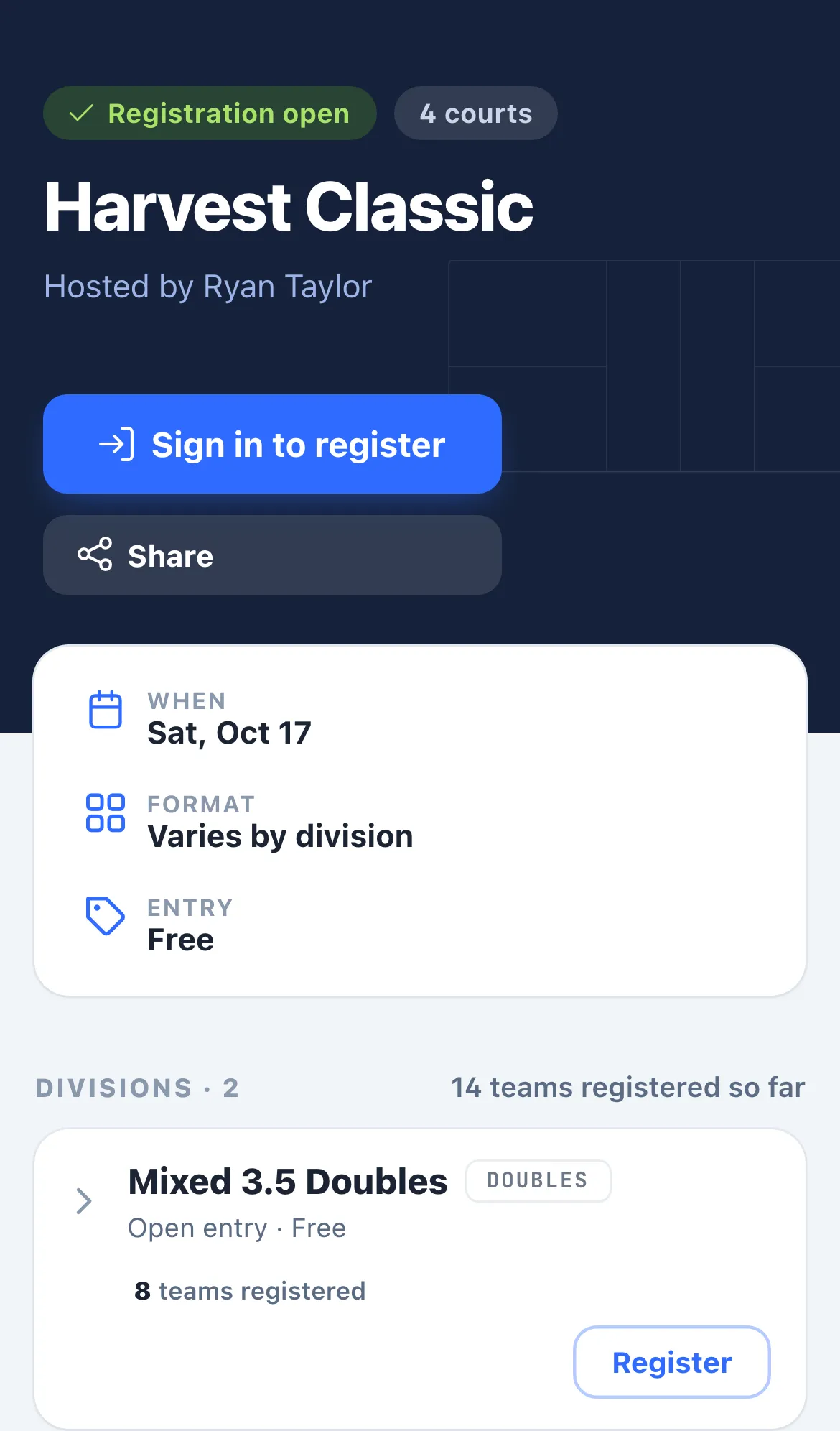
Players open the link and see Registration open, your venue, and a card for each division with its fee and how many spots are left. They tap Register (or Sign in to register if they’re signed out). The player side is in Register and pay for a tournament.
Registration is open for a division only while all of these are true:
- The tournament is Published or In progress.
- Public signup is on.
- The Closes at time, if you set one, hasn’t passed.
- That division hasn’t started and its roster isn’t locked.
- The division isn’t full.
What happens when a player registers
Section titled “What happens when a player registers”- Free division: the team is confirmed at once. The player gets a confirmation email, and their partner (if they have a Dink+ account) gets a notification.
- Division with an entry fee: the team is held as pending, and it uses up a spot, until everyone has paid.
- Guest partner: a partner without an account is added by name. If the division charges a fee, the player must give the partner’s email. Once the player has paid their own share, the partner gets an email with a link to create an account and pay. The link works for 30 days.
- DUPR event: every player must have a linked DUPR account. Guest partners are refused.
Add entrants yourself
Section titled “Add entrants yourself”On the Entrants tab, each division has an Add team button (Add player for singles). It disappears once the division’s roster locks.
- Tap Add team.
- For Submitter, search for a Dink+ user or type a name to add a guest. Add a Phone if you want to text them (optional).
- For Partner, do the same. Singles divisions have one Player slot instead.
- Tap Add.
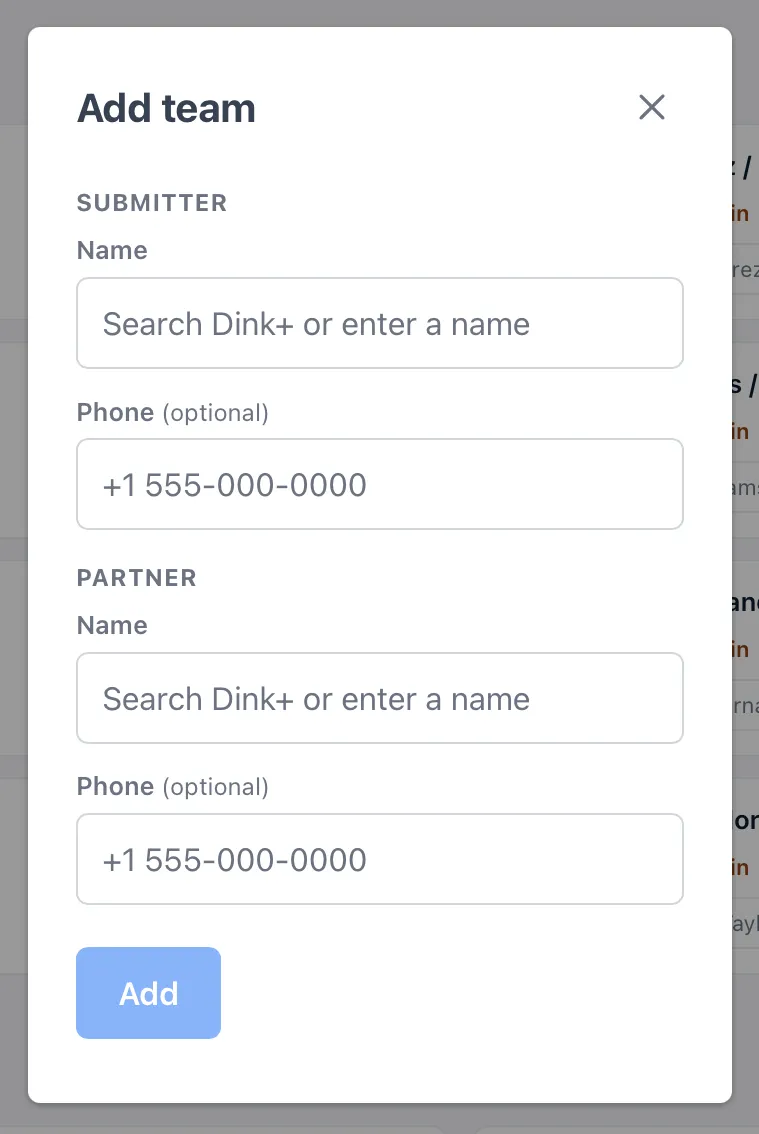
Teams you add this way:
- Go straight to confirmed and skip the partner-confirm step.
- Aren’t charged. You collect any payment yourself.
- Aren’t held back by Max teams. You can add past the limit.
- Can’t include guests on a DUPR event. Both players need a linked, eligible DUPR account.
A phone number you enter for a Dink+ user is saved to their profile.
Manage a team
Section titled “Manage a team”Each team card on the Entrants tab shows:
- The team’s number in the list, and whether its players are checked in (for example “1/2 checked in”).
- The team’s seed, or Unseeded, and a Seed box to change it. See Seed your teams.
- In a division with a fee: PAID when everyone has paid, or a count such as 1/2 paid. Hover the count to see who still owes.
- Before the roster locks, a chip for each player. Tap it to check that player in, or tap again to undo.
- Before the roster locks, a Pool dropdown, once the division has pools.
- A ⋮ menu with Edit and Withdraw.
Edit opens the team’s details. For a guest you can change the name and phone. For a Dink+ player you can change only the phone, which saves to their profile. Send opt-in text texts a player so they can agree to receive court and score updates. If they once replied STOP, they must reply START from their own phone.
Withdraw asks you to confirm. The prompt says it can’t be undone and that a team that already paid may need a manual refund. It’s available until the division’s roster locks. After that, the ⋮ menu has only Edit. Withdrawing does not refund anyone, but it does flag paid teams for refund. See Refunds and disputes.
A search box at the top finds a team by player name. The summary line shows the number of teams and divisions, and whether rosters are locked.
Charge entry fees
Section titled “Charge entry fees”Payments are processed by Stripe. Dink+ never sees a card number.
- The facility owner connects a Stripe account once in Settings → Facility. In the Payments card, tap Connect with Stripe. Stripe handles bank linking, identity checks and payouts.
- If Stripe asks for more information, the card says “Stripe needs more information from you”. Tap Finish Stripe setup. When it’s done, the card reads “Connected — ready to accept entry fees”.
- For each division, open Settings → Match formats per division and enter an Entry fee per player, from $1 to $1,000.
Only the facility owner can connect Stripe. Staff can’t. Entry fees work only on facility-hosted tournaments, which is the only kind you can create.
How players pay
Section titled “How players pay”- Each player pays their own entry fee plus a $5 registration fee, in one payment.
- A player can pay for just themselves (Pay my entry fee) or for both players (Pay for both of us).
- A team confirms once both players have paid. Until then it’s pending.
- A pending team sees Payment needed with Pay your entry fee, and a Withdraw button, on its tournament page. Check-in and match information are for confirmed teams only.
- If a player chose to pay for both, their own button shows both shares, such as “$40.00 + $10”. Their partner sees no pay button, only a note that the captain is paying for both of them.
- Checkout stays open for 30 minutes. A player who closes it can start again from the tournament page with Pay your entry fee.
- If a player taps Pay again while a payment is still processing, they see “Payment is processing — refresh in a moment” instead of being charged twice.
- Registration closes when the tournament is no longer published or in progress, public signup is off, the close time has passed, or the division has started. When a division starts, its unpaid teams are removed at once. When signup closes, Dink+ withdraws any unpaid team in a paid division within about 30 minutes, which frees its spot.
Players don’t see other teams’ phone numbers or payment status. They see only their own team’s payment state.
What you actually receive
Section titled “What you actually receive”Entry fees go directly to your Stripe account, with payouts to your bank on Stripe’s schedule. Stripe takes its card-processing fee out of the total charged. Dink+ takes the $5 registration fee.
| Amount | |
|---|---|
| Entry fee you set | $75.00 |
| Player is charged (entry + $5 registration) | $80.00 |
| Dink+ receives | $5.00 |
| Stripe keeps (2.9% of $80 + 30¢) | $2.62 |
| You receive | $72.38 |
Change a fee or limit
Section titled “Change a fee or limit”- You can edit Entry fee per player and Max teams at any time. You can’t set Max teams lower than the number of teams already registered.
- A registered team can move to another division only if that division has the same fee, is open, and isn’t full. A team that has already paid can’t move or swap partners. They must withdraw.
- You can’t delete a division that has paid entries.
Refunds and disputes
Section titled “Refunds and disputes”- Issue refunds from your own Stripe dashboard. In facility settings, tap View payments in Stripe.
- To keep the $5 registration fee, refund the entry-fee amount only.
- A banner at the top of the Entrants tab counts payments that need a refund. It appears when a team that has paid leaves the draw: you or the team withdrew it, it was dropped for not finishing payment but one player had paid, or it was rejected when the roster locked. It also appears when a payment arrives for a team that is no longer in the draw, for example a player who paid after being withdrawn or after changing divisions or partner. Refund those from your Stripe dashboard. Dink+ doesn’t issue refunds itself, and there’s no button to mark one done, so the count doesn’t go down.
- The facility owner and co-organizers also get an email when a late payment arrives for a team that has left. A plain withdrawal raises the banner but sends no email.
- Cancelling a tournament doesn’t refund anyone.
- Card disputes (chargebacks) are handled in your Stripe dashboard, where you submit evidence.
- Stripe processing fees aren’t returned when you refund. A full $75 refund costs you about $2.62.
- Questions about payouts, verification or your Stripe account go to Stripe support.
Players pay at registration. See Register and pay for a tournament.