
Scores, confirmation and disputes
Enter scores at the desk or let players do it, set the dispute window, settle a disputed score, and fix a score after it is final.
Scores reach Dink+ two ways: you or your staff enter them at the desk, or the players enter them on their phones. The Score dispute window setting decides whether a score is final the moment it’s entered, or waits for the other team to check it.
Who can enter and confirm scores
Section titled “Who can enter and confirm scores”| Who | Enter a score | Confirm or dispute | Fix it after it’s final |
|---|---|---|---|
| Organizers (owner, staff, co-organizers) | Any match | Any match | Yes |
| Players | Their own team’s match | Their own match | No |
Players don’t need any organizer access to score. See Staff and co-organizers for who counts as an organizer. For what players see, read Play in a tournament.
Choose how scores become final
Section titled “Choose how scores become final”Set this in Settings → Score dispute window.
| Setting | What happens | Choose it when |
|---|---|---|
| Off (the default) | A score is final the moment it’s entered. The court frees up and the next match goes on. | You or your staff enter every score. |
| On | A score waits for the other team to confirm or dispute it. It finalizes by itself when the window ends. | Players enter their own scores. |
With the window on, Window duration sets how long a score waits. It takes whole seconds from 30 to 600 (a fraction rounds to the nearest second) and defaults to 180 (3 minutes). See Score dispute window.
Enter a score at the desk
Section titled “Enter a score at the desk”- Open the Courts tab and tap the court that’s playing.
- Enter each game’s score for both teams. A best-of-3 shows GM 1, GM 2 and GM 3 boxes. Later games unlock as earlier ones are decided.
- Tap Submit. Once the match is decided the button shows the result, such as Submit · 11–5 for one game, or games won, such as Submit · 2–1, for a best-of-3.
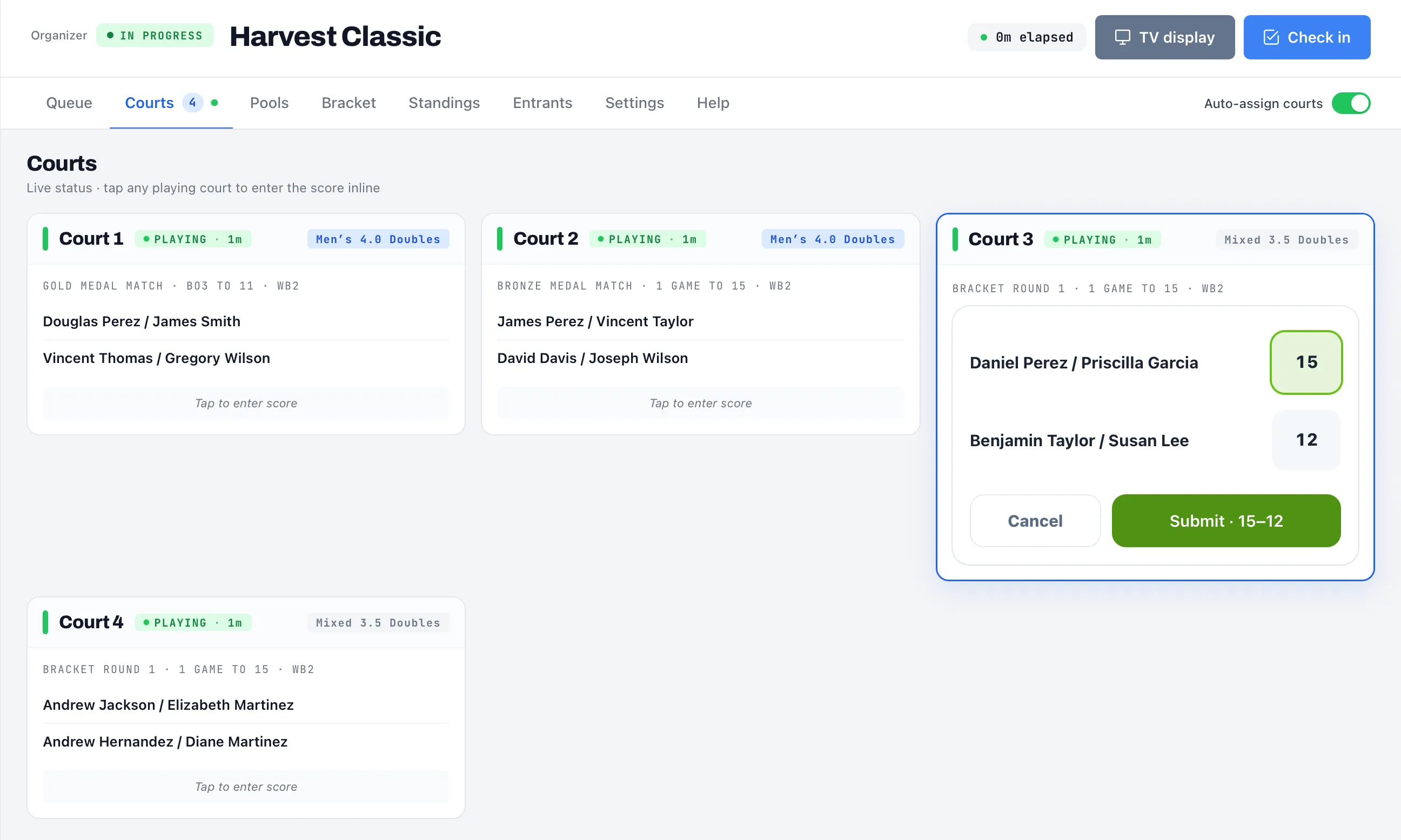
A box takes whole numbers from 0 to 99. A hint under the boxes tells you what’s wrong: “Game is to 11” or “Not final yet — must win by 2”. Dink+ checks every game against the division’s format, so a tied or too-low score can’t be saved. See How scores are checked.
At the desk you can save a partial score. Enter game 1 of a best-of-3 while game 2 is on court and tap Submit. The match stays on its court and shows the games so far. Come back and tap the court again to add the next game.
When the last game clinches the match:
- With the window off, the match is final at once. Its court frees up, and with Auto-assign courts on, the next match goes on.
- With the window on, the match becomes Reported and the countdown starts.
Players get a text with the recorded score if Text players (court & score updates) is on. With the window on, the text goes out when the score is entered, so players have the window to flag a mistake.
Confirm or dispute a reported score
Section titled “Confirm or dispute a reported score”With the window on, a reported score shows a countdown such as “2:41 remaining”, with Confirm and Dispute buttons. They appear under the court on the Courts tab and in the court panel on the Queue tab.
- Confirm makes the score final now.
- Dispute stops the countdown and marks the score Disputed.
- Doing nothing finalizes the score when the countdown ends. For a moment it reads “Finalizing…”.
Players use the same choices on their own phones. The team that didn’t enter the score sees Confirm and That’s not right.
Settle a disputed score
Section titled “Settle a disputed score”When a team disputes a score, every organizer gets a push notification titled Score dispute. The match stays Disputed and nothing finalizes it. The players are told to see the desk.
Disputes are easy to spot. The Courts tab label carries a red badge such as “1 disputed”. The court’s card shows a red Disputed banner instead of PLAYING, and the Queue tab’s court panel shows the same marker. A pool’s page also lists the match as Disputed.
- Talk to both teams and agree on the real score.
- Open the Courts tab and tap the court the match is on.
- Enter the correct games and tap Submit.
Submitting a score clears the dispute. A partial score does too, and puts the match back to in progress. With the window on, it restarts the countdown, so tap Confirm if you want it final right away.
If the score already recorded is the right one, tap Finalize in the Disputed banner on the court. Dink+ asks you to confirm, then accepts the reported score and makes it final. No re-entry needed.
Fix a score after it is final
Section titled “Fix a score after it is final”Organizers can change a score once it’s final.
- Pool match. Open the pool and tap the ⋮ button on the match. Edit corrects the score. Clear & Requeue wipes a score that was entered by mistake and puts the match back at the top of the Queue tab. If the division already has a bracket, this removes it, and you generate it again after the pool finishes. See Fix a score in a pool.
- Bracket match. Use Edit under Finalized Matches on the Bracket tab. See Fix a bracket score.
- Whole division. If a division has already completed, tap Reopen on it first. See Reopen a division.
Changing a score that decided who advances may reset later matches. Dink+ shows what will reset and asks you to confirm first.
If the match was already sent to DUPR, the change marks it Out of sync on the DUPR tab. See Report results to DUPR.
Things to know
Section titled “Things to know”- A player’s Edit score button lets them correct their own entry while it’s still waiting for confirmation. Saving restarts the countdown.
- Players who’ve agreed to texts get a correction text if you use Clear & Requeue, as long as Text players (court & score updates) is on in Settings.