
Set up divisions
Choose a division's pools, how many advance and its playoff, using a recommended template or Custom setup.
A division is its own mini-tournament, with its own entrants, pools, bracket and roster lock. You add divisions when you create the tournament or later in Settings. This page covers the next job: deciding how a division is played. That means how many pools, how many teams advance, which scoring formats, and what the playoff looks like.
You do this on the Pools tab, once the division has entrants and before you start it.
Where each division setting lives
Section titled “Where each division setting lives”| Setting | Where | When you can change it |
|---|---|---|
| Name | Settings → Tournament card | Any time |
| Doubles or Singles | When you create the tournament, or when you add a division in Settings. | Fixed once the division exists. To switch, delete the empty division and add it again. |
| Seeds | Entrants tab. See Seed your teams. | Until the roster locks or the division starts |
| Pools, advance count, scoring formats, playoff | Pools tab (template, Custom setup, Change setup) | Until you start the division |
| 3rd-place match | Settings → Match formats per division | Any time. See Brackets and playoffs. |
| Courts, entry fee, Max teams, wave | Settings | See Tournament settings |
Starting a division locks its roster, and with it the pool and format setup. If you need a different setup, change it before you tap Start division.
Seed your teams
Section titled “Seed your teams”Seeds rank your teams from strongest to weakest, and a lower number is stronger. They decide how Auto-assign deals teams into pools, and how a no-pools bracket is ordered. They also break pool ties that nothing else settles. Set them before you assign pools or start the division.
Seeds are on the Entrants tab, and they’re open to change only until the roster locks or the division starts. After that the seed boxes and Seed by DUPR disappear.
Set a seed by hand
Section titled “Set a seed by hand”Each team card has a Seed box. Type a whole number from 1 to 999 and move away from the box to save it. Clear the box to remove the seed. The list re-sorts by seed.
- Seeds are unique within a division. If you give a team a seed another team already holds, the two swap: that team takes your team’s old seed, or becomes unseeded if yours had none.
- Gaps are fine. Dink+ never renumbers other teams for you.
Seed by DUPR
Section titled “Seed by DUPR”Seed by DUPR is in each division’s header on the Entrants tab. It ranks the division’s confirmed teams by DUPR rating and writes seeds 1, 2, 3 and so on.
- A team’s rating is the average of its partners’ ratings. If only one partner has a rating, that one rating is used, and the team’s note reads “1 of 2 rated”. A prov. note means a rating is still provisional.
- Doubles divisions use each player’s doubles rating. Singles divisions use the singles rating.
- Teams with no usable rating go last, in the order they registered. A rating counts as missing if the player’s DUPR link has gone stale and the rating is more than 14 days old.
- If the division already has seeds, Dink+ asks “Replace N existing seeds?” first. It clears every existing seed in the division and writes new ones.
- After a run, each card shows a note such as “DUPR 4.125” or “No DUPR”. The notes disappear when you reload. The seeds stay.
Set up a division
Section titled “Set up a division”Open the Pools tab. If you have more than one division, a switcher at the top lets you pick which one you’re setting up. The tab remembers your choice, and the Bracket tab follows it.
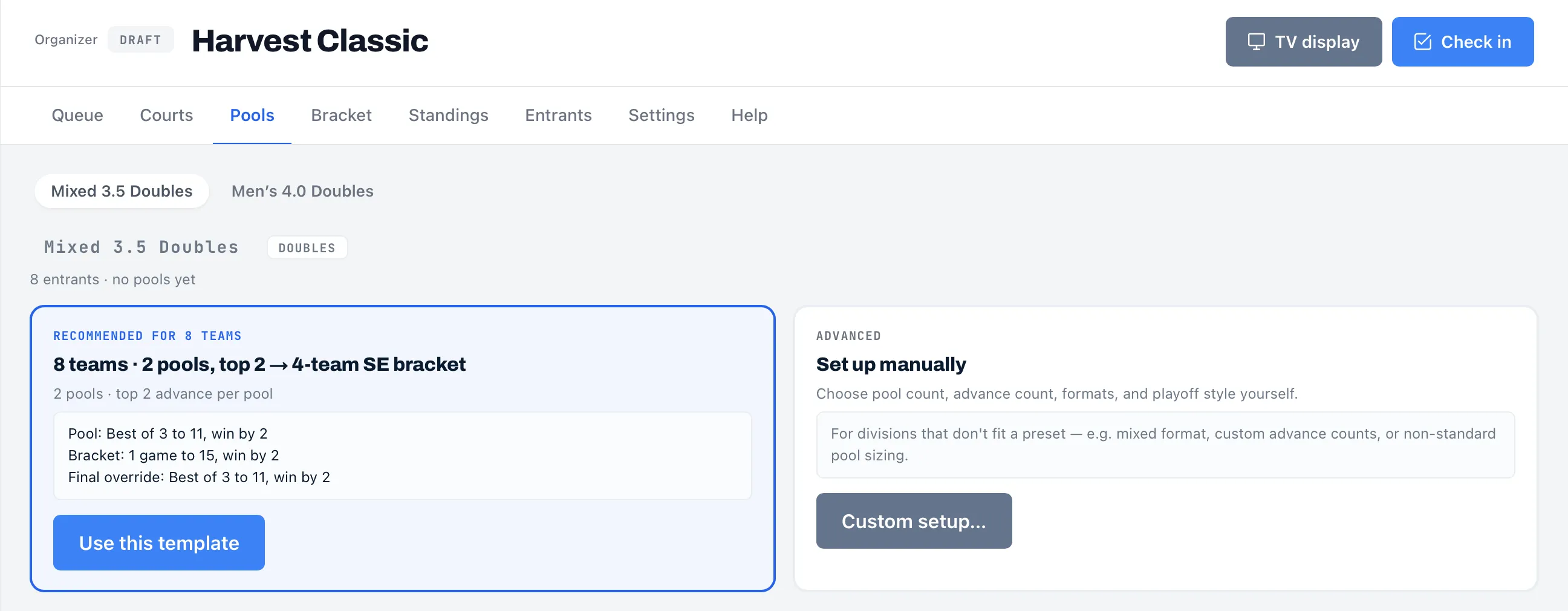
A division with no setup yet shows its entrant count and “no pools yet”. What you see next depends on how many confirmed entrants it has.
- Fewer than 3. The tab says “Add at least 3 entrants to this division before setting up pools.” Add entrants on the Entrants tab first. Only confirmed entrants count.
- 3 or more. You get two choices side by side: a recommended template, and Set up manually.
Use a template
Section titled “Use a template”The left card is badged Recommended for N teams and names the template that fits your confirmed entrant count. It shows the pool count, how many advance per pool, and the scoring formats it will use. Tap Use this template to apply it.
Applying a template sets the division’s pool count, advance count, formats and playoff, and creates the pools, named A, B, C and so on. It doesn’t put anyone into a pool. Do that next. See Run pool play.
The template is picked from the number of confirmed entrants at the moment you apply it. If entrants change afterwards, the pools don’t change with them. Use Change setup to adjust.
| Teams | Pools | Advance per pool | Pool format | Playoff | Bracket format | Final format |
|---|---|---|---|---|---|---|
| 3 to 5 | 1 | None | 1 game to 15, win by 2 | None. Final standings come from the pool record. | ||
| 6 to 7 | 1 | Top 4 | 1 game to 11, win by 2 | Gold and bronze medal matches | 1 game to 15, win by 2 | Gold match: Best of 3 to 11, win by 2 |
| 8 | 2 | Top 2 | Best of 3 to 11, win by 2 | Single elimination, 4-team bracket | 1 game to 15, win by 2 | Best of 3 to 11, win by 2 |
| 9 to 12 | 2 | Top 2 | 1 game to 11, win by 2 | Single elimination, 4-team bracket | 1 game to 15, win by 2 | Best of 3 to 11, win by 2 |
| 13 to 16 | 2 | Top 4 | 1 game to 11, win by 2 | Single elimination, 8-team bracket | 1 game to 15, win by 2 | Best of 3 to 11, win by 2 |
| 17 to 24 | 4 | Top 2 | 1 game to 11, win by 2 | Single elimination, 8-team bracket | 1 game to 15, win by 2 | Best of 3 to 11, win by 2 |
| 25 to 64 | None | Everyone is seeded into the bracket | Single elimination, no pools | 1 game to 15, win by 2 | Best of 3 to 11, win by 2 |
The templates follow USA Pickleball’s approved sanctioned formats, and every one scores win by 2. With 65 or more teams there is no template, so use Custom setup. With 3 to 5 teams the playoff is No playoff, so the pool card reads “No playoff” and marks no team as advancing.
For what each format means, see Match and scoring formats.
Custom setup
Section titled “Custom setup”Tap Custom setup… on the right card when no template fits. It suits mixed formats, unusual advance counts, or pool sizes the templates don’t offer. A dialog titled Custom setup — (division name) opens.
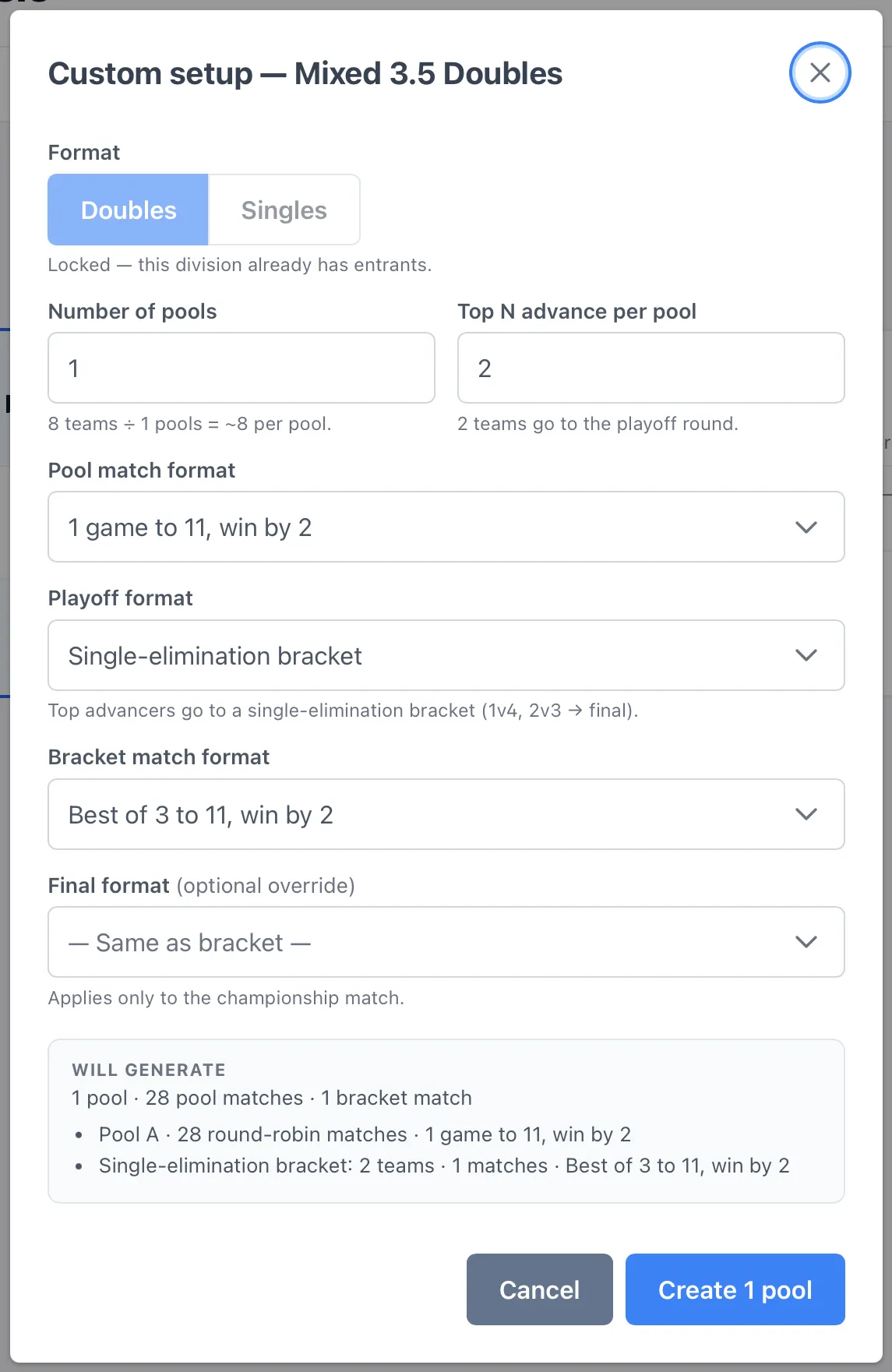
| Field | What it does | Default | When to change |
|---|---|---|---|
| Format | Shows Doubles or Singles. | The division’s current format | You can’t change it here in practice. Custom setup needs 3 or more entrants, so the control is greyed out with “Locked — this division already has entrants.” To switch a division’s format, delete the empty division in Settings and add it again. |
| Number of pools | How many pools to split teams into, from 1 to 8. A line shows “N teams ÷ N pools = ~N per pool.” | 1 | More pools means fewer pool matches per team. |
| Top N advance per pool | How many teams from each pool move on, from 1 to 8. A line shows how many teams go to the playoff round. | 2 | Raise it for a bigger bracket. Ignored when the playoff is No playoff. The pool cards then read “No playoff”. The count shown never exceeds the teams in the pool. |
| Pool match format | The scoring format for pool matches. | 1 game to 11, win by 2 | See Match and scoring formats. |
| Playoff format | What happens after pool play. See the next table. | Single-elimination bracket | To change how the division finishes. |
| Bracket match format | The scoring format for bracket matches. Appears for the bracket formats. | Best of 3 to 11, win by 2 | To shorten the bracket on a tight day. |
| Playoff match format | The same field for Placement matches. It covers every medal match. | Best of 3 to 11, win by 2 | As above. |
| Final format (optional override) | A different format for the championship match only. Choose “— Same as bracket —” to clear it. | Same as bracket | To give the final a longer format. |
| Gold-medal match override (optional) | The same idea for Placement matches: the 1 vs 2 match only. | Same as playoff match | As above. |
Number of pools and Top N advance per pool disappear, along with Pool match format, when you choose Single elimination (no pools).
The Playoff format options:
| Option | What it does |
|---|---|
| Single-elimination bracket | The top teams from each pool go into one single-elimination bracket. |
| Single elimination (no pools) | Skips pool play. Every confirmed team is seeded straight into one bracket. |
| Double-elimination bracket | The top teams from each pool go into a double-elimination bracket: lose once and you drop to the consolation side, lose twice and you’re out. |
| Placement matches (medal round, no advancement) | Pairs neighboring finishers (1 vs 2, 3 vs 4, and so on). Each match is one and done. |
| No playoff — final standings from pool record | The division ends after pool play. The bracket format fields disappear. |
A Will generate panel at the bottom updates as you change fields. It shows the pool matches, the bracket or medal matches and the formats, so you can check the size of the day before you commit. With Double-elimination bracket it reads “(+1 if the final resets)”.
The confirm button names what it will do: Create 2 pools, Create 2 pools + 2 medal matches, or Create bracket setup for no pools. Tap Cancel to close without saving.
Change setup
Section titled “Change setup”Once a division has pools, Change setup appears on the Pools tab, next to Auto-assign and Start division. It opens the same dialog, titled Change setup — (division name), with the confirm button Save changes. It’s available until the division starts, because starting locks the roster.
Changing the number of pools keeps the pools you already have, in order, and keeps their teams. If you lower the count, the pools at the end are removed and their teams go back to Unassigned. Changing only Top N advance per pool updates every pool.
Estimate how long it will take
Section titled “Estimate how long it will take”The setup you choose drives the time estimate. The How long will this take? card in Settings works out each division’s pool matches and bracket matches from its entrants, pools and formats, and the courts it can use. It shows a range, and you tap a division to see the math: courts used, pool play, bracket, and the total.
Give divisions a wave number to plan staggered starts. Divisions with the same wave run together, and waves run one after another. Enter your start time and the card shows when you should finish. You can use that finish time to tell players when to expect the event to end. Real days can still drift by 15 to 30 minutes either way. See Tournament settings for every field.
Delete a division
Section titled “Delete a division”Delete a division from Settings → Tournament card, with the × beside it. You can do this only before its roster locks, and only if it has no entrants still in the draw and no paid entries. See Tournament settings. Deleting can’t be undone.
What’s next
Section titled “What’s next”- Match and scoring formats: what each preset means.
- Run pool play: assign teams to pools and start the division.
- Brackets and playoffs: how the playoff is built.