
Run pool play
Put teams in pools, start the division, follow standings, and fix scores or tiebreaks on the Pools tab.
Pool play is a round robin: every team in a pool plays every other team once. This page covers the organizer’s Pools tab, from assigning teams to ending pool play. Choosing the number of pools and formats comes first. See Set up divisions.
Players see a read-only version of the pools. See Register and pay for a tournament for the player side, and Put the tournament on a TV for the public display.
Put teams in pools
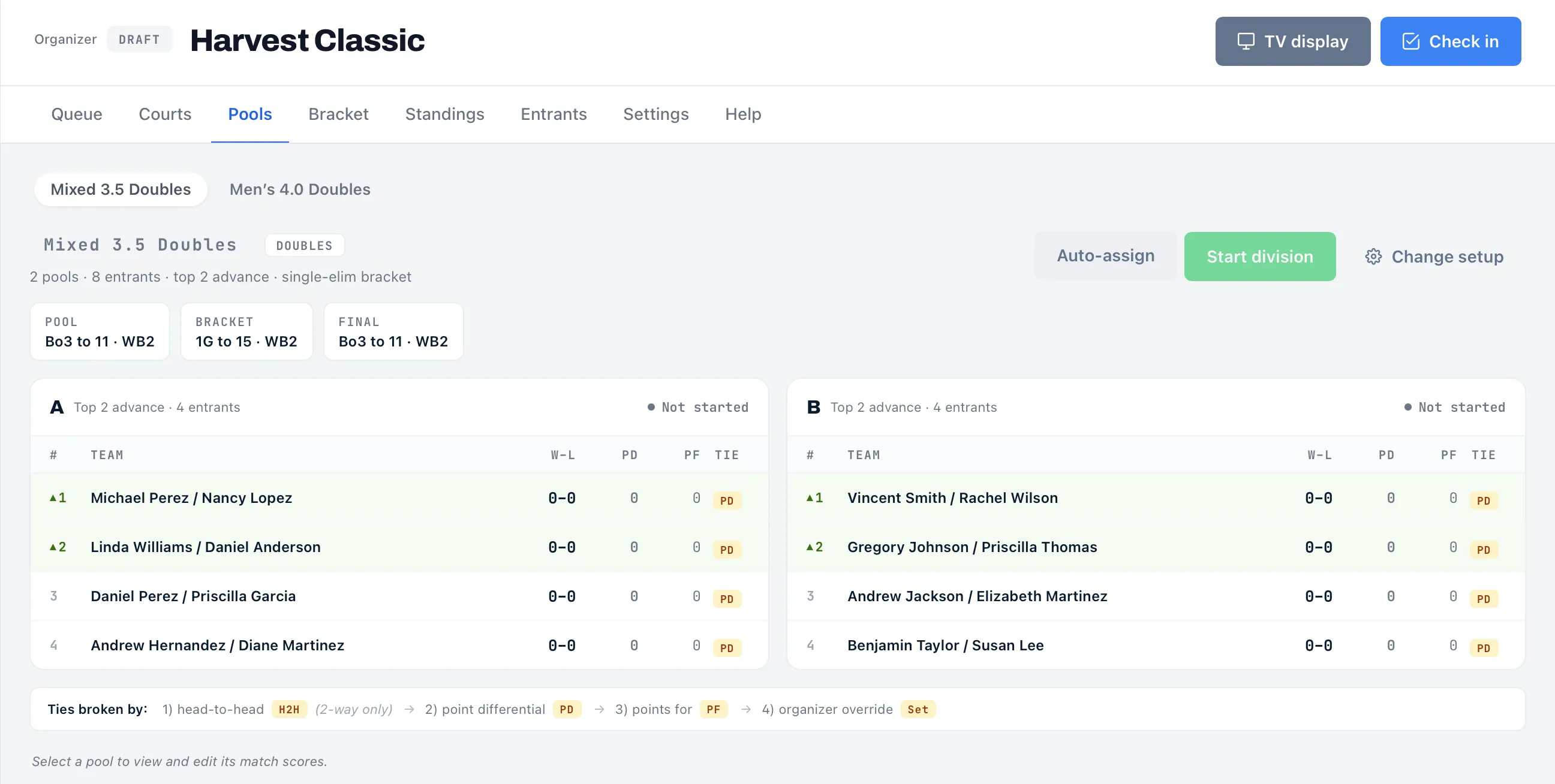
Section titled “Put teams in pools”After you apply a template or finish Custom setup, the division has empty pools and the Pools tab shows each one with its teams. Teams aren’t in a pool yet. You have two ways to place them, and you can mix them.
Auto-assign
Section titled “Auto-assign”Tap Auto-assign. It appears while the roster is unlocked and the division has entrants. Dink+ deals teams out in a snake draft: with two pools, team 1 goes to A, teams 2 and 3 go to B, team 4 goes to A, and so on. Teams that carry a seed go first, in seed order. Teams without a seed are shuffled and go last.
With eight seeded teams and two pools, pool A gets seeds 1, 4, 5 and 8, and pool B gets 2, 3, 6 and 7. That keeps the pools balanced. Set seeds first, by hand or with Seed by DUPR, to control who lands where. Teams you leave unseeded are shuffled in, so tapping Auto-assign again gives them a different draw. If any teams are already in pools, a prompt asks “Replace N existing pool assignments with a snake-draft?” before it runs. Afterward a message reads “Assigned N teams to pools”.
Place teams one by one
Section titled “Place teams one by one”On the Entrants tab, each team card has a Pool dropdown with Unassigned and one option per pool, such as Pool A. It appears only while the division has pools and its roster is unlocked. Use it to keep friends apart, or to balance pools by hand after Auto-assign.
A team added later, or one that was withdrawn and replaced, stays Unassigned until you place it. Run Auto-assign again or use the dropdown.
Read the pool cards
Section titled “Read the pool cards”Each pool is a card:
- The header shows the pool name, “Top N advance · N entrants”, and a status: Not started, In progress or Complete. N never exceeds the teams in the pool. In a division with No playoff, it reads “No playoff · N entrants”.
- The table lists teams in rank order with W–L, PD (point differential) and PF (points for). A green triangle marks the teams that advance. A division with no playoff shows no triangles. A seeded team shows its seed as a tag such as #3 before its name. On a narrow phone screen the PD, PF and TIE columns are hidden.
- A TIE column shows a tag when a tiebreaker decided a team’s place. See Tiebreakers.
Tap a card to open the pool’s page.
Start the division
Section titled “Start the division”Tap Start division. It’s greyed out until the division is ready, and hovering shows what is missing.
| Hover message | What to do |
|---|---|
| Publish the tournament before starting divisions | Tap Publish tournament in Settings. |
| No confirmed entrants yet | Add or confirm teams. |
| N entrants not yet assigned to a pool | Assign them, or run Auto-assign. |
| N entrants have unchecked-in members | Check them in. See Check in players. |
| Not ready | Check that no pool has only one team (every pool needs at least two), and that no doubles team is missing its partner. |
A confirmation reads “This locks the roster, builds the pool schedule, and puts matches on courts. Continue?” when Auto-assign courts is on. It says “adds matches to the queue” when it’s off. Confirm with Start division.
Starting a division:
- Locks the roster. From then on you can’t add, withdraw or move teams, run Auto-assign, change a team’s pool, or use Change setup. Teams still pending or waiting for a partner are rejected.
- Builds the schedule. Every pool gets a full round robin, arranged in rounds so a team plays at most once per round.
- Sends matches to the queue, or straight to courts if Auto-assign courts is on.
- Moves the division to IN PROGRESS.
The same button is in Settings → Match formats per division. See Start a division for what else it affects.
Tiebreakers
Section titled “Tiebreakers”Pools rank teams by wins. When teams tie on wins, Dink+ breaks the tie in this order:
- Head-to-head (H2H). Only when exactly two teams are tied and they played each other.
- Point differential (PD). Points scored minus points allowed across all of the pool’s matches.
- Points for (PF). Total points scored.
- Organizer’s choice (Set). The order you pick with Break tie. See Break a tie.
- Seed, then sign-up order (Seed). The team with the lower seed ranks higher. Teams with no seed come after seeded ones, in the order they signed up.
Among teams level on wins, a team that hasn’t played yet ranks last. The TIE column shows the tag of the tiebreaker that settled a team’s place. Teams still level after points for are never left in a random order: they fall to steps 4 and 5, so every screen shows the same standings.
Break a tie
Section titled “Break a tie”When teams are still level after points for, you can set their order yourself.
- Open the pool by tapping its card. Once every match in that pool is final, the standings show “X, Y are tied after points for” with a Break tie button.
- Tap Break tie.
- Use the up and down arrows to put the tied teams in order, best first.
- Tap Save order. Tap Cancel to leave it as it was.
- Only organizers see Break tie, and only after all of that pool’s matches are final.
- The order you save applies only when every tied team is in it, and shows the Set tag. A partial order is ignored, and the tied teams fall back to Seed.
- Teams that no longer tie, such as two teams settled by head-to-head, never show the control.
- Once a bracket exists, Break tie is gone and the order is locked. To change it, use Clear & Requeue on a pool match, then break the tie again and generate the bracket.
Fix a score in a pool
Section titled “Fix a score in a pool”Open a pool by tapping its card. The pool’s page has a ← Back to Pools link, the standings, and a list of the pool’s matches. Finalized matches come first, in the order they were played. Each match shows a status of Final, Reported, Disputed or Pending, and the game scores once it’s final.
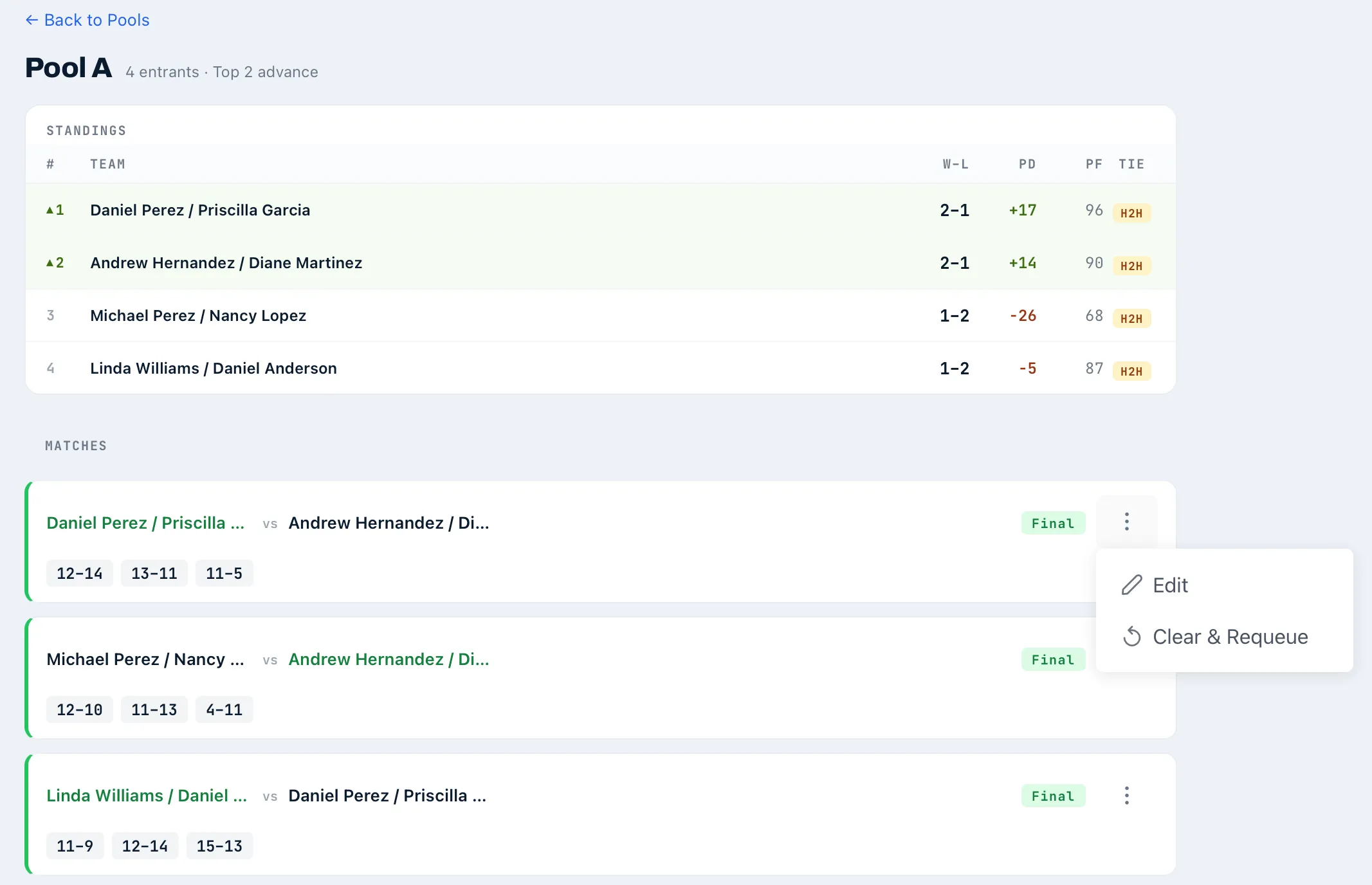
Entrants can open the same page. Only organizers see the ⋮ (Match actions) button on a finalized match. It offers two actions.
Edit opens the score editor in place. Enter the corrected games and save.
If the change moves who advances from the pool and the bracket already exists, a Confirm score change dialog lists the matches that will reset. Matches already played show highlighted, and their scores are cleared and must be entered again. Tap Confirm & reset to apply it. The bracket is re-seeded and you see “Score updated — bracket re-seeded”. Tap Cancel to leave the score as it was.
This applies to single and double elimination. With Placement matches, editing a pool score doesn’t change the medal pairings. To rebuild them, use Clear & Requeue on a pool match, which removes the medal matches. Enter the score again, then tap Generate medal matches.
If the edit doesn’t change who advances, it just saves (“Score updated”).
Clear & Requeue
Section titled “Clear & Requeue”Clear & Requeue wipes a score entered by mistake, such as a match scored without being played. The match goes back to pending and to the top of the Queue tab. Auto-assign puts it on the next free court ahead of the other queued matches. Players who’ve agreed to texts get a correction text, as long as Text players (court & score updates) is on in Settings.
Only pool matches can be cleared this way.
If the division already has a bracket, clearing makes the pool incomplete. A Reset bracket? dialog tells you how many bracket matches will be removed. Tap Clear & reset bracket to go on, or Cancel to stop. A completed division goes back to in progress.
When pool play ends
Section titled “When pool play ends”When every pool match is final, Generate bracket appears on the Pools tab, in the header above the pool cards. It shows only when the division has a playoff, the roster is locked, and no bracket exists yet. See Brackets and playoffs.
If the division has No playoff, there’s nothing to generate. The division finishes when its last match is final, and the final order comes from the pool record on the Standings tab.
Divisions with no pools
Section titled “Divisions with no pools”A division set to Single elimination (no pools) has no pool cards. The Pools tab shows one card, “This division goes straight to the bracket”, with the confirmed team count. It has three actions:
- Change setup, until the division starts.
- Start division, which locks the roster and the seeds. It needs at least 2 confirmed teams and everyone checked in.
- Generate bracket, which is greyed out until the division starts.