
Register and pay for a tournament
Register for a division, add a partner, pay your entry fee through Stripe, and change or cancel your spot.
You can register for a tournament while its organizer has registration open. You pick a division, name your partner if it’s doubles, and pay if the division charges an entry fee.
Find a tournament
Section titled “Find a tournament”Open the tournament link or scan its QR code. Organizers share both. The tournament page shows Registration open or Registration closed, the venue, and a card for every division with its entry fee and how many spots are left. Tap a division to see who has registered so far. Other teams’ phone numbers and payment status aren’t shown.
Tournaments the organizer lists publicly also appear in the events directory. If the organizer added you themselves, the tournament appears on your Home under Your Tournaments.
Register
Section titled “Register”- On the tournament page, tap Register. If you’re signed out, tap Sign in to register. Signing in creates a free account if you don’t have one.
- Under Division, tap the division you want. Each card shows a SINGLES or DOUBLES label, the entry fee or Free, and how full it is. A full division stays visible but you can’t pick it.
- For a doubles division, add your partner under Your team. Search Dink+ and tap their name to link their account, or type any name to add them as a guest. Singles divisions have just you, under Player.
- Optional: under Text updates, add your phone number and tick the box to get court assignments and score updates by text.
- If the division has a fee, choose who pays. See Pay your entry fee.
- Tap Register. In a division with a fee, the button reads Continue to payment and shows the total.
Only divisions that haven’t started appear. If you open the page when registration has closed, you’re sent back to the tournament page with the message “Registration is closed”.
Your partner
Section titled “Your partner”- Linked partner: a Dink+ member. Dink+ notifies them that you registered them.
- Guest partner: someone without an account. Type their name, and add a phone number if you like. In a division with a fee you must also give their Partner email (required), so they can be invited to pay their share.
You and your partner can each be on only one team per division.
Text updates
Section titled “Text updates”Enter your phone number to get texts for your matches. Tick the box next to “Text me court assignments and score updates for my matches”. The box stays off until you’ve entered a number. Standard message and data rates may apply. Reply STOP at any time to stop the texts.
DUPR events
Section titled “DUPR events”If the organizer is reporting results to DUPR, you’ll see “This is a DUPR event — connect your DUPR account to register.” Tap Connect DUPR and link your account. You must be linked before you can continue. If you’re registering a partner, they need a linked account too, and guests aren’t allowed. For a DUPR+ event, both of you need a DUPR+ subscription. See Link DUPR and dispute scores.
Pay your entry fee
Section titled “Pay your entry fee”Payments are processed by Stripe. Dink+ never sees your card number.
In a division with a fee, every player pays their own entry fee plus a $5 Dink+ registration fee. Before you continue, a summary shows Entry fee, Registration fee (non-refundable) and Due at checkout.
| Choice | What you pay | What your partner does |
|---|---|---|
| Pay my entry fee | Your entry fee + $5 | Pays their own share |
| Pay for both of us | Both entry fees + $10 | Nothing |
Singles players always pay for themselves.
- Tap Continue to payment. You go to Stripe’s secure checkout. On the app, it opens in a sheet.
- Pay. Stripe emails you a receipt, and Dink+ emails a confirmation once your team is confirmed.
- You return to the tournament page.
Your team is confirmed once both players have paid. If only one has paid, the team is held as pending until the other pays. Until then, your page shows Payment needed, with a Pay your entry fee button, and a Withdraw button. Check-in and match details appear only after your team is confirmed.
If you chose Pay for both of us, your button shows both shares, such as “$40.00 + $10”. Your partner sees no pay button, only a note that you’re paying for both of you.
If you tap Pay while a payment is still processing, you see “Payment is processing — refresh in a moment”. Wait a moment rather than paying again.
If you were added as a guest partner
Section titled “If you were added as a guest partner”When a teammate registers you as a guest in a division with a fee, you get an email with the subject “Claim your tournament spot”. It arrives after your teammate has paid their share. The link works for 30 days. Free divisions don’t send this email. Your teammate just adds you when they register.
- Open the link. It shows the tournament, the division and who you’re partnering with.
- Tap Sign in to claim your spot, and sign in with the email you were invited with. Signing in creates an account if you don’t have one.
- Check your entry fee, then tap Pay with the total shown.
If you’re signed in with a different email, Dink+ won’t attach the spot to your account. Tap Use a different account at the bottom of the page, and sign in with the invited email.
When you’ve paid, the page reads “You’re all set — your entry fee is paid.” If the link says it’s not available, the invite expired or the spot was released. Ask your partner to check their registration.
Change or withdraw your registration
Section titled “Change or withdraw your registration”You can change your division or partner while signup is open and your division hasn’t started, as long as your team is confirmed. You can withdraw until your division starts, even after signup closes. Other divisions starting doesn’t affect you. Once your division starts, only the organizer can make changes.
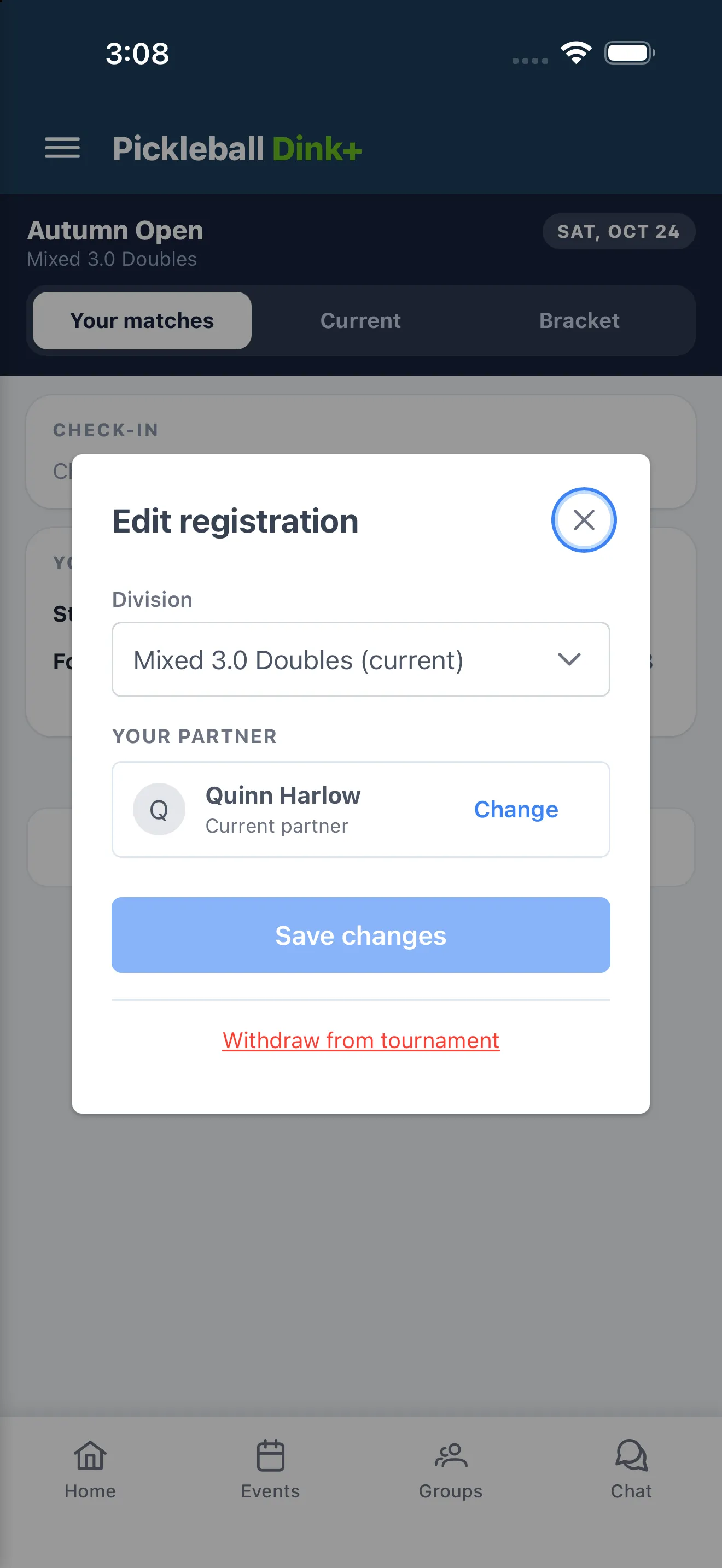
- Open the tournament and tap Edit registration.
- To switch divisions, pick another from Division. You can only move to a division of the same type (singles or doubles) that is open, isn’t full, and has the same entry fee.
- To change partner, tap Change next to your partner, then search or type a new name. Tap Keep followed by your partner’s name to leave them as is.
- Tap Save changes.
Once anyone on your team has paid, you can’t move divisions or swap partners. Withdraw and register again instead.
To withdraw, tap Edit registration, then Withdraw from tournament, then Withdraw. This removes your whole team. You can register again while signup is open.
If your team is still waiting on a payment, there is no Edit registration button. Tap Withdraw on your tournament page instead, until your division starts.
Refunds
Section titled “Refunds”- The organizer handles entry-fee refunds. Contact them directly. Their facility is listed on the tournament page.
- The $5 registration fee is non-refundable.
- You can withdraw until your division starts. If anyone on your team had paid, the organizer is alerted to refund you. Withdrawing doesn’t refund you by itself, so contact them if you don’t hear back.
- Refunds go back to the card you paid with. Your bank decides how soon it shows up.
Running the tournament instead? See Registration and entry fees.
On the day, see Play in a tournament.