
Hide an event from your feed
Take an event off your own feed when you don't need to see it, and bring it back if you change your mind.
Hide an event when it’s cluttering your feed, like one that’s over but hasn’t been closed yet. Only you are affected: nobody else’s view changes, and the organizer isn’t told.
If you can close the event yourself, because you’re its organizer or a co-organizer, you won’t see the option. Close the event instead so it clears for everyone.
Hide an event
Section titled “Hide an event”-
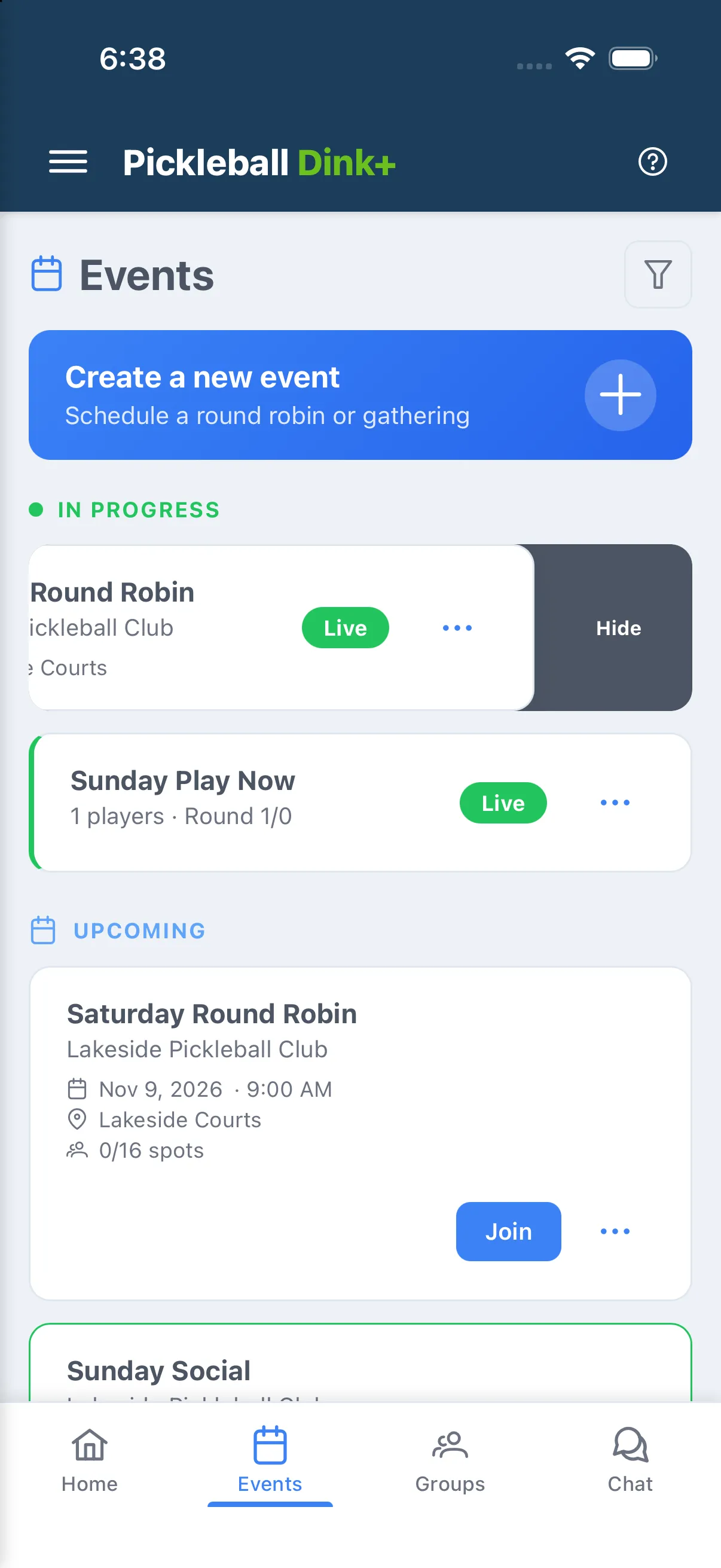
On Events or Home, swipe the event’s card to the left.
-
A long swipe opens the confirmation. After a shorter swipe, tap Hide.
-
Read the confirmation, then tap Hide.
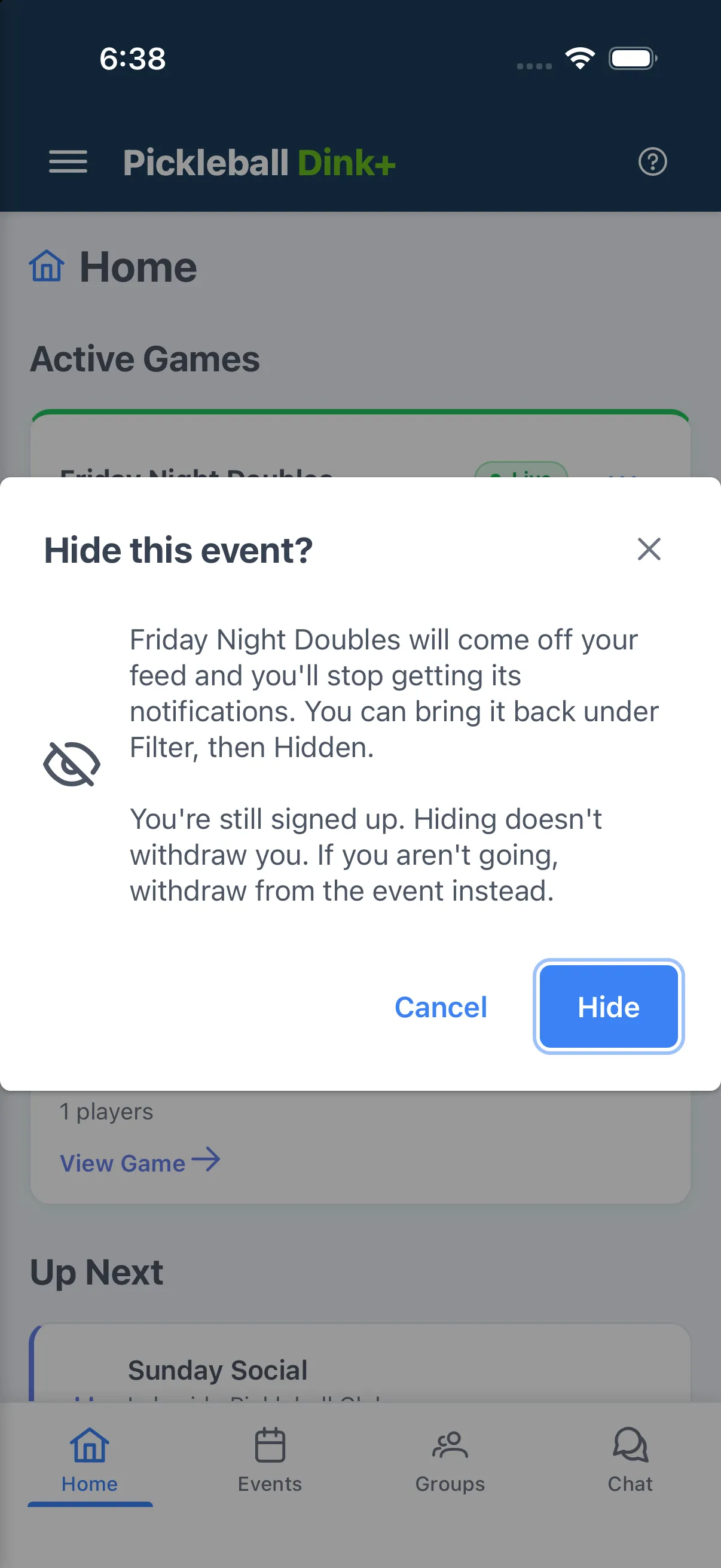
You can also tap ⋯ on the card, then Hide from my feed.
- On Events or Home, click ⋯ on the event’s card.
- Click Hide from my feed.
- Read the confirmation, then click Hide.
What changes when you hide an event
Section titled “What changes when you hide an event”- It leaves your Events feed, and Active Games and Up Next on Home.
- You stop getting its notifications, including updates, cancellation and game results.
- It stays hidden if the event changes, such as a new date.
- You can still open it from the Hidden filter, and your stats and match history don’t change.
Two things still reach you:
- Getting a spot. If you move off the waitlist or an organizer adds you, you’re told, and the event comes back to your feed. You’re also told if an organizer invites you.
- Group chat. Chat belongs to the group, not the event. To stop those messages, mute the group.
Bring an event back
Section titled “Bring an event back”-
On Events, tap the filter button at the top.
-
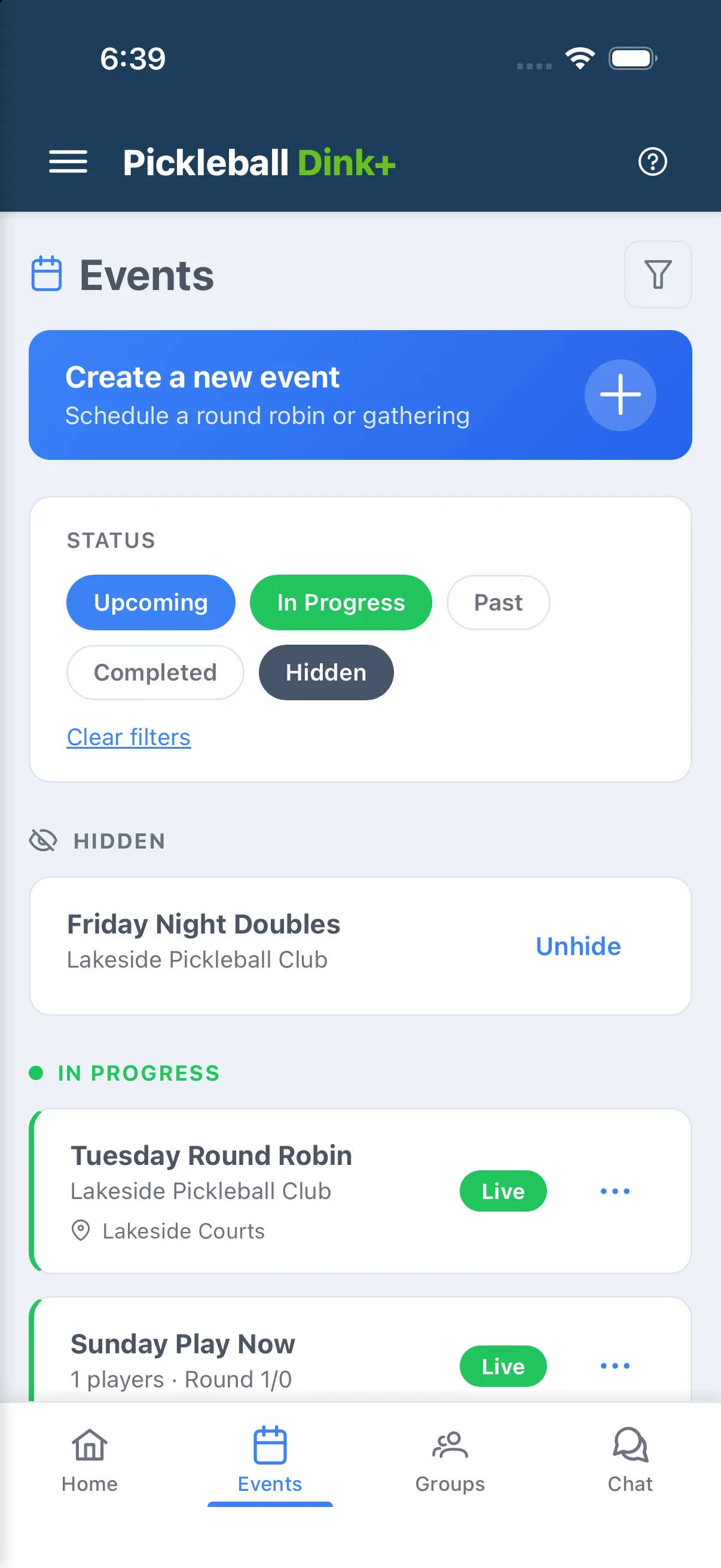
Turn on Hidden. Everything you’ve hidden is listed first.
-
Tap Unhide. The event goes back on your feed and its notifications start again.