
Play in a tournament
Check in, find your court, enter and confirm scores, and follow your pool and bracket on tournament day.
Once you’re registered, the tournament appears on Home under Your Tournaments. Open it and you land on your team’s page. It has three tabs: Your matches, Current and Bracket. See Register and pay for a tournament if you haven’t signed up yet.
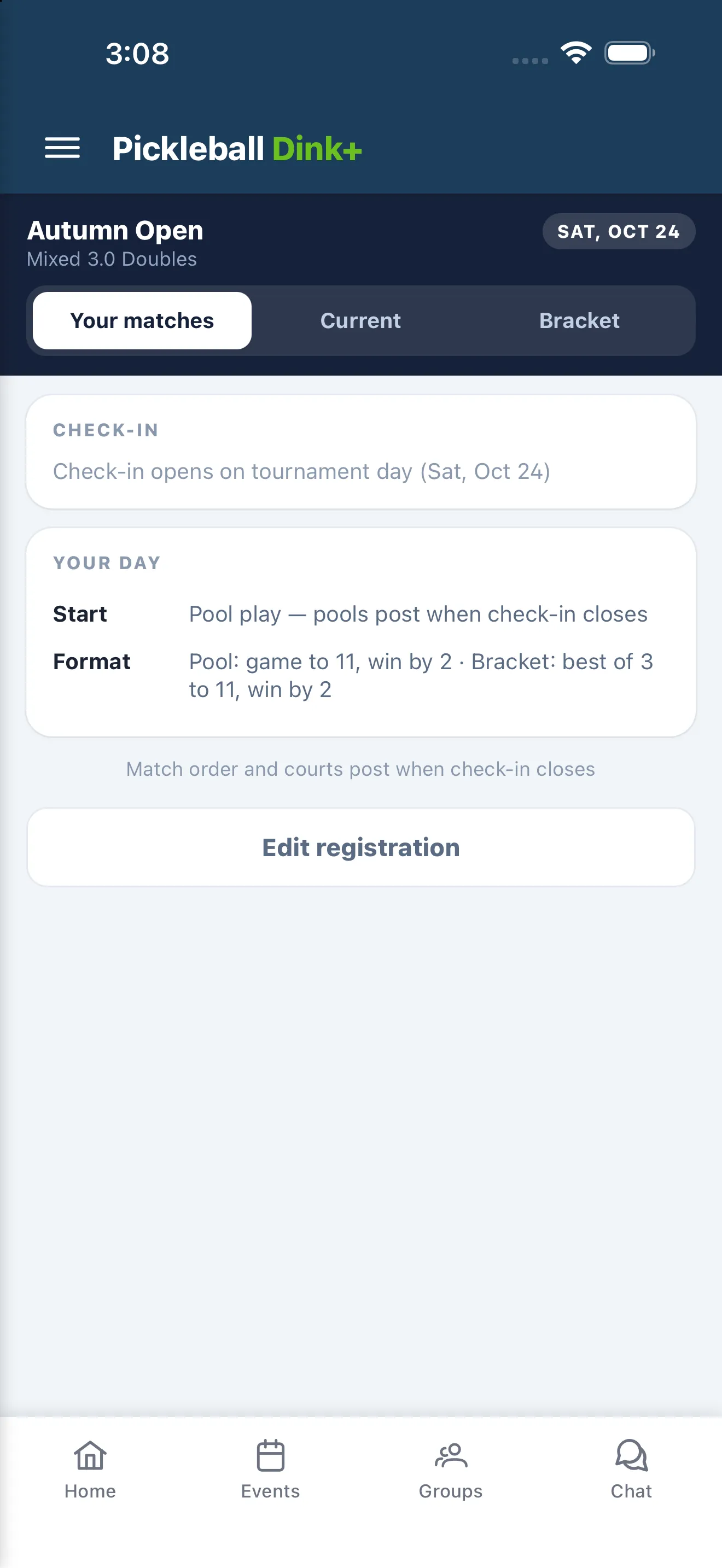
The dark bar at the top shows the tournament, your division and a chip for where things stand. Before play it shows the start day and time. It reads Play suspended while the organizer has paused your division. Matches already on court can still be played and scored. During pool play it reads something like Rd 2 of 5. Later it shows the round you’re in, such as Semifinal, and Complete when your division is done.
Check in
Section titled “Check in”Check in when you arrive so the organizer can start your division.
- Open the tournament and stay on Your matches.
- In the Check-in card, find your row. It reads You.
- Tap Check in.
If your team is still waiting on a payment, you don’t see the Check-in card. Your page says “Your team is confirmed once every entry fee is paid”, with Pay and Withdraw buttons. Check-in is for confirmed teams only.
A tick replaces the button once you’re in. Once checked in, you can’t undo it. Ask the desk. For a teammate who hasn’t checked in, tap Nudge. They get a notification, and a text if they’ve agreed to texts. The link reads Nudged for 5 minutes afterward.
Until the tournament’s start day, the card says “Check-in opens on tournament day”. If the organizer set a start time, a Check in by time appears, 15 minutes before it. It’s a target. Check-in doesn’t lock at that time. The organizer can also check you in at the desk. Organizers see this from their side in Check in players.
Below the card, Your day lists your start time, your pool and the number of matches you’ll play, and the scoring format. If there are playoffs, it adds an estimated start for them, marked “(estimate)”. Your pool’s teams are listed under Pool A, or whichever pool you’re in. The page also says “Match order and courts post when the organizer starts your division”.
Find your court
Section titled “Find your court”After the organizer starts your division, Your matches lists your games by round. Each round has a chip:
| Chip | Meaning |
|---|---|
| Scheduled | Waiting its turn. |
| Up next | Your next match, with no court yet. |
| Playing now | You’re on a court. |
| Awaiting confirm | A score is in and waiting for the other team to confirm. |
| Disputed | The score is being sorted out at the desk. |
| Final | Done. |
Each match shows your opponent, such as “vs Smith / Jones”, and a line like “pool play · court TBD”. When the organizer sends you to a court, the line shows the court, such as “pool play · Court 3”. If texting is on and you’ve agreed to texts, you also get a message: “You’re up! Court 3 now.”
Matches in a best-of-3 say “best of 3”.
Enter and confirm scores
Section titled “Enter and confirm scores”The Current tab shows the one match that needs you.
Enter the score
Section titled “Enter the score”When you’re on court, Current shows On court 3 and a score card with both teams. Your team is marked YOU. A best-of-3 has GM 1, GM 2 and GM 3 columns.
- After the match, tap the boxes and enter each game’s score for both teams. Later games unlock as earlier ones are decided.
- Check the hint under the boxes if the button is greyed out. It says “Game is to 11” or “Not final yet — must win by 2”.
- Tap Submit. It reads, for example, Submit · 11–5 for one game, or games won, such as Submit · 2–1, for a best-of-3.
You can submit only a finished match, and either team can enter the score. You can also tap Enter score beside the match on Your matches.
With the window on, a hint under the boxes names who checks your score, such as “Casey or Drew confirms on their phone”.
What happens next depends on the organizer’s Score dispute window:
- Window off. The card says “Scores are recorded as soon as you submit.” The score is final.
- Window on. The score waits. You see Awaiting confirm and “Sent to Casey & Drew to confirm”. Tap Edit score to fix a mistake. Saving restarts the wait.
Confirm a score the other team entered
Section titled “Confirm a score the other team entered”When the other team, or the desk, enters a score, Current shows Confirm score and a line such as “Casey entered this score · 2 min ago”.
- Tap Confirm 11–5 (games won in a best-of-3, such as Confirm 2–1) if the score is right.
- Tap That’s not right if it isn’t. The match stays unconfirmed until the tournament desk sorts it out with both teams. Current then reads Disputed — see the desk. Go to the organizer.
If you do nothing, the score confirms by itself after the window. Under 2 minutes the hint is in seconds (“Scores auto-confirm after 90 seconds”), otherwise in minutes (“Scores auto-confirm after 3 minutes”). Organizers see how this works in Scores, confirmation and disputes.
When pool play ends, Your matches shows a summary such as “You won Pool A” with your record, and a Pool play · finished bar with your W–L. Tap All results to see every pool match, and Hide results to close the list. With no playoff, it shows your finish, such as “You finished 1st”, and “No playoff — final standings from pool record”. The Standings tab marks the pool winner “Champion — decided by pool record”.
After a match is final, Current shows Recorded for about a minute. Then it shows your next match, or “No match right now” with a line such as “Next: vs Smith / Jones · pool play · court TBD”. If nothing is scheduled yet it says “We’ll show your match here when it’s assigned a court”. When your pool is done and you’re not moving on, it reads “Your day is done” with your finish.
Follow your pool and bracket
Section titled “Follow your pool and bracket”The Bracket tab is called Standings if your division has no playoff.
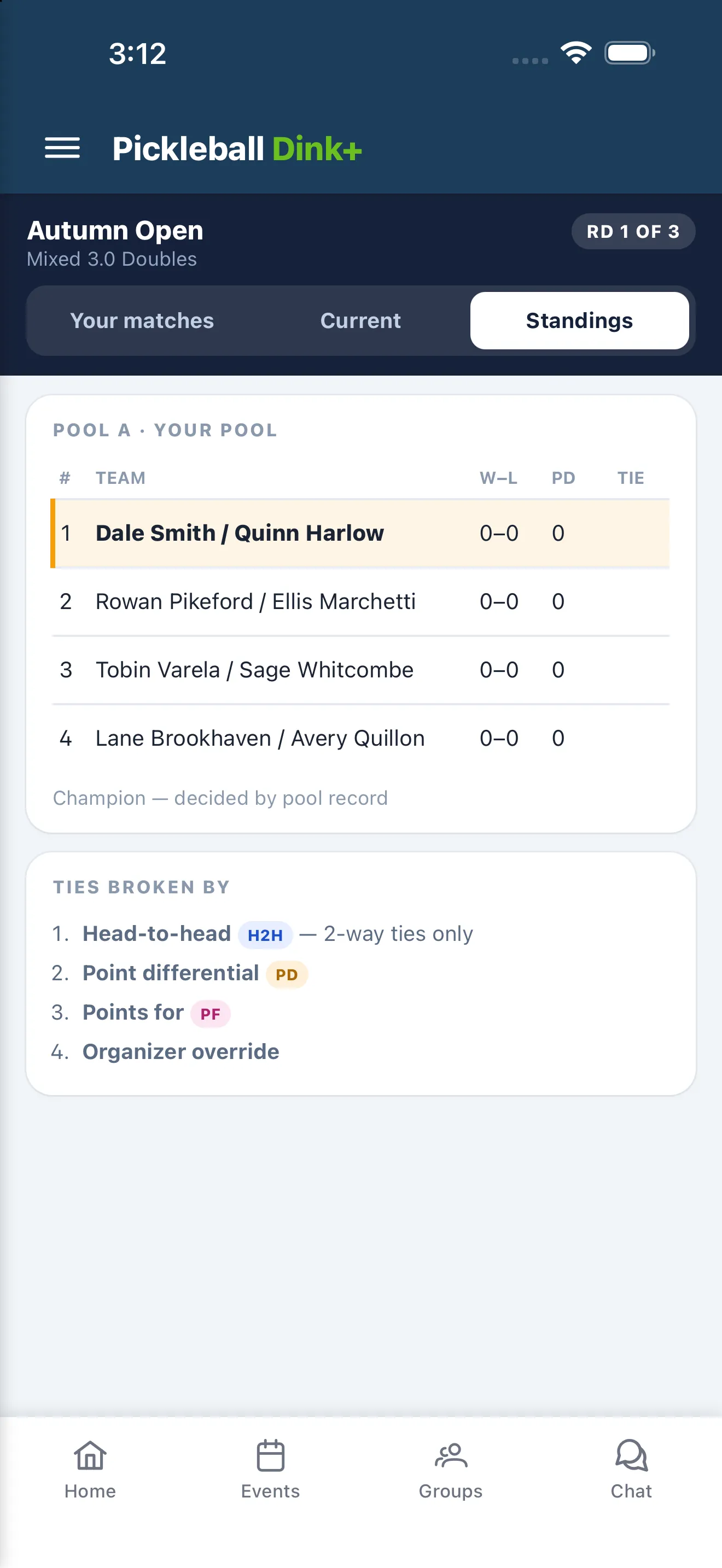
Pool play. Your pool shows first, marked “your pool”. The table lists each team’s rank, W–L record and PD (point differential). A Tie column shows H2H, PD, PF, Set (the organizer chose the order) or Seed when a tiebreaker settled a spot. At the bottom you see how many advance: “Top 2 advance to the playoff bracket”. A division with no playoff says “Champion — decided by pool record” instead. Before the bracket exists, tap the other pool’s name at the top right of the card to flip through the pools. Beside the chips, a label shows how many matches are left, such as “3 matches left”, and reads “Pool play complete” at none.
Playoffs. The Playoffs chip stays greyed out, marked TBD, until the organizer generates the bracket. Then you can open it. Pools show their final order, and each advancing team carries a seed chip such as A1. The bracket lists each round with a status chip. Your matches are highlighted. If you have a bye, Your matches shows a Bye row. Rounds you could still reach read If you win.
Before the bracket exists, a Ties broken by card lists the order: head-to-head, point differential, points for, organizer override, then seed and sign-up order.
Tap an opponent’s name on a bracket card to see their pool record and results. A Back link brings you back.
A division with Placement matches shows Medal matches instead. The top teams from each pool, as many as the pool card says advance, are paired into one medal match each. There are no further rounds. A double-elimination bracket shows the winners and consolation rounds, and a note that you drop to the consolation bracket after a first loss and are out after two. See Brackets and playoffs for how the organizer’s side works.
Change your registration
Section titled “Change your registration”Until your division starts and while your spot is confirmed, Your matches shows Edit registration. Changing your division or partner works only while signup is open. Withdraw from tournament in that dialog works until your division starts, even after signup closes. Once your division starts, only the organizer can change your team. See Change or withdraw your registration.