
Create a tournament
Set up a tournament's name, dates, courts and divisions, then save it as a draft or publish it.
The create flow has three steps: Basics, Divisions and Review. It sets only the essentials. You configure everything else afterwards, from the tournament’s own tabs.
Before you start
Section titled “Before you start”- You need a facility license. Staff you’ve added in facility settings can create tournaments without a license of their own. Without one, the New Tournament button doesn’t appear.
- Know your court numbers. You need at least one to continue.
Create a tournament
Section titled “Create a tournament”-
Open Tournaments and tap New Tournament.

-
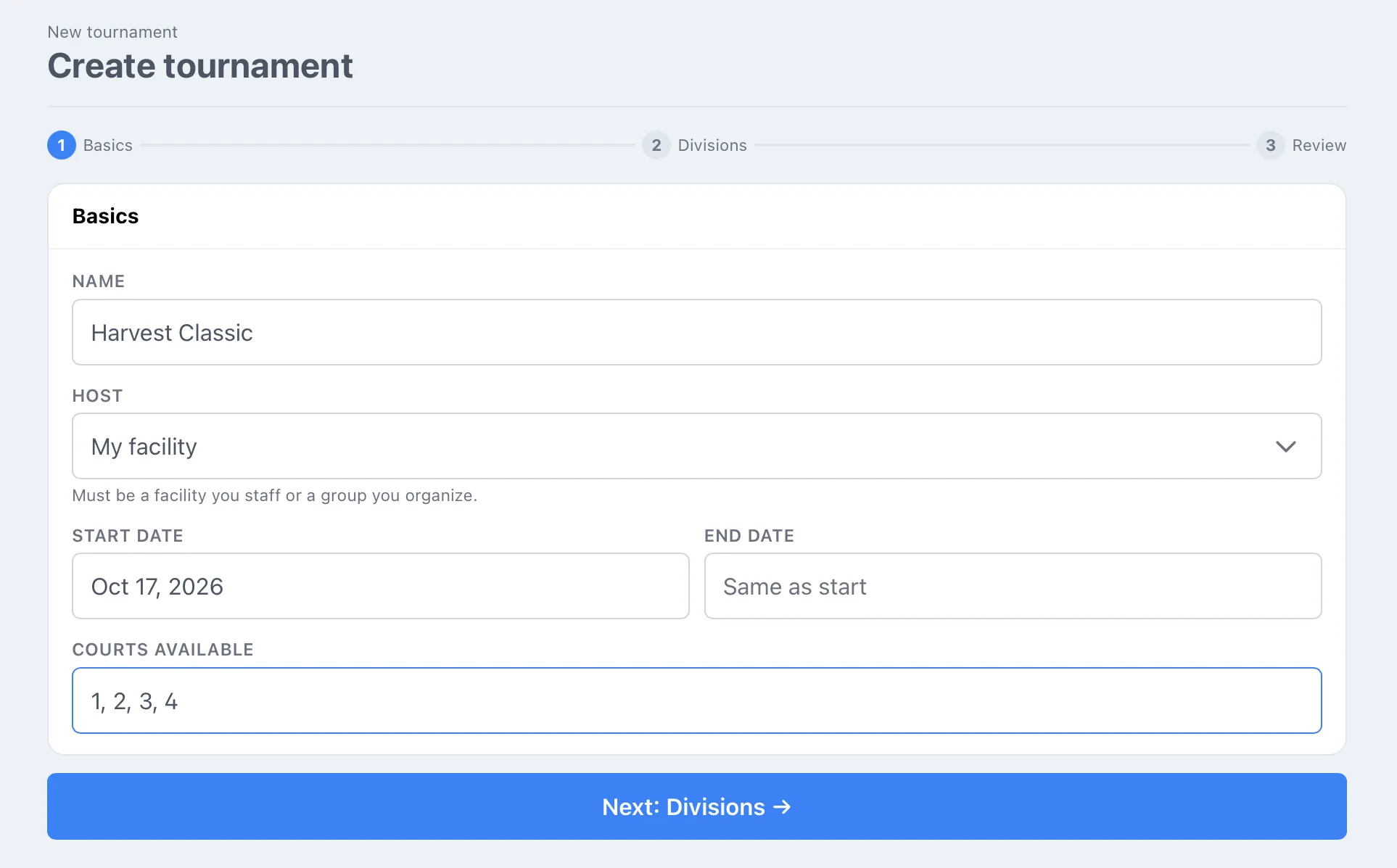
On Basics, fill in the fields in the table below, then tap Next: Divisions →.
-
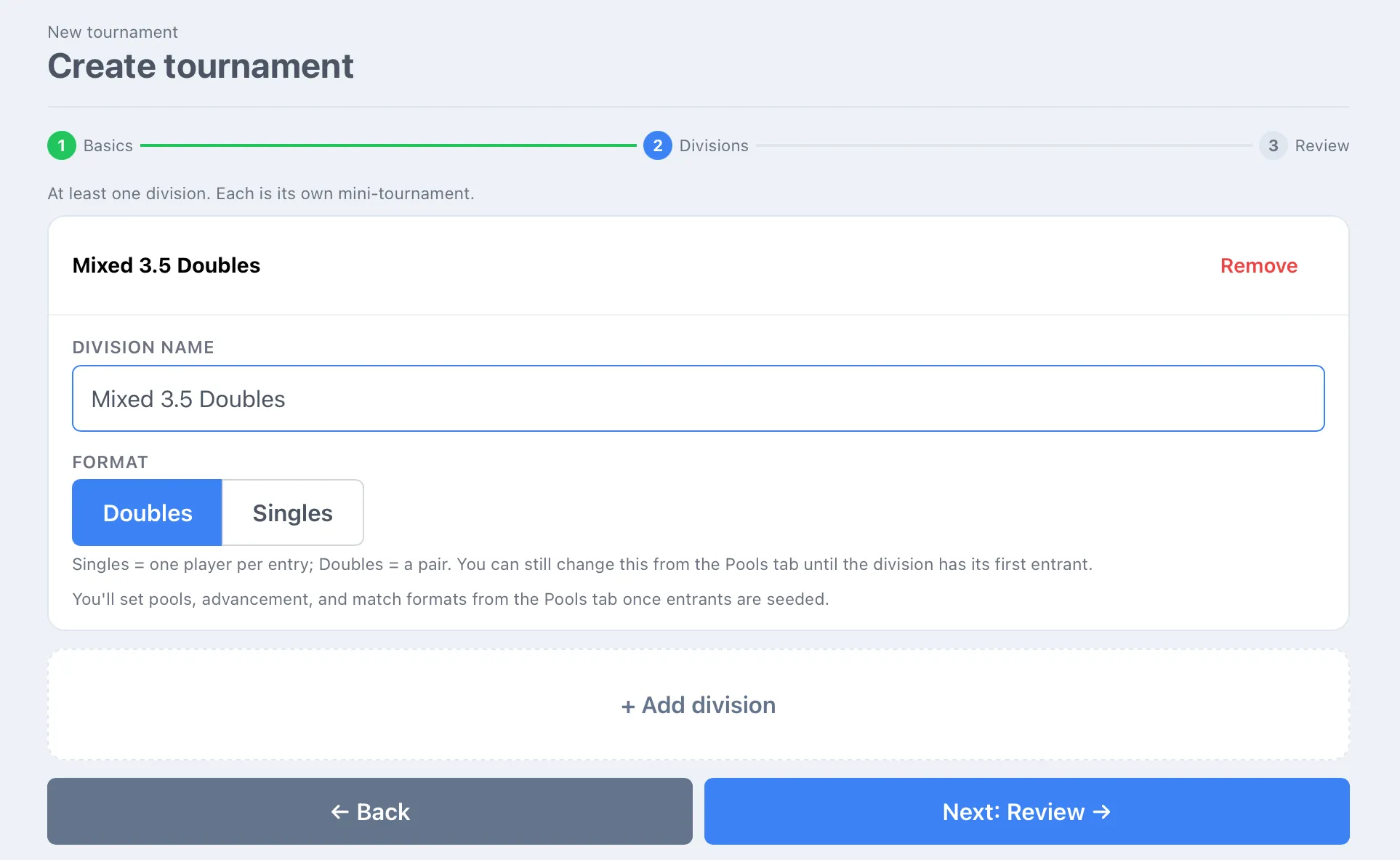
On Divisions, tap + Add division and add at least one. Name each one, choose Doubles or Singles, and tap Next: Review →.
-
On Review, check the summary. Then tap Publish → to go live now, or Save as draft to finish setup first.
Either button creates the tournament and takes you to its Entrants tab. Tap ← Back on any step to change your answers.
Basics
Section titled “Basics”| Field | What it does | Default | Notes |
|---|---|---|---|
| Name | The tournament’s title everywhere it appears. | Empty | Required. You can rename it later in Settings. |
| Host | Who hosts the tournament. | Empty | Required. The only option is My facility. |
| Start date | The first day of play. | None | Optional. Players see it on the public page. |
| End date | The last day of play. | Same as start | Optional. Leave it blank for a one-day event. |
| Courts available | The courts you can use, separated by commas, such as 1, 2, 3, 4. |
Empty | Required. Whatever you type becomes the court label, so A, B, C works too. You can add or remove courts later in Settings. |
Next: Divisions → stays disabled until you’ve entered a name, chosen a host and listed at least one court.
Divisions
Section titled “Divisions”Each division is its own mini-tournament, with its own entrants, pools and bracket. Common examples are skill levels, age groups, or men’s, women’s and mixed.
| Field | What it does | Default | Notes |
|---|---|---|---|
| Division name | What players and the public see. | Empty | Required. Rename it later in Settings. |
| Format | Doubles is a pair per entry. Singles is one player per entry. | Doubles | The page hints that format can’t be changed once the division is created. To switch, delete the empty division in Settings and add it again with the other format. Divisions you add later in Settings also have a Doubles / Singles choice. |
Tap Remove on a division to drop it from the list. Next: Review → stays disabled until you have at least one division and every division has a name.
What a new division starts with
Section titled “What a new division starts with”| Setting | Starts as |
|---|---|
| Pools | 1 |
| Advance from each pool | Top 2 |
| Pool match format | 1 game to 11, win by 2 |
| Playoff | Single elimination, with a 3rd-place match |
| Bracket match format | Best of 3 to 11, win by 2 |
| Entry fee | None (free) |
| Maximum teams | No limit |
Review and publish
Section titled “Review and publish”The Review step shows your name, host, dates and court count, and the divisions you’ve added. Two buttons finish the flow.
- Publish → creates the tournament and publishes it in one go. The public link starts working immediately, and you land on Entrants. The page reminds you that no one is notified automatically, so share the link.
- Save as draft creates it as a draft. Nothing is visible to players. Publish later from Settings.
Publishing is not the same as opening registration. A published tournament is visible through its link, but players can’t register themselves until you switch on Public signup. See Registration and entry fees.
What a new tournament starts with
Section titled “What a new tournament starts with”These settings start with the values below. Change them in the Settings tab. See Tournament settings for what each does.
| Setting | Starts as |
|---|---|
| Auto-assign courts | On |
| Text players (court and score updates) | On |
| Score dispute window | Off |
| Public signup | Off |
| List on /events | Off |
After you create it
Section titled “After you create it”You land on the Entrants tab. From there:
- Add teams yourself with Add team. Search for a Dink+ user, or type a guest’s name. Teams you add skip the partner-confirm step and go straight to confirmed.
- Open Settings to adjust courts, signup, fees and formats.
- Follow Run a tournament, start to finish for the rest of the day.
If you made a mistake in a draft, open the tournament and fix it in Settings. A completed or cancelled tournament can be deleted from Tournaments: tap the ⋮ on its row, then Delete. See Tournament settings.