
Create an event
Pick an event type, set the details, and configure matchmaking for a Round Robin.
Creating an event is a short wizard: pick a type, fill in the details, configure its settings, optionally add players, then review.
Pick an event type
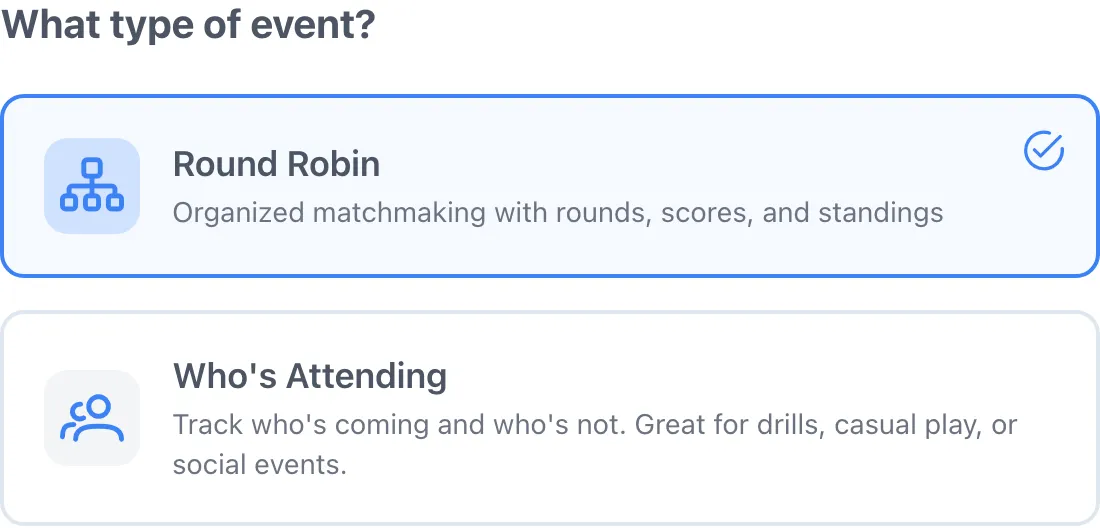
Section titled “Pick an event type”Tap Create Event, then choose:
| Type | What it does |
|---|---|
| Round Robin | Dink+ handles matchmaking, rounds, scores, and standings. |
| Who’s Attending | A simple RSVP for drills or social play, with no matchmaking. |
Event details
Section titled “Event details”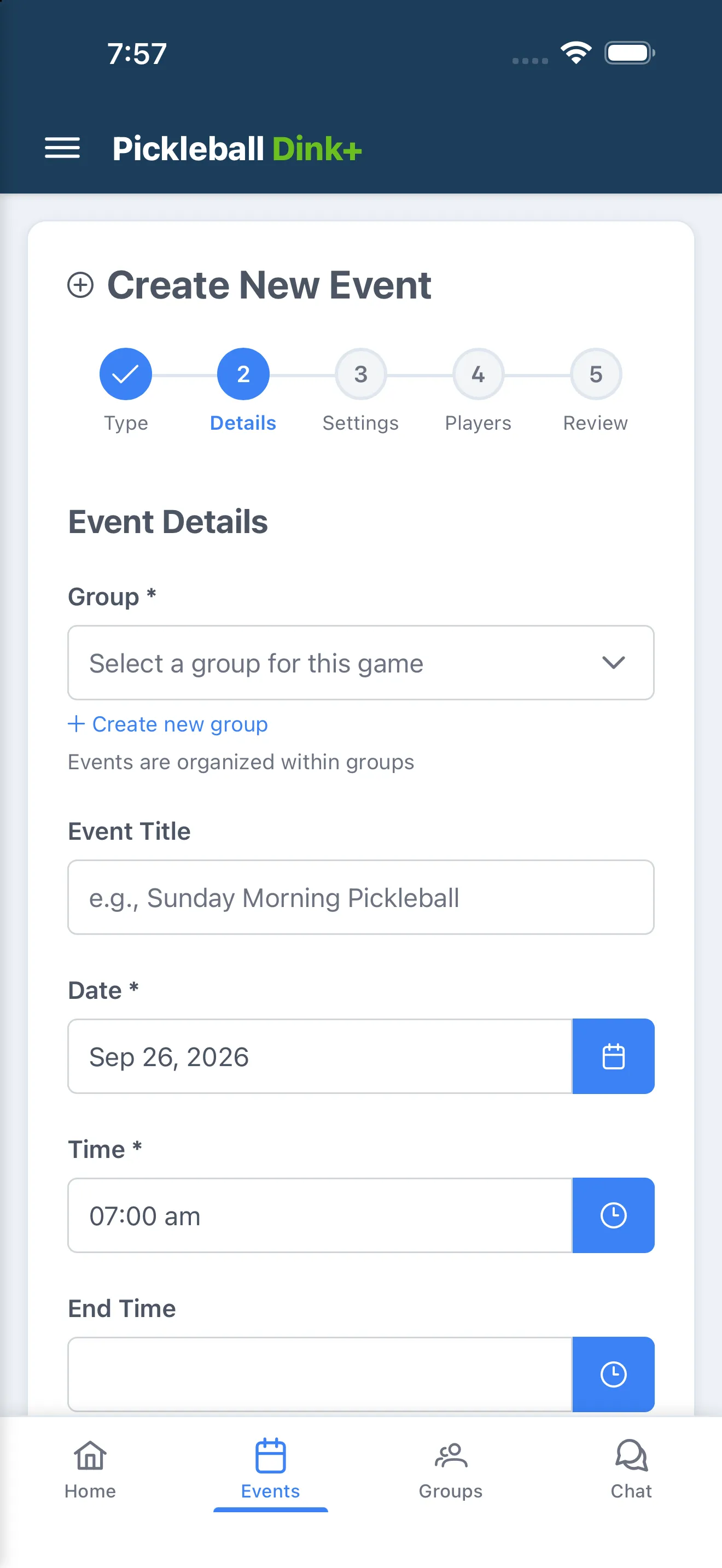
- Choose the Group this event belongs to, or create one inline if you don’t have one yet.
- If your group has a recent Round Robin, a Start from your last event card lets you copy its matchmaking, rounds, slots, location, and other settings — every field stays editable afterward, and you can Undo.
- Set an Event Title (optional — Dink+ names it “Game on <date>” if you leave it blank), Date, Time, and optional End Time.
- Add a Location and Description.
Round Robin settings
Section titled “Round Robin settings”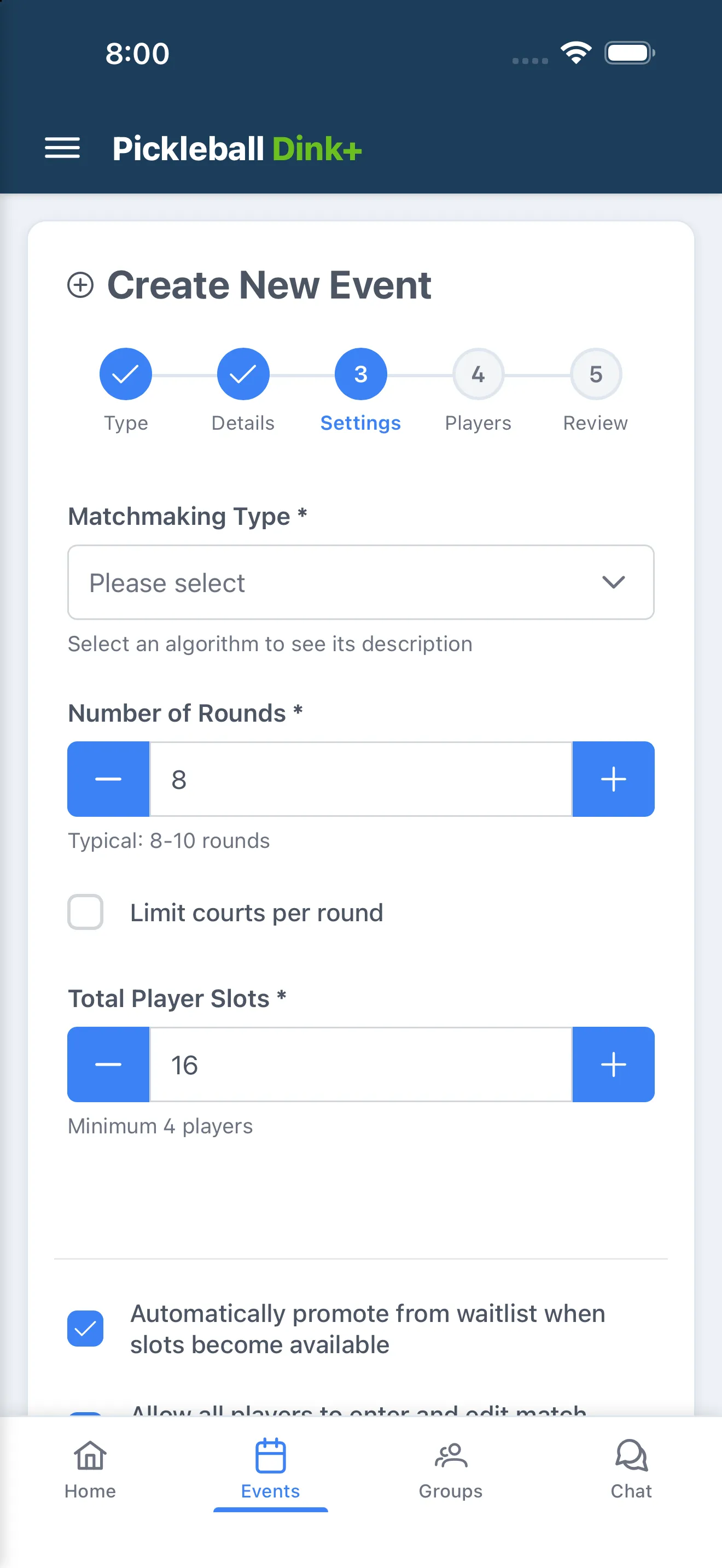
Choose your Matchmaking Type — this decides how players are paired into teams each round. See Choose a format to compare the available formats before you pick.
Other settings here — total slots, rounds, courts, auto-approve waitlist, and more — are covered in Event options.
Who’s Attending settings
Section titled “Who’s Attending settings”- Max Attendees — set to 0 for unlimited.
- Allow Maybe Responses — lets members respond with “Maybe” in addition to Yes/No.
- Show Responses — lets members see who else responded.
Adding players
Section titled “Adding players”For Round Robin and Who’s Attending events, an optional Players step lets you add people to the roster and set the event’s visibility before you create it.
Review and create
Section titled “Review and create”The final step summarizes everything you’ve set up. Tap Create Event to finish.