
Set up and run a Play Now event
Start an on-the-spot round robin without creating a group or a full event.
A Play Now event skips group setup entirely — no roster, no RSVPs, just names and a format. It’s a faster alternative to creating an event when you don’t need a standing group around it.
-
Tap New event. No group is needed — this creates a one-off session.
-
Optionally type a name, such as “Tuesday Night Mixer”. If you leave it blank, Dink+ names the session after the format and the time you pick it, for example “The Cleland · Sun 9:30 AM”. You can rename it any time.
-
Under Pick a format, tap the card for the format you want: Round Robin, Mixed Doubles Round Robin, Fixed Team Round Robin, 3v3 Team Event, Club Match, The Cleland, or Up and Down the River. Each card says what the format is, who it’s best for, and how many players it needs. See Choose a format for a side-by-side comparison.
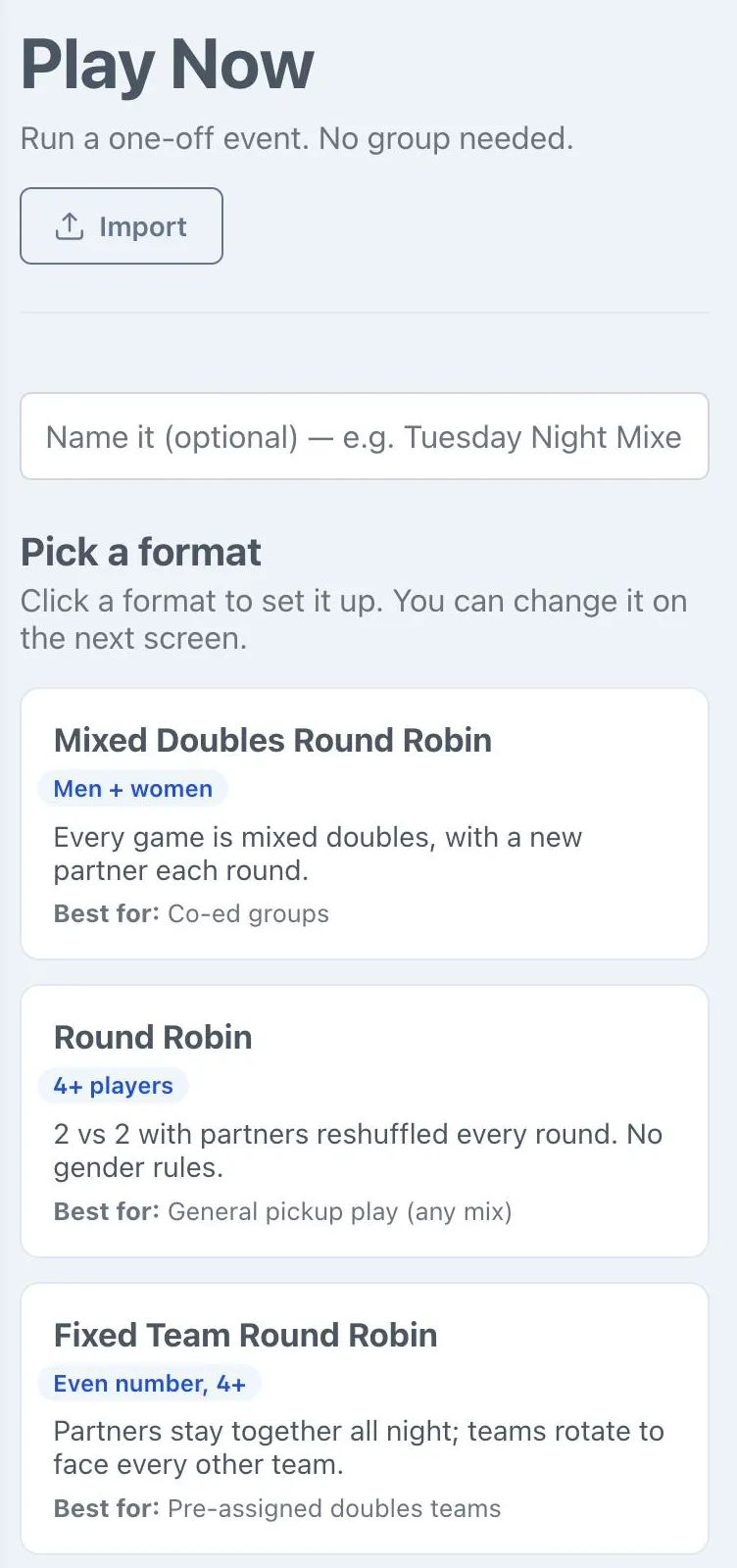
Nothing is saved until you pick a format. If you leave this screen first, no draft is left behind. The setup screen opens with that format selected. To switch, tap Change format to go back to the cards, or pick another one from the Matchmaking Algorithm list. Your name and players stay.
-
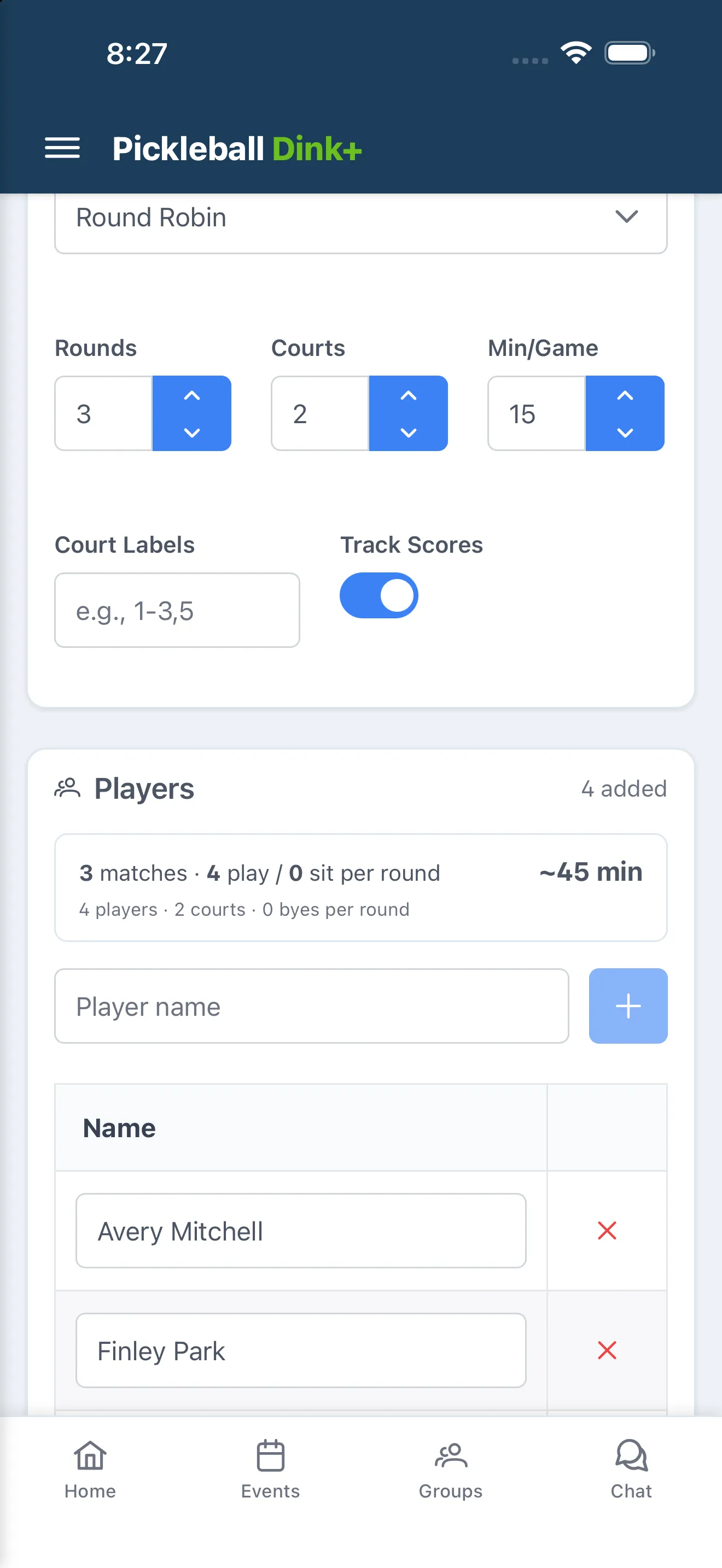
Set Scoring (3v3 Team Event, Club Match and Up and Down the River only), Rounds (hidden for 3v3 Team Event and Club Match, which run until every team has played, and for Up and Down the River, which runs until you end it), Courts, Min/Game, Court Labels, and Track Scores (hidden for Club Match, which always scores) to match how you’re playing. For The Cleland, instead of Scoring, pick a preset for Round robin, Semifinals, and Final; it always plays 8 rounds, and Rounds and Track Scores don’t appear.
-
Add players (or, for Fixed Team Round Robin, 3v3 Team Event, and Club Match, set up Teams/Teams of 3/club rosters instead).
-
Tap Start Event.
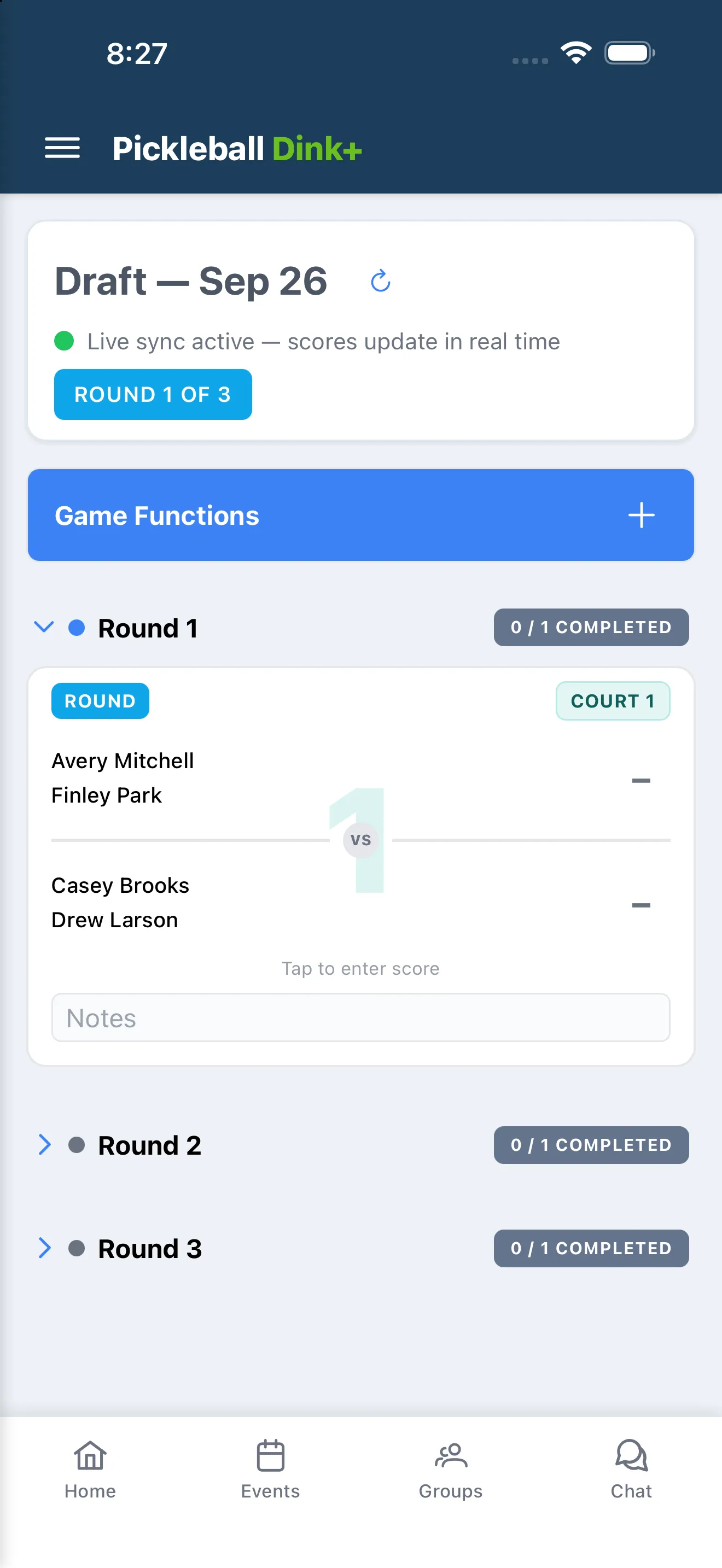
During play, tap a match card to enter that game’s score, then Save. You and anyone added as a Co-Scorer can enter or edit any score — open Game Functions › Co-Scorers and search for their name to add them (they need their own Dink+ account). Players can enter their own games’ scores through the Player link (see below). Anyone else can follow along on the TV Display link, which needs no sign-in.
For The Cleland, when the eight rounds are scored the Confirm seeds card appears on its own (tap Finish round robin to stop early), then tap Start bracket. See The Cleland.
For Up and Down the River, a Set up round card appears before every round: order the ladder, add walk-ons, mark anyone sitting out, then tap Start round. See Up and Down the River.
When every round is done, tap End Event to see final standings, or Abandon Event to discard the session. Start New Event from the results screen begins another Play Now event from scratch.
Players can enter their own scores
Section titled “Players can enter their own scores”Share the Player link from Game Functions and players can claim their name and enter their own scores. See Let players enter their own scores.
Someone running late?
Section titled “Someone running late?”Mark them sitting out instead of removing them. They stay on the roster and are left out of the rounds nobody has scored yet.
If you know before you start, uncheck them on the setup screen. The row shows “Sitting out” under the name, and the player count updates. Then tap Start Event.
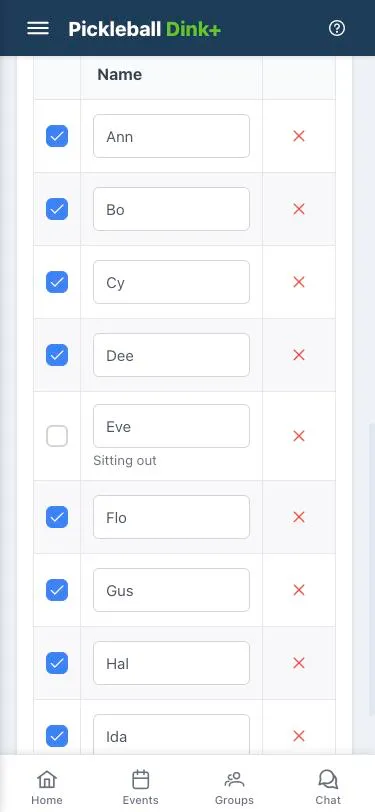
Once the event is running:
-
Open the Players section under Game Functions.
-
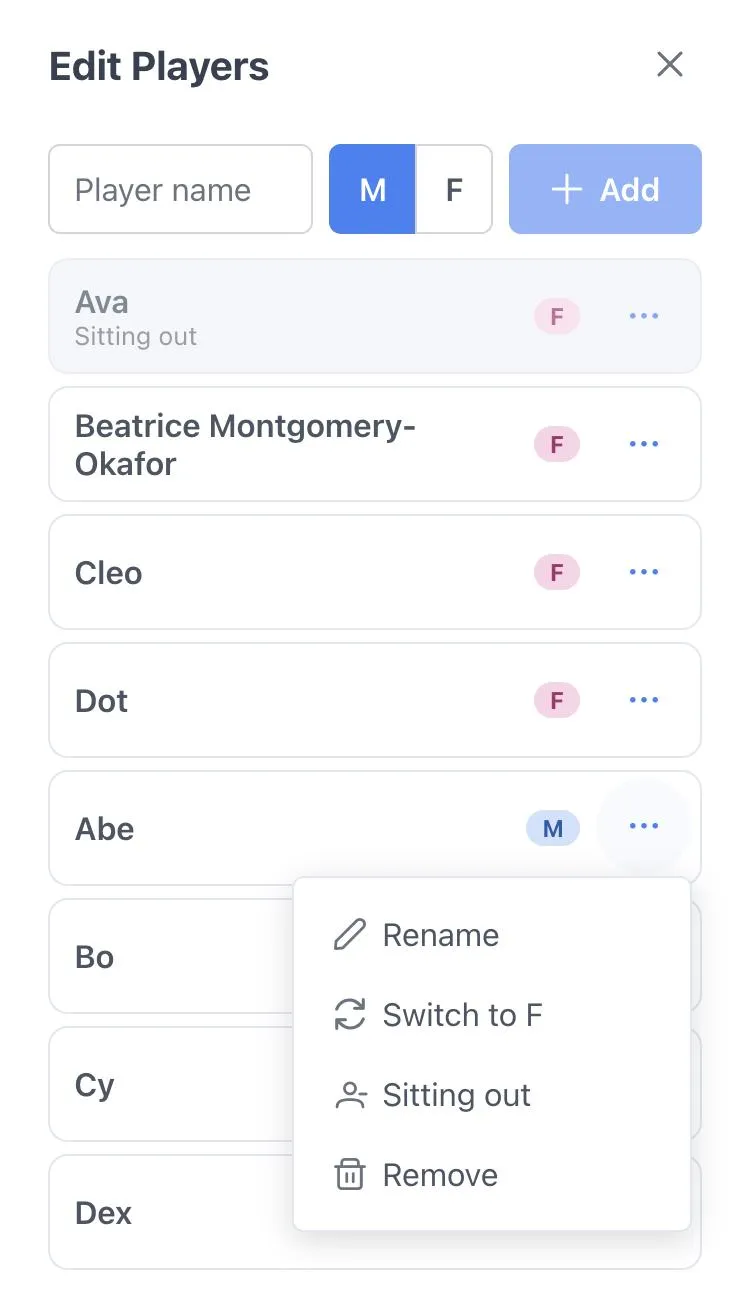
Tap ⋯ on their row and choose Sitting out. The row greys out and shows “Sitting out” under the name.
-
Tap Save & update matches, which appears at the bottom of the list once you change something. Rounds with a score stay as they are; the rest are rebuilt without them. While they’re out, each round lists them on a Sitting out line, apart from players with a bye.
-
When they arrive, choose ⋯ › Back in and tap Save & update matches again. The first unfinished round stays as it is, so nobody on court gets a new game. They’re added to the rounds after it.
Remove a player
Section titled “Remove a player”To take someone out for good, open the Players section, tap ⋯ on their row and choose Remove, then tap Save & update matches.
- If they have a scored game, that game stays, with their name and the score. So do their results in the standings and on the TV display, and the other players’ results from those games.
- Their games without a score are deleted. The rounds nobody has scored are rebuilt without them.
- They leave the roster, the player count, the Sitting out line and the names players can claim.
Let players enter their own scores
Section titled “Let players enter their own scores”Instead of collecting every score yourself, share the player link. Players open it on their phone, sign in, claim their name on the roster, and enter the scores for the games they play. You still see every score, who entered it, and can change any of them.
-
Open Game Functions › Player link.
-
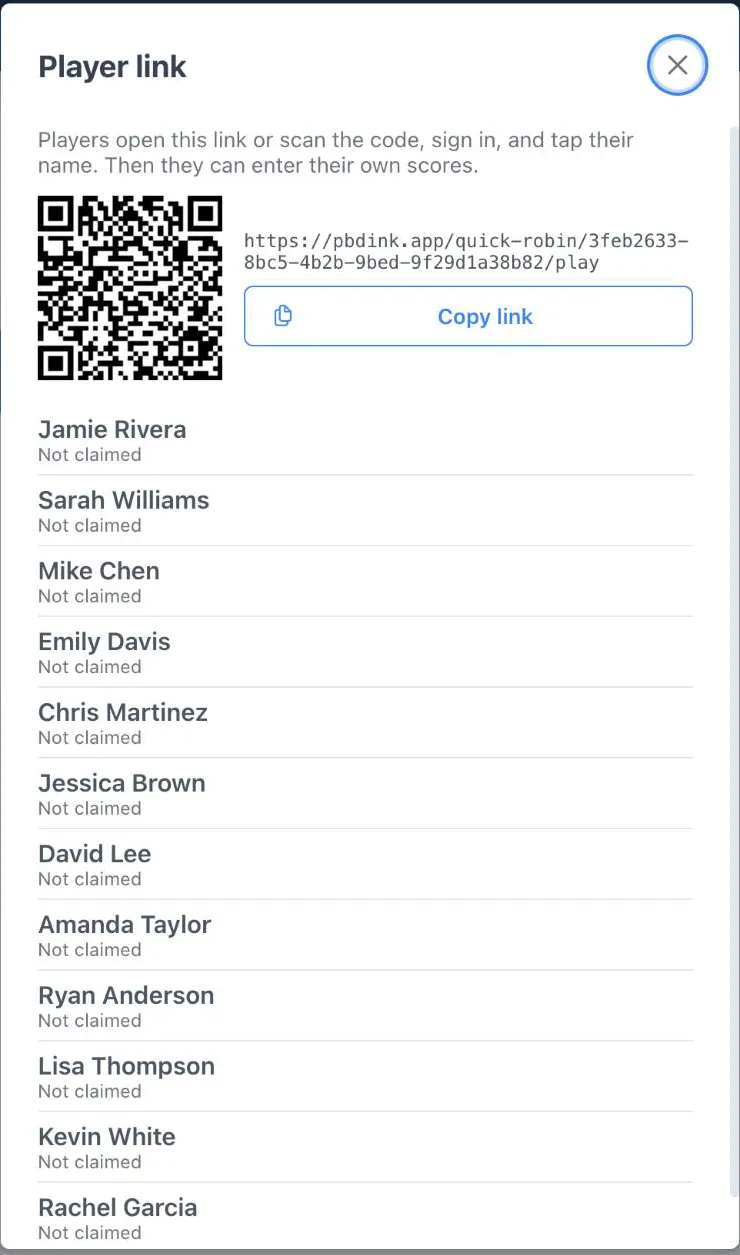
Show the QR code, or tap Copy link and send it to the group.
-
Watch the roster below the code: each name shows Not claimed or who claimed it.
Tap Unlink next to a name if the wrong person claimed it. They’ll be asked to claim a name again. A player who picked the wrong name can also tap Not me on their own phone.
End the event
Section titled “End the event”Open Game Functions, tap End Event, then tap End event to confirm. Unplayed games are dropped and the final standings are locked in.
If you see “Couldn’t end the event”, the event is still live. Check your connection and try again.
Run the next one
Section titled “Run the next one”When the event ends, tap Start New Event to set up a new one. The finished event and its results stay in your Play Now list.
To play again with the same people, open Play Now, tap ⋮ on a past event, then Start new with same settings. The players come along, and names linked to a Dink+ account stay linked. Each linked player gets a notification that they’ve been added.